Sony 8-Pin Remote
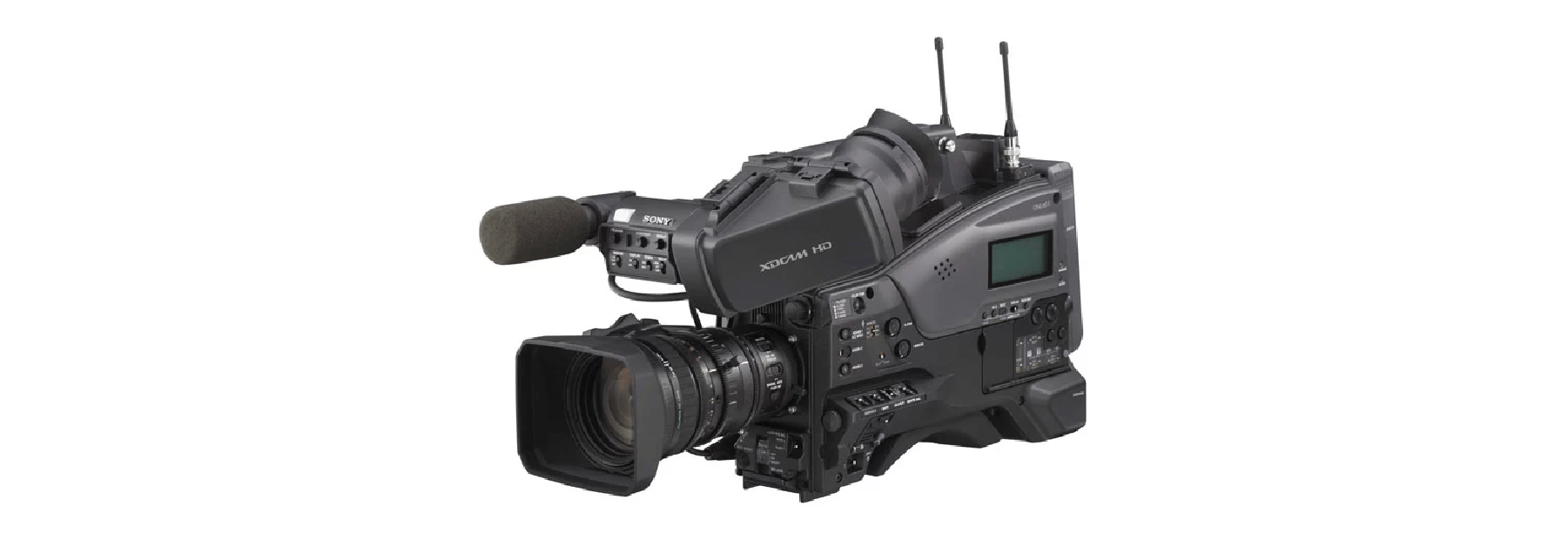
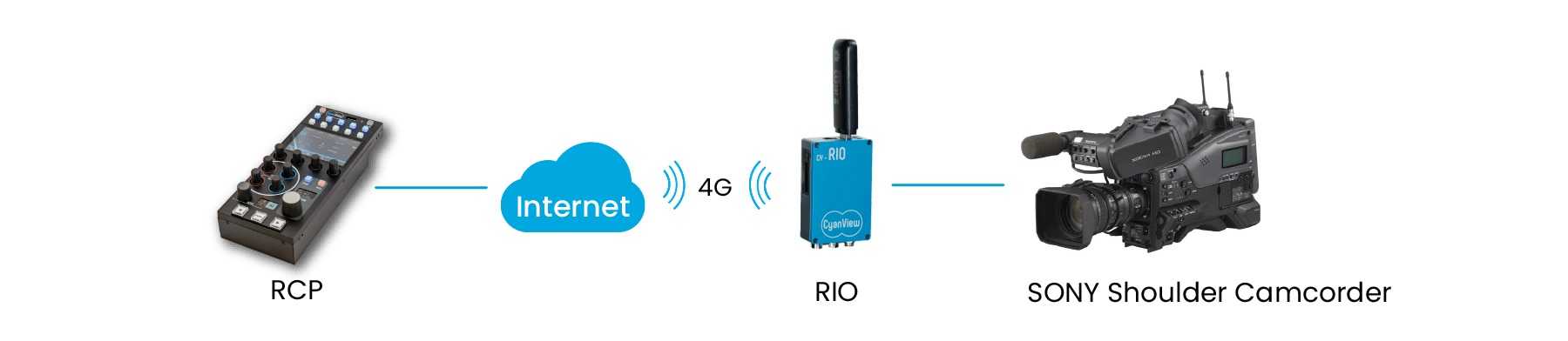
Sony shoulder camcorders with an 8-pin remote connector can be fully controlled over serial from a Cyanview CI0 or RIO. The 8-pin connector provides camera control and can also power the CI0/RIO directly from the camera. Typical use cases include broadcast ENG, studio, and remote production via a RIO.

Supported Models
- All Sony shoulder camcorders with 8-pin remote connector — including PXW-Z450, PXW-X400, PMW-series, and others
The Sony Venice Serial guide uses the same 8-pin cable but a dedicated protocol for cinema workflow. Use this guide for standard shoulder camcorders only.
Supported Controls
| Control | Notes | Sony 8-Pin |
|---|---|---|
| Tally | RED tally — verify with model using Tally/Call test described in Setup | ✔ |
| Exposure | — | |
| Record | — |
Connection
Connect the Remote connector terminal on the camera to the CI0 / RIO using a CY-CBL-SONY-8P-03 cable. The RIO can be powered by the camera through this cable.

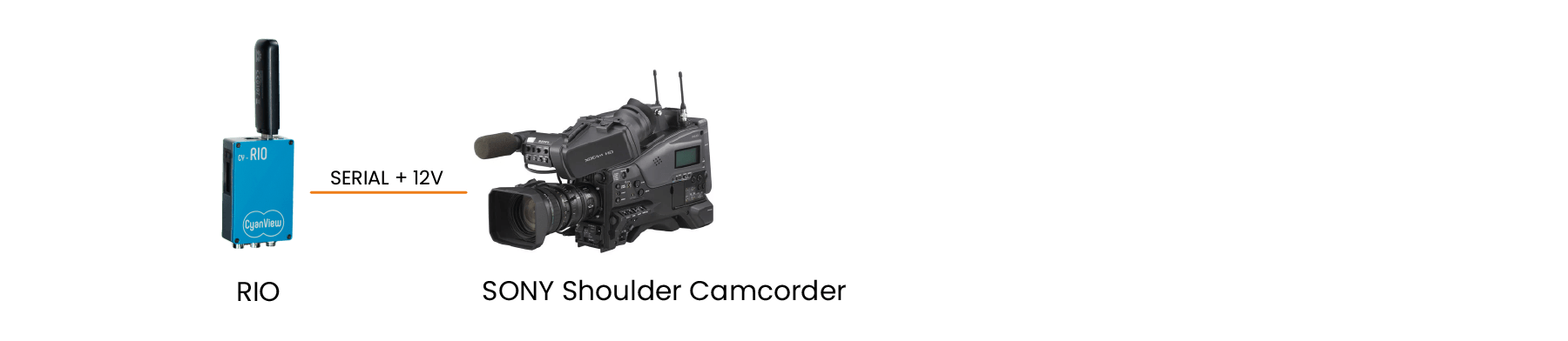
On some camcorders, when using the older CY-CBL-6P-SONY-8 cable, the RIO may enter a boot loop:
- The camera starts and powers the RIO.
- The RIO begins controlling the camera.
- The camera switches from
uncontrolledtocontrolledstate and requires a power cycle, repeating the loop.
To avoid this, use an external power supply for the RIO (or a D-Tap cable from external batteries) so the RIO starts before the camera. When using a CY-CBL-6P-SONY-8-03 cable, this boot loop condition does not occur.
Some cameras require a firmware update before they can be remotely controlled. This is the case for early versions of the PXW-Z450, for example.
Required Accessories
Required:
- CY-CBL-SONY-8P-03 — CI0 / RIO to camera 8-pin remote connector (also powers the CI0/RIO from the camera)
Optional:
- External D-Tap power cable — for RIO power when boot loop conditions apply (see Connection warnings above)
Configuration
Camera Configuration
No specific on-camera menu settings are required for most models. Ensure the camera is powered on and the remote connector is accessible.
RS-422 Mode (HXC-D70, CA-FB70, and similar)
Some cameras (such as the HXC-D70 and CA-FB70) must be configured in RS-422 mode to work correctly with the Cyanview system. Refer to the manufacturer documentation for your camera model — for example, see the CA-FB70 manual and search for section Outputting Trunk Signal.
RCP Configuration
This is a serial camera — follow the Serial Camera Setup Guide to add it to the RCP.
Camera-specific settings:
- Select brand Sony
- Select model Legacy (try Camcorder if Tally RED does not work — see Troubleshooting below)
- Select the CI0 / RIO and the port the camera is connected to
Troubleshooting
Camera icon stays RED / camera not detected
Check in this order:
- Verify the cable — confirm a CY-CBL-SONY-8P-03 cable is used and securely connected to the camera's remote connector and the CI0/RIO.
- Check camera firmware — some cameras (e.g. early PXW-Z450) require a firmware update before remote control is possible. Check Sony's firmware support page for your model.
- Power cycle — ensure the RIO starts before the camera. If using the older CY-CBL-6P-SONY-8 cable, use an external power supply for the RIO (see Connection warning).
- Verify RS-422 mode — for models such as HXC-D70 and CA-FB70, confirm the camera is set to RS-422 mode (see Camera Configuration).
- Check model selection — confirm Sony / Legacy (or Camcorder) is selected in the RCP camera configuration.
Tally not working
To determine the correct model setting, follow this procedure after the camera is connected and added to the RCP:
- In the RCP, open Cam > Tally.
- Try turning Tally Red on and off.
- If Tally Red works — you are done; Legacy is the correct model.
- If Tally Red does not work, try turning the Call encoder on and off in the same menu.
- If Call works but Tally Red does not, change the camera model from Legacy to Camcorder in the RCP configuration.
Boot loop (RIO keeps restarting)
- Use an external power supply (D-Tap from external batteries) to ensure the RIO starts before the camera.
- Upgrade to a CY-CBL-6P-SONY-8-03 cable, which avoids the boot loop condition entirely.