Sony ILME-FR7 and BRC-AM7
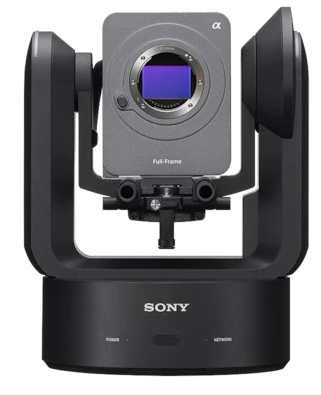
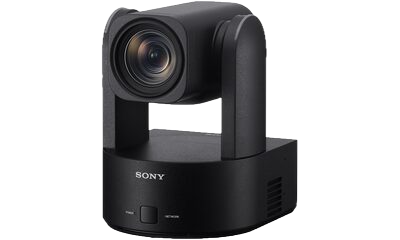
The Sony FR7 and BRC-AM7 are PTZ cameras controlled over IP using the Sony s700 and Web app protocols. They connect to the Cyanview RCP via a standard Ethernet cable. Typical use cases include multi-camera live production, remote shading, and PTZ shading alongside a Sony PTZ panel or USB joystick.
Supported Models
- Sony FR7 — requires firmware v1.10 or higher
- Sony BRC-AM7
Compatibility Requirements
- FR7 Camera firmware: v1.10 or higher required
- BRC-AM7 support requires RCP/RIO firmware with the BRC-AM7 model available in the Sony camera list.
Supported Controls
| Control | Notes | FR7 | AM7 |
|---|---|---|---|
| Iris | Manual and Auto | ✔ | ✔ |
| Gain / EI | ✔ | ✔ | |
| Base ISO | Cinema Line base ISO selection | ✔ | - |
| Shutter | ✔ | ✔ | |
| Variable ND | ✔ | ✔ | |
| White Balance | Color temperature and tint, R/B gains | ✔ | ✔ |
| Master Black / Black Balance | ✔ | ✔ | |
| Detail | Level and crispening | ✔ | ✔ |
| User Matrix | ✔ | ✔ | |
| Multi Matrix | ✔ | ✔ | |
| Knee | ✔ | ✔ | |
| Tally | Red and Green | ✔ | ✔ |
| Menu / OSD | Camera menu navigation | ✔ | ✔ |
| Lens | Zoom and focus | ✔ | ✔ |
| Pan / Tilt | From RCP touchscreen or USB joystick | ✔ | ✔ |
| Presets / Positions | Save/recall | ✔ | ✔ |
When the camera is set to SLOG-3 or CineEI mode, most paint controls are disabled by the camera.
This control integration combines settings available from the Sony Web app GUI together with the RCP functions available from the s700 IP protocol.
Connection
The camera is controlled over IP via Ethernet. Connect the camera's Ethernet port directly to a network switch shared with the RCP, or connect it directly to the RCP.
The RCP can also be used in parallel with a Sony PTZ panel or a USB joystick for pan/tilt/zoom control.
With Sony PTZ Panel
The Sony PTZ panel is a wired remote control panel that can be used to control the pan, tilt, and zoom of the camera.
The Cyanview RCP can control the shading in parallel with the PTZ panel.
The Tablet can control the auto focus in parallel with the PTZ panel.
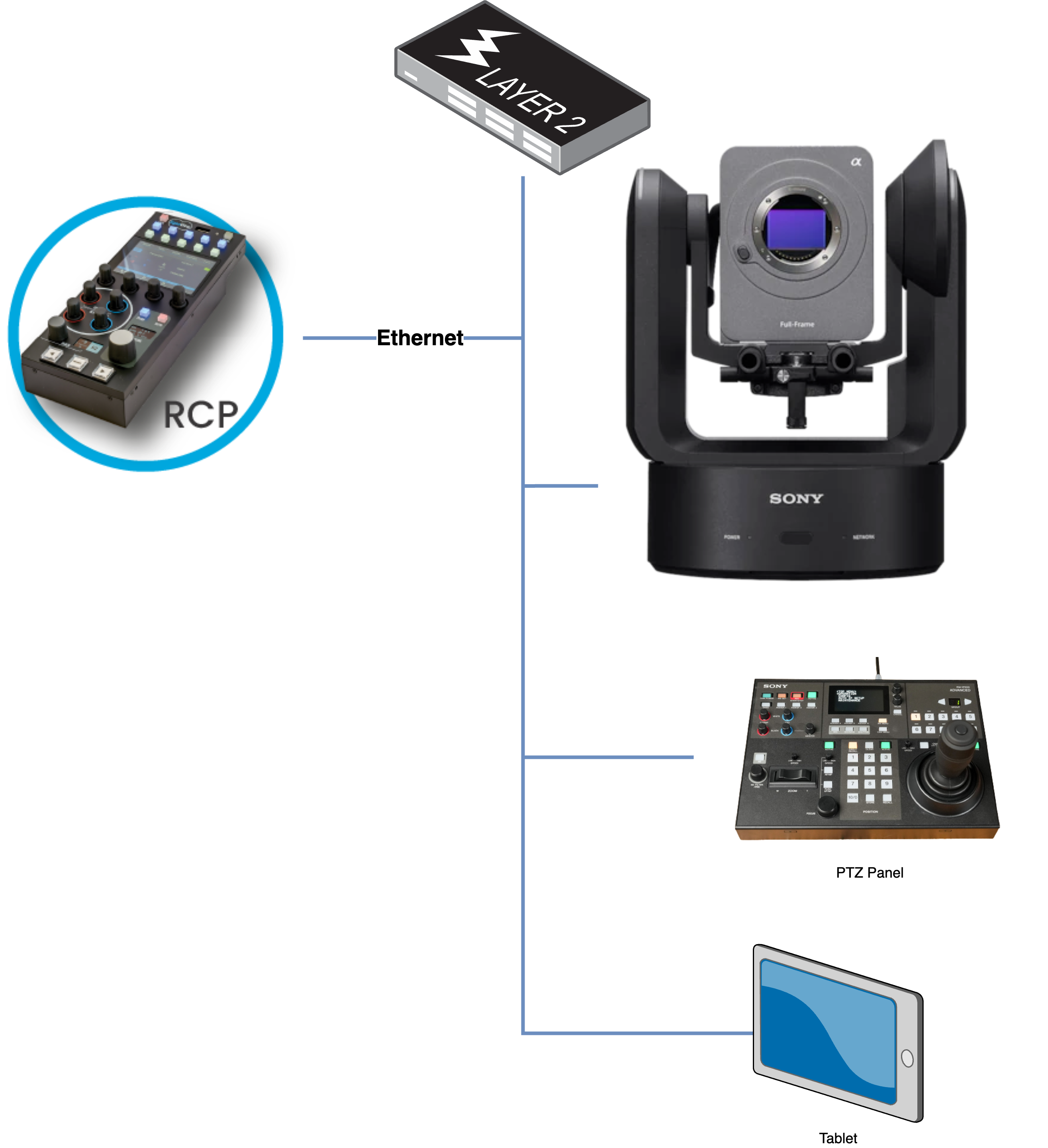
- RCP: for shading, tally, camera menu control
- PTZ panel: for pan, tilt and zoom
- Tablet (optional): for auto focus
With USB Joystick
The USB joystick is a wired remote control panel that can be used to control the pan, tilt, and zoom of the camera.
The Cyanview RCP can control the shading and the PTZ using the USB joystick. If you have multiple cameras, the joystick/RCP are synced — you can navigate through all cameras and shade/PTZ them all.
The Tablet can control the auto focus in parallel with the PTZ panel.
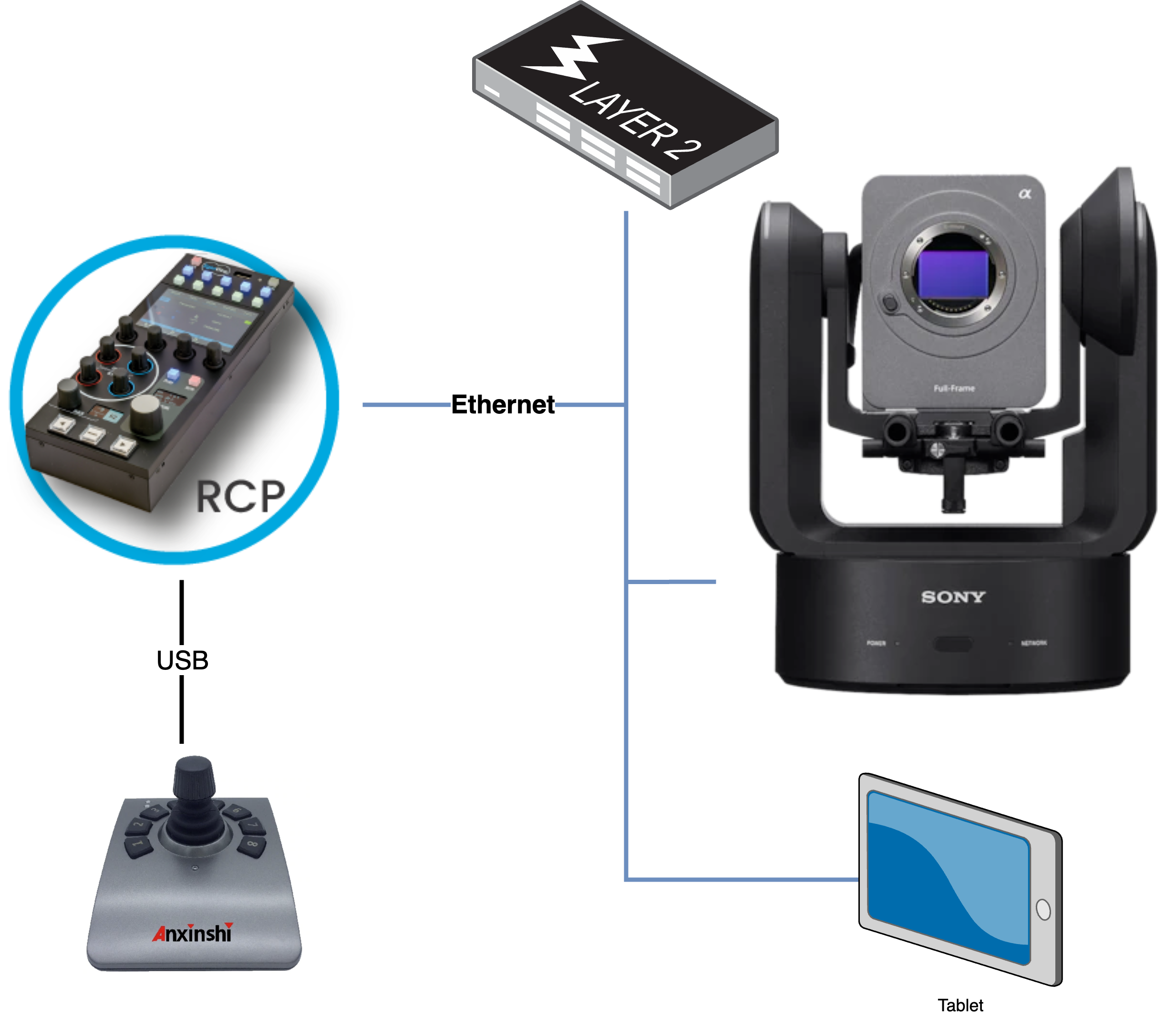
- RCP: for shading, tally, camera menu control
- USB joystick: for pan, tilt and zoom
- Tablet (optional): for auto focus
Configuration
Camera Configuration
Ensure your Sony FR7 or AM7 is connected to your network, powered on, and has a static IP address. Confirm you can reach the camera's web interface from a computer and that you know the login/password.
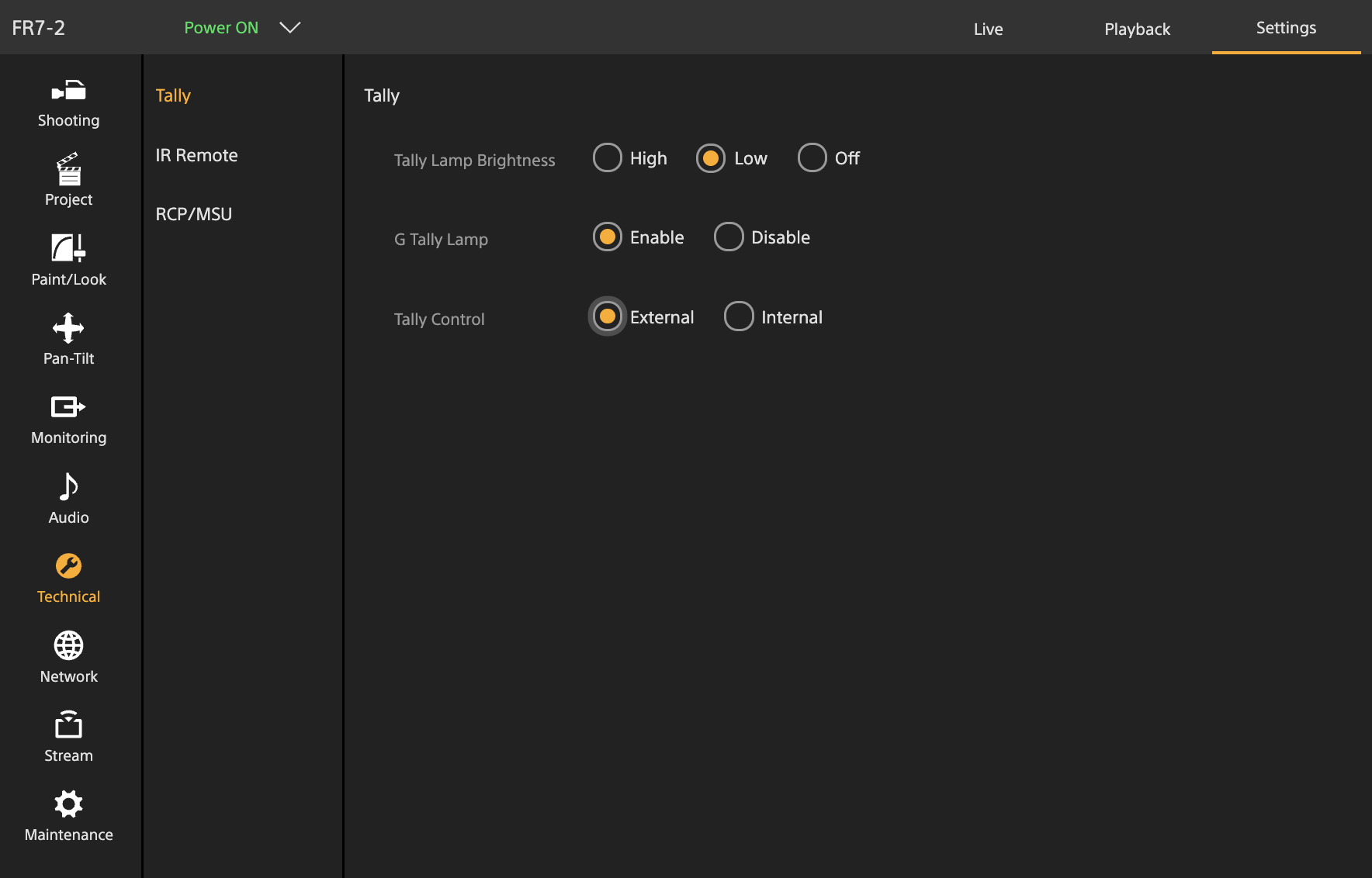
Tally Settings
In Settings > Technical > Tally:
Tally Lamp Brightness: set as desiredG Tally Lamp:EnableTally Control:External
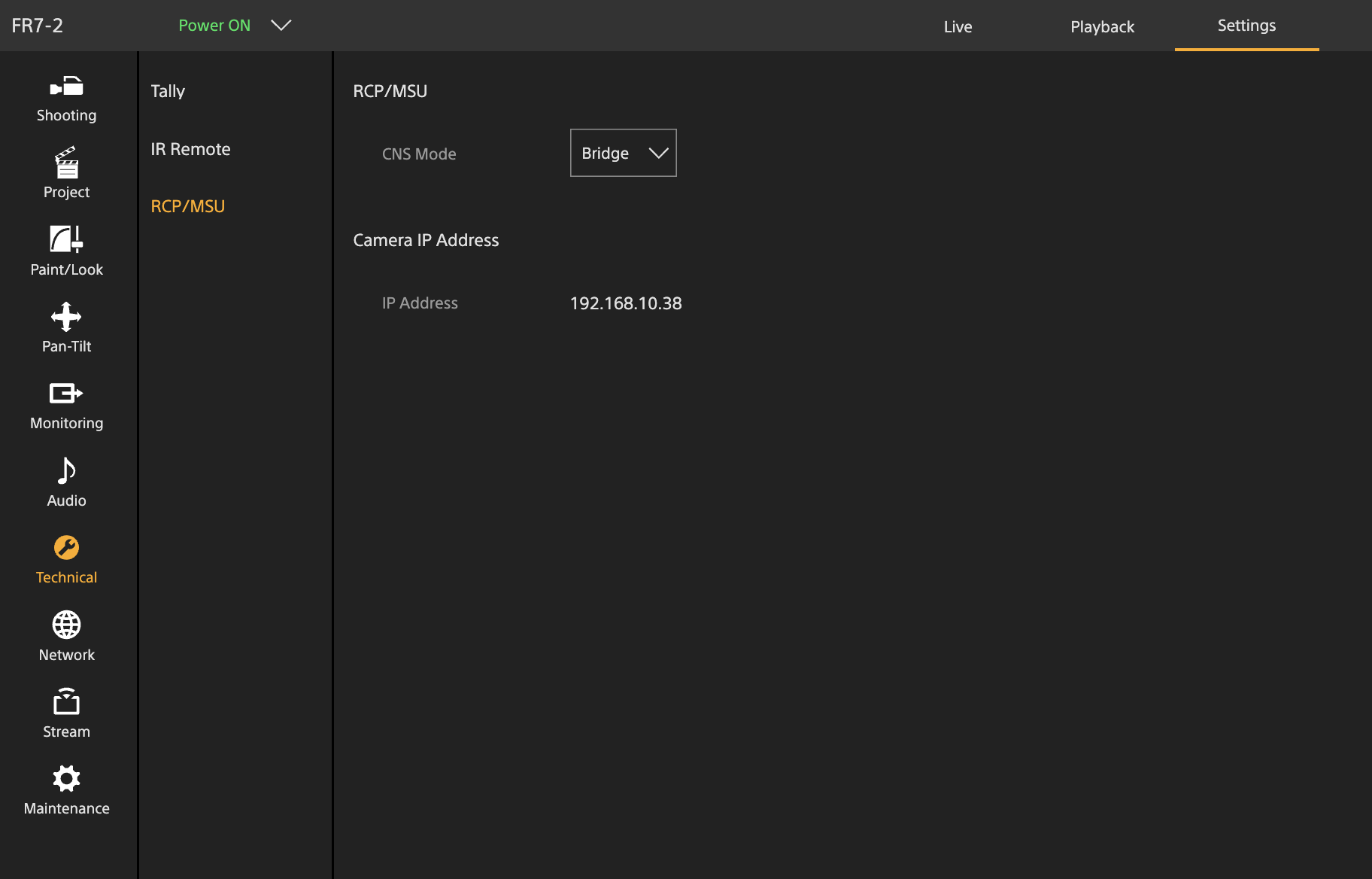
RCP/MSU (CNS Mode)
In Settings > Technical > RCP/MSU:
CNS Mode:Bridge
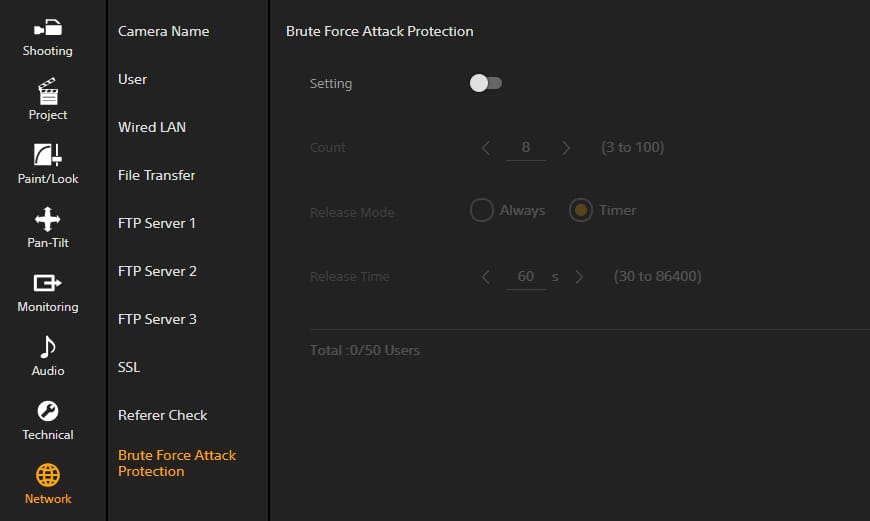
Brute Force Attack Protection
In Settings > Network > Brute Force Attack Protection:
Setting: Disable
If the Brute Force Attack Protection was active and you just disabled it, ensure to:
- Disable it
- Power cycle your camera to ensure this parameter is properly applied.
RCP Configuration
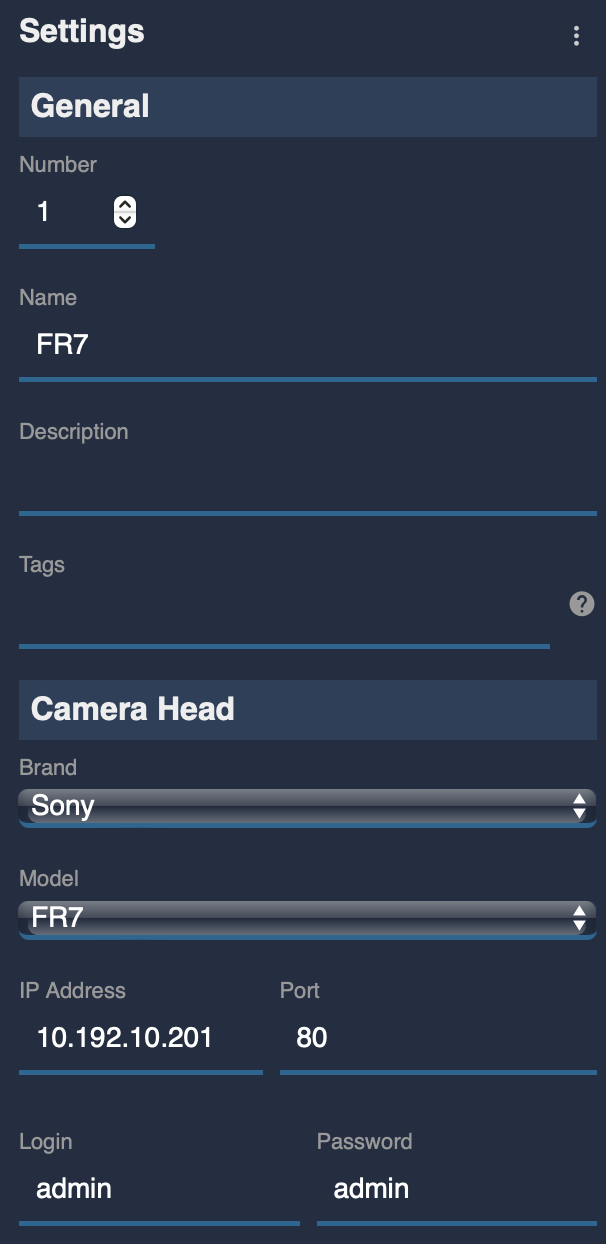
Add the camera as an IP camera. Use brand Sony and model Sony FR7, then enter the camera IP address and login/password.
For the BRC-AM7, use brand Sony and model BRC-AM7.
Troubleshooting
Camera icon stays RED / camera not detected
Check in this order:
- Verify camera settings — confirm
CNS Modeis set toBridge,Tally Controlis set toExternal, andBrute Force Attack Protectionis disabled (see Camera Configuration above). A camera firmware update often resets these settings. - Ping the camera from a computer — set the computer to the same IP range and ping the camera IP to confirm basic network connectivity.
- Ping the RCP from the same computer — confirms the RCP and camera are on the same subnet.
- Check the RCP IP — the RCP must have an IP address in the same range as the camera.
- Power cycle — restart the camera (remove battery/PSU if needed) and retry.
- Disable and re-enable remote control on the camera — this often clears a stuck state.
- Verify firmware — for FR7, ensure the camera is running firmware v1.10 or higher. For BRC-AM7, ensure the RCP/RIO firmware includes the BRC-AM7 model.
A specific parameter is not controllable
- Check that the camera is not in SLOG-3 or CineEI mode — most paint controls are disabled by the camera in these modes.
- Check that the camera and RCP are both on the latest firmware.
Tally not working
- Confirm
Tally Controlis set toExternalinSettings > Technical > Tally. - Confirm
G Tally Lampis set toEnable.
Ceiling or image flip is not available from the RCP
Use the camera Web GUI to change the ceiling or image flip setting. On the BRC-AM7, changing this setting opens a reboot prompt on the camera, so it is not exposed as an RCP control.