Z CAM P2-R1
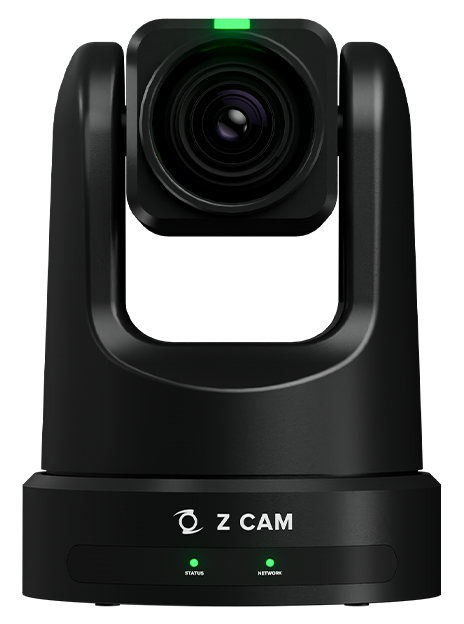
The Z CAM P2-R1 is a PTZ camera controlled over IP. It connects to the Cyanview RCP over a standard Ethernet network. Typical use cases include live production, studio, and remote camera positions requiring pan, tilt, zoom, and shading control.
Supported Models
- Z CAM P2-R1 — IP control via the Z CAM API
Supported Controls
| Control | Notes | Z CAM P2-R1 |
|---|---|---|
| Iris | ✔ | |
| ISO / Gain | ISO and EV | ✔ |
| Shutter | ✔ | |
| White Balance | Color temperature and tint; camera must be in manual WB mode | ✔ |
| Saturation / Hue | ✔ | |
| Gamma / OETF | OETF and SDR Gamma; SDR Gamma accessible only when OETF is set to "Gamma" | ✔ |
| Matrix | ✔ | |
| Multi Matrix | ✔ | |
| SDI Video Format | ✔ | |
| Record | ON/OFF | ✔ |
| Tally | — | |
| Pan / Tilt | Status and speed control | ✔ |
| Zoom / Focus | Status, speed control, and digital zoom | ✔ |
| PTZ Presets | ✔ | |
| Vertical Flip | ✔ | |
| Auto Controls | Focus, focus oneshot, shutter, gain | ✔ |
| Test | ✔ |
Connection
The Z CAM P2-R1 is connected over IP/Ethernet. Connect the camera and the RCP to the same Ethernet network.
By default, the Z CAM P2-R1 has the IP address 10.98.32.1. Make sure that address is reachable by the RCP — see this page for more information about IP configuration.
Configuration
Camera Configuration
Ensure the camera is accessible on the network at its configured IP address (default: 10.98.32.1).
For white balance control via color temperature and tint, set the camera's white balance mode to Manual on the camera.
RCP Configuration
Add the camera as an IP camera.
The RCP must have an IP address in the same subnet as the camera. See IP address configuration for details.
Operations
The Anxinshi joystick can provide a more convenient user interface than the RCP touchscreen for pan, tilt, zoom, and preset recall.
The Elgato Stream Deck can be used to recall PTZ presets.
Troubleshooting
Camera icon stays RED / camera not detected
Check in this order:
- Verify the camera IP address — the default IP is
10.98.32.1. Confirm the camera has not been assigned a different address. - Ping the camera from a computer — set the computer to the same IP range and ping the camera IP to confirm basic network connectivity.
- Ping the RCP from the same computer — confirms the RCP and camera are on the same subnet.
- Check the RCP IP — the RCP must have an IP address in the same range as the camera (see IP configuration).
- Power cycle — restart the camera and retry.
- Check the cable / switch — try a different Ethernet cable or port.
A specific parameter is not controllable
- For white balance controls (color temperature, tint), confirm the camera is set to Manual white balance mode.
- For SDR Gamma, confirm the camera OETF is set to Gamma — SDR Gamma is only accessible in that mode.
- Check that the camera and RCP are both running compatible firmware versions.