Ikegami ICPP
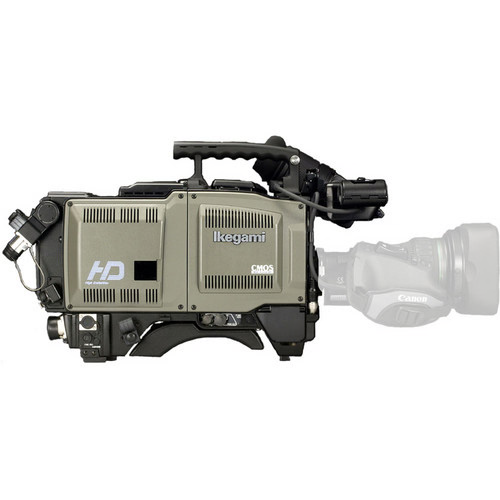
Ikegami HDK studio cameras are controlled from a Cyanview RCP via a serial RS-422 link using the ICPP protocol. This is a camera-head-only integration — the CCU serial protocol is not supported, so a full CCU-controlled chain is not available. Typical use cases include remote production where the camera head is controlled directly without a dedicated CCU.
The 8-pin PRC05-PB8M Fischer connector required to wire the camera is not sold by Cyanview. It is expensive and difficult to source — contact Ikegami directly to obtain it. See the wiring guide below.
Supported Models
Any Ikegami camera with an RS-422 control port using the 8-pin PRC05-PB8M connector should work.
- Ikegami HDK-79EX
- Ikegami HDK-79GX
- Ikegami HDK-73
- Ikegami HDK-97
- Ikegami HDK-99
The HDK-55 series (HDK-55, FA-55, etc.) is not supported. The HDK-55 was an entry-level camera where not all features were installed and the serial port cannot be used for remote control, per Ikegami.
Supported Controls
| Control | Notes | Ikegami ICPP |
|---|---|---|
| White Balance — R/B | ✔ | |
| White Balance — Color Temperature | ✔ | |
| Black Balance — R/B | ✔ | |
| Master Gamma | ✔ | |
| Knee | ✔ | |
| Detail | ✔ | |
| Iris | ✔ | |
| Gain | ✔ | |
| Shutter | ✔ | |
| ND Filter | ✔ | |
| Auto Iris | ✔ | |
| Auto White Balance | ✔ | |
| Auto Black Balance | ✔ | |
| Tally | — | |
| Record | — |
Connection
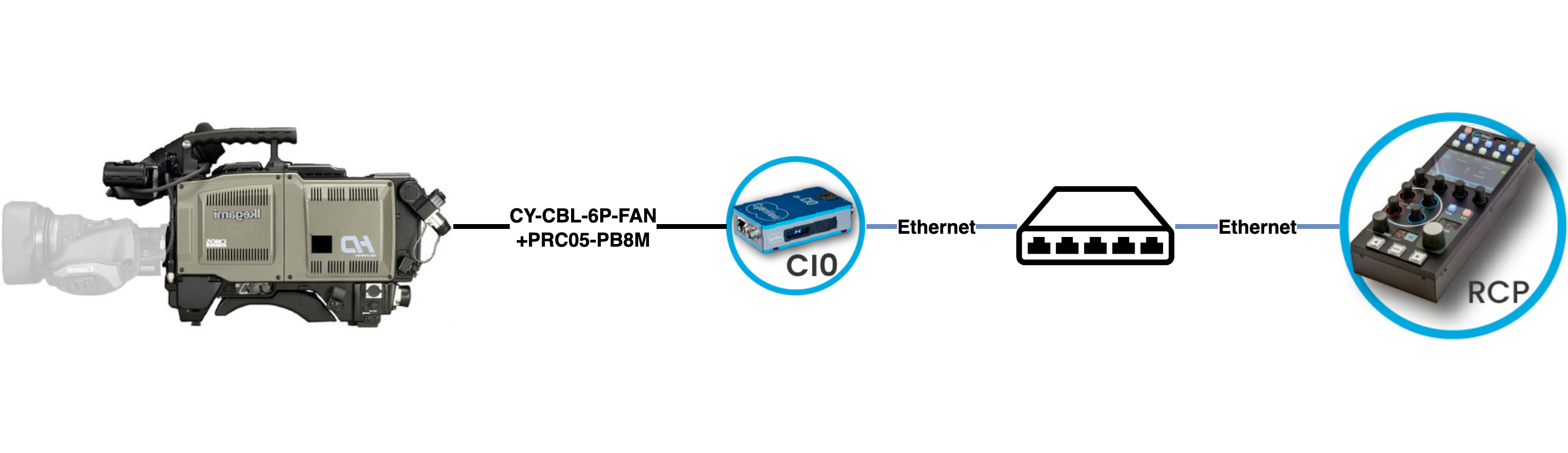
The Ikegami HDK connects to the Cyanview RCP via a serial RS-422 link through a CI0. The wiring combines a Cyanview CY-CBL-6P-FAN cable with a Tajimi PRC05-PB8M 8-pin connector wired to the camera's control port.
Required Accessories
Required:
- RCP
- CI0
- CY-CBL-6P-FAN — CI0 to camera serial fanout cable
- Tajimi Male Plug 8-pin PRC05-PB8M connector — camera-side connector (not sold by Cyanview; contact Ikegami to source)
Follow this wiring guide to combine the CY-CBL-6P-FAN and the PRC05-PB8M connector to make your own cable.
Configuration
Camera Configuration
Configure the camera for RS-422 one-way remote control data (U4) at 38400 baud:
Engineering Menu>COMMAND MODE: selectU4(38400)
RCP Configuration
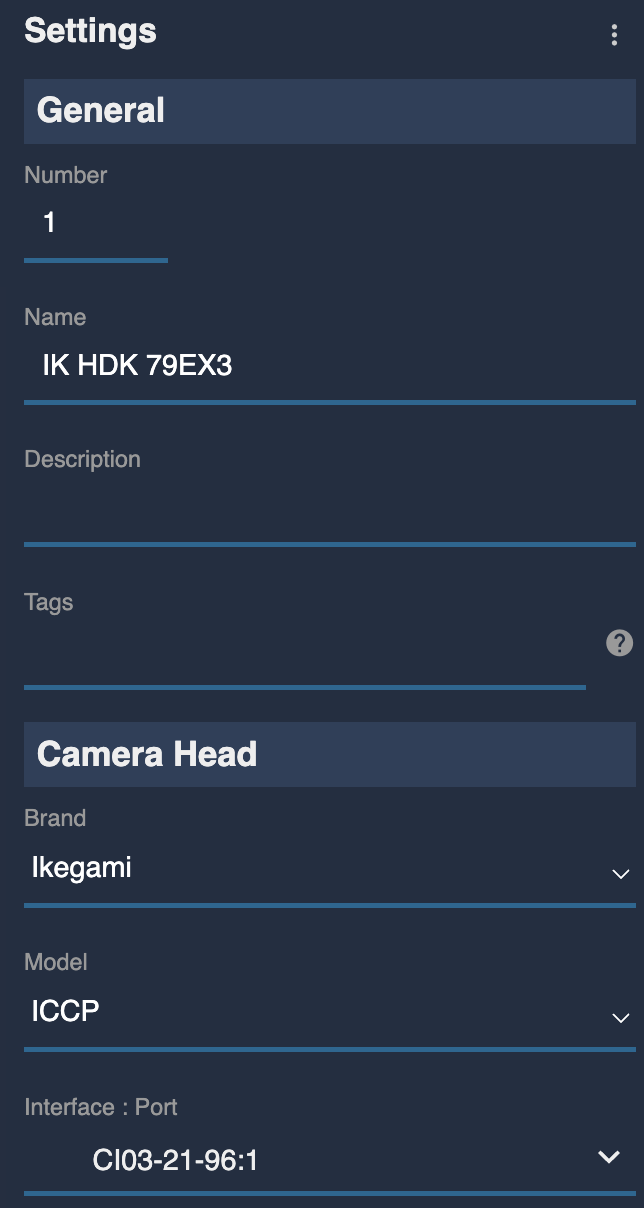
This is a serial camera — follow the Serial Camera Setup Guide to add it to the RCP. Select brand Ikegami and model ICPP, then select the CI0 and the serial port the camera is connected to.
Troubleshooting
Camera icon stays RED / camera not detected
Check in this order:
- Verify camera settings — confirm the camera is set to
U4(38400)inEngineering Menu > COMMAND MODE(see Camera Configuration above). - Check the wiring — verify the RS-422 cable is correctly wired per the wiring guide. The PRC05-PB8M connector pinout is a common source of errors.
- Check the CI0 serial port selection — confirm the correct serial port is selected in the RCP configuration.
- Try a different serial port on the CI0 to rule out a faulty port.
- Power cycle — restart the camera and retry.
A specific parameter is not controllable
- Confirm the camera model is in the supported list above — the HDK-55 series cannot be controlled via serial.
- Check that the RCP and CI0 are on the latest firmware.
Camera firmware update broke control
- Re-verify the
Engineering Menu > COMMAND MODEsetting after any firmware update, as updates may reset this to a default value. - As a general rule: do not update camera firmware during a live production. Test first in a controlled environment.