BirdDog PTZ
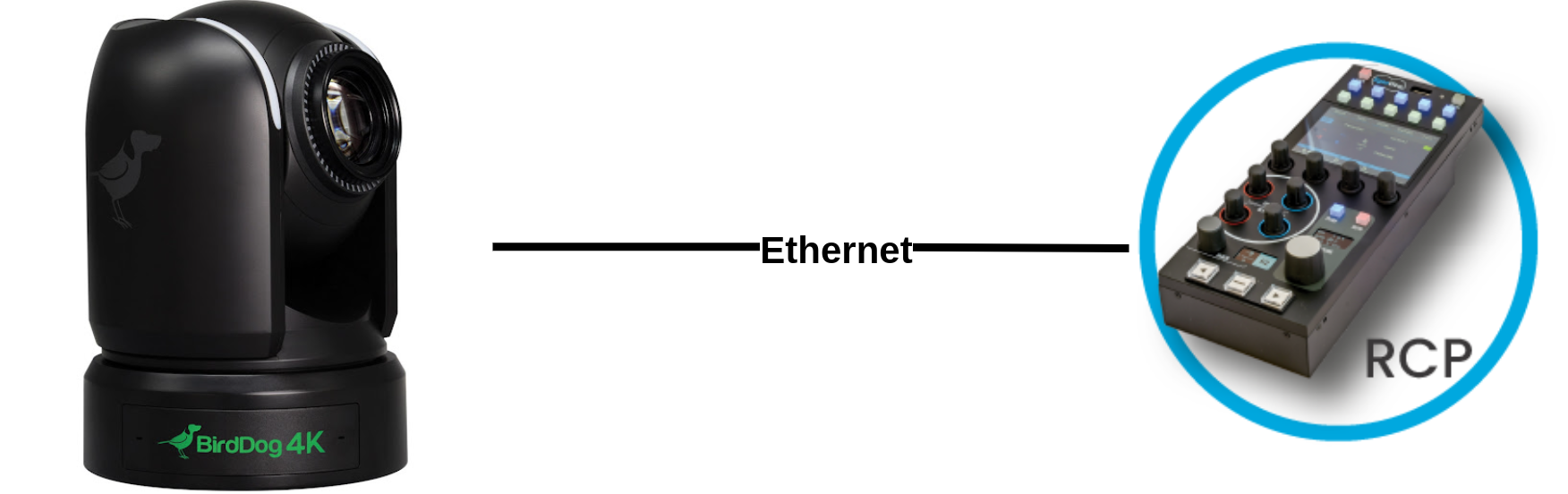
BirdDog PTZ cameras are controlled over IP. They connect to the Cyanview RCP on a standard Ethernet network. Typical use cases include studio, live events, and remote production requiring pan, tilt, zoom, and shading control.
Supported Models
- BirdDog P100
- BirdDog P200
- BirdDog P400
- BirdDog P4K
- BirdDog X1
- BirdDog X4
- BirdDog X5
Supported Controls
| Control | Notes | P100 | P200 | P400 | P4K | X1 | X4 | X5 |
|---|---|---|---|---|---|---|---|---|
| Iris | Manual and Auto | ✔ | ✔ | ✔ | ✔ | ✔ | ✔ | ✔ |
| Shutter | Manual and Auto | ✔ | ✔ | ✔ | ✔ | ✔ | ✔ | ✔ |
| White Balance | ATW / AWB | ✔ | ✔ | ✔ | ✔ | — | — | — |
| Gains | Master / R / B | ✔ | ✔ | ✔ | ✔ | ✔ | ✔ | ✔ |
| Master Gamma | ✔ | ✔ | ✔ | ✔ | — | — | — | |
| Saturation | ✔ | ✔ | ✔ | ✔ | ✔ | ✔ | ✔ | |
| Detail | ✔ | ✔ | ✔ | ✔ | ✔ | ✔ | ✔ | |
| Master Black | ✔ | — | ✔ | ✔ | — | — | — | |
| D-Zoom | — | ✔ | — | — | — | — | — | |
| Multi Matrix | — | ✔ | — | — | — | — | — | |
| Denoise | — | ✔ | ✔ | ✔ | — | — | — | |
| Matrix | — | — | ✔ | ✔ | ✔ | ✔ | — | |
| Auto Brightness | — | — | ✔ | ✔ | — | — | — | |
| Focus | Manual and Auto | ✔ | ✔ | ✔ | ✔ | ✔ | ✔ | ✔ |
| Zoom | ✔ | ✔ | ✔ | ✔ | ✔ | ✔ | ✔ | |
| Pan / Tilt / Presets | ✔ | ✔ | ✔ | ✔ | ✔ | ✔ | ✔ | |
| OSD | ✔ | ✔ | ✔ | ✔ | — | — | — | |
| Tally | — | — | — | — | — | — | — | |
| Record | — | — | — | — | — | — | — |
Connection
BirdDog PTZ cameras connect over IP on a standard Ethernet network. The RCP must be on the same subnet as the camera.
Configuration
Camera Configuration
Configure the camera's IP address so it is reachable from the RCP. Refer to BirdDog's documentation or the built-in web interface to assign a static IP address on the same subnet as the RCP.
RCP Configuration
Add the camera as an IP camera. Use brand BirdDog and the appropriate model, then enter the camera IP address.
Troubleshooting
Camera icon stays RED / camera not detected
Check in this order:
- Verify the camera IP address — confirm the camera has a valid static IP reachable from the RCP.
- Ping the camera from a computer — set the computer to the same IP range and ping the camera IP to confirm basic network connectivity.
- Ping the RCP from the same computer — confirms the RCP and camera are on the same subnet.
- Check the RCP IP — the RCP must have an IP address in the same range as the camera. Follow this guide.
- Power cycle — restart the camera and retry.
- Check the cable — try a different Ethernet cable or port on the switch.
- Verify the model selection — ensure the correct BirdDog model is selected in the RCP camera configuration.
A specific parameter is not controllable
- Check the Supported Controls table above — several controls are only available on specific models.
- Confirm the RCP and camera firmware are both on the latest version.
Iris or lens control not working
- Confirm the camera is not in a mode that locks the iris (e.g. full-auto exposure mode).
Tally not working
- Tally support is not currently documented for BirdDog PTZ cameras. Check the latest RCP firmware release notes for updates.