ARRI SSCP
The ARRI Amira is a cinema camera controlled over IP using the SSCP (Studio and System Control Protocol). Unlike CAP, with SSCP the camera initiates the connection to the RCP by pushing its data to a configured IP address and port. Typical use cases include studio production, remote shading, and multi-camera live events requiring full paint control.
Supported Models
- ARRI Amira — SSCP protocol; for standard CAP control see ARRI CAP and Multicam
Supported Controls
| Control | Notes | Amira (SSCP) |
|---|---|---|
| Iris | ✔ | |
| Shutter | ✔ | |
| White Balance | ✔ | |
| Shading / Paint | Activated via Look on camera | ✔ |
| Tally | ✔ | |
| Record | ✔ |
Connection
The ARRI Amira connects over IP/Ethernet using SSCP. With this protocol, the camera connects to the RCP (not the other way around) — the camera pushes data to the RCP's IP address and port.
Configuration
Camera Configuration
Configure the following settings directly on the camera:
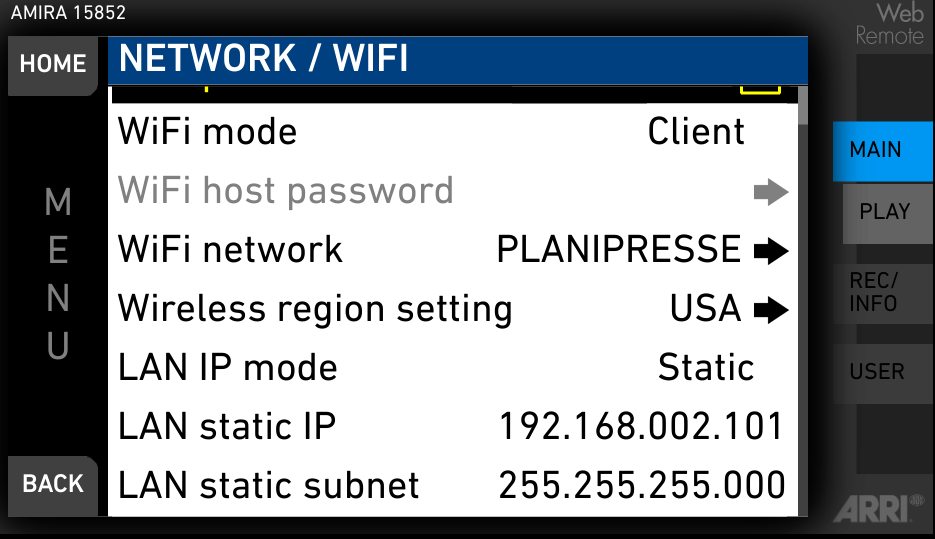
Network / IP Settings
In the camera network menu:
- Set LAN IP mode to
static - Set LAN static IP to the desired camera IP (e.g.
192.168.2.101) - Set LAN static subnet to the desired subnet (e.g.
255.255.255.0)
If the RCP does not have an IP address in the same range as the camera IP, add one in the LAN section by following this guide.
Example: camera IP 192.168.2.101/24, RCP IP 192.168.2.10/24.
Activate SSCP
In the camera SSCP/Multicam menu:
- Set SSCP device IP to the RCP IP (e.g.
192.168.2.10) - Set SSCP device port to the desired port (e.g.
7800) - Enable Multicam to activate these parameters
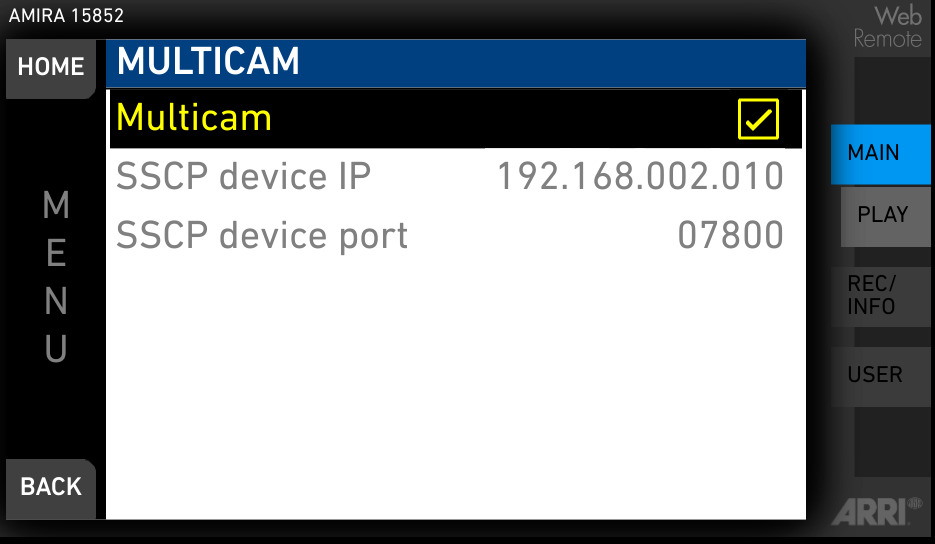
With ARRI Amira and SSCP, the camera connects to the RCP — not the reverse.
If you want to control multiple cameras from a single RCP, ensure each camera is configured with a different port, and adapt the RCP configuration to distinguish them properly.
Activate Shading
By default, shading is active internally but not displayed on the viewfinder or SDI outputs. You must activate it explicitly.
In the HOME menu, click on LOOK:
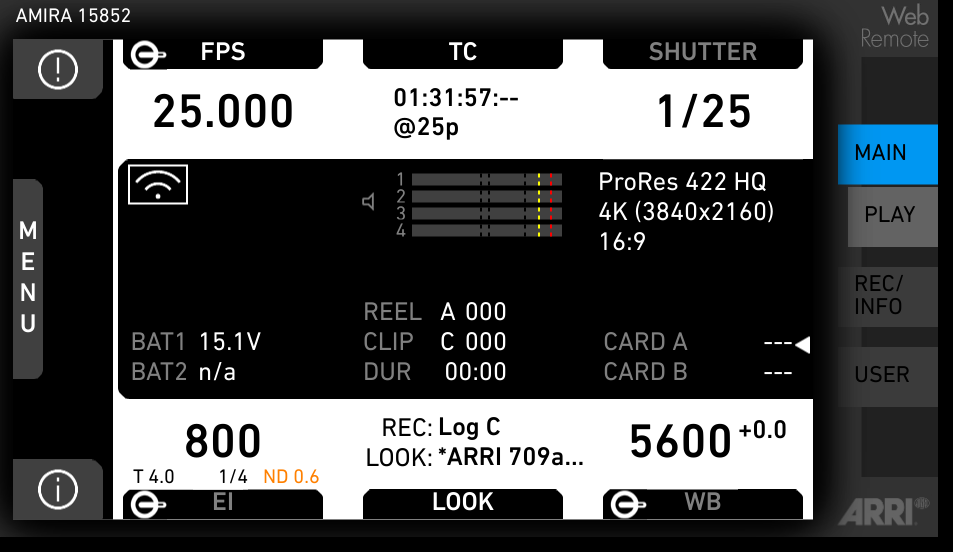
Click on LOOK PARAM:
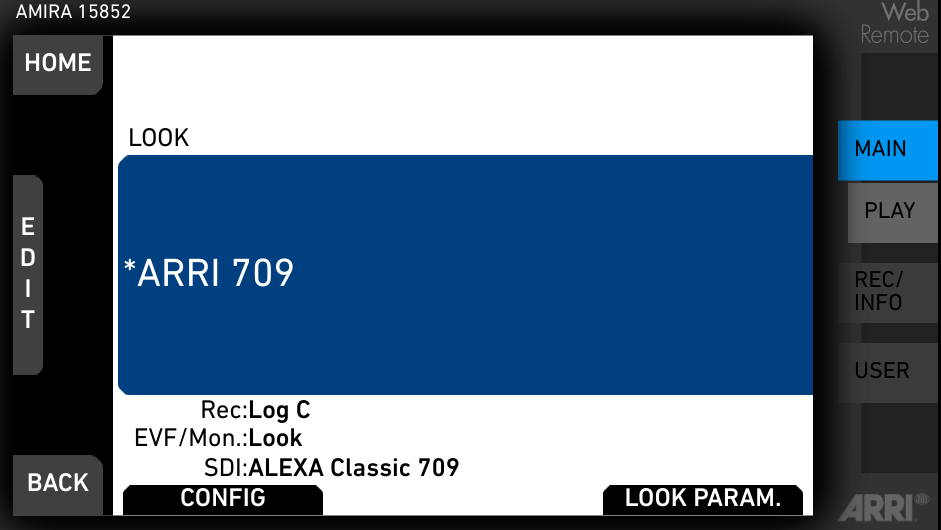
Click on DUPLICATE:
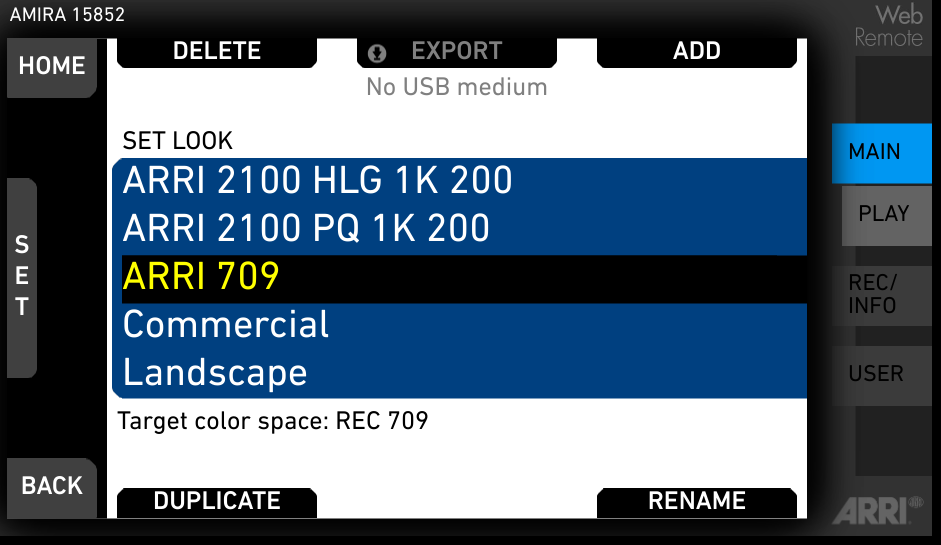
Enter a look name (e.g. ARRI 709aaa) and click on SAVE:
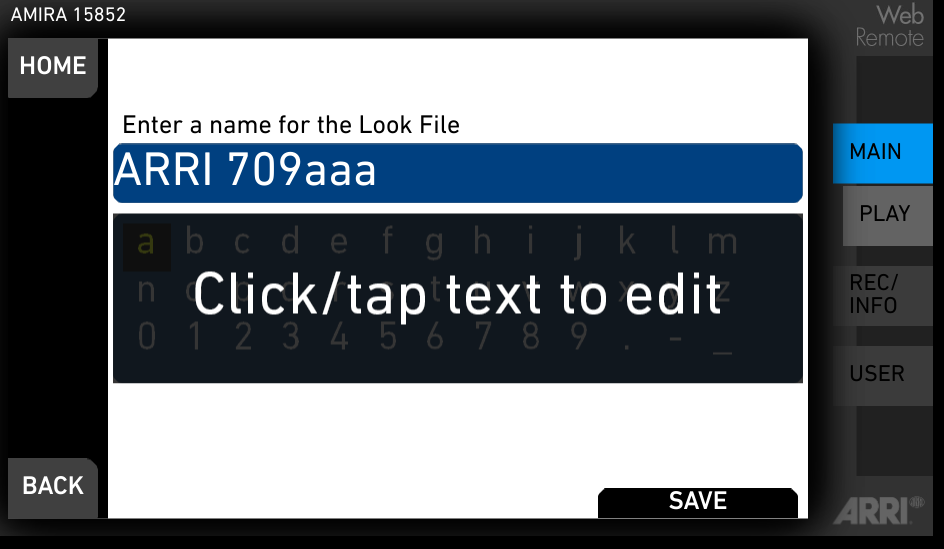
Then in the LOOK menu, click on LOOK CONFIG:
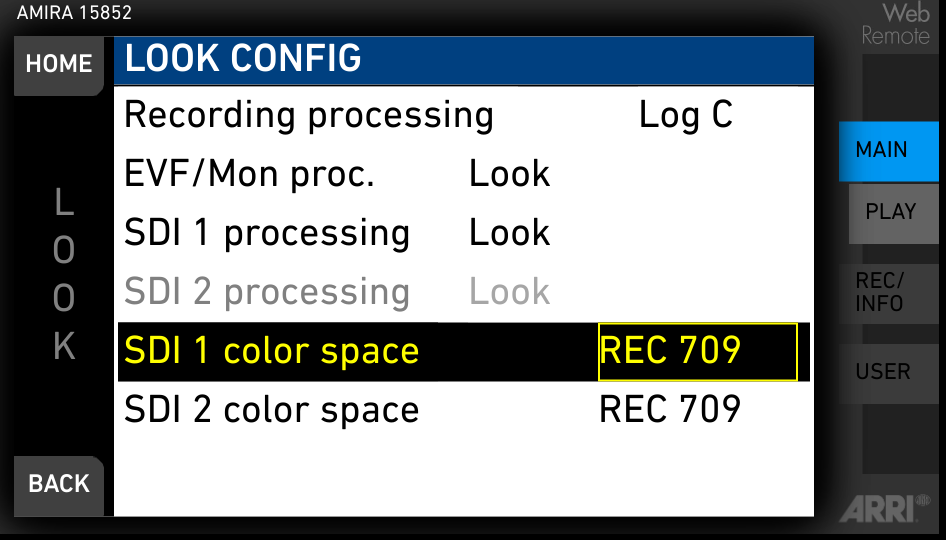
Ensure:
- EVF/Mon proc is set to the look created above (e.g.
ARRI 709aaa) - SDI 1 processing is set to the look created above (e.g.
ARRI 709aaa)
RCP Configuration
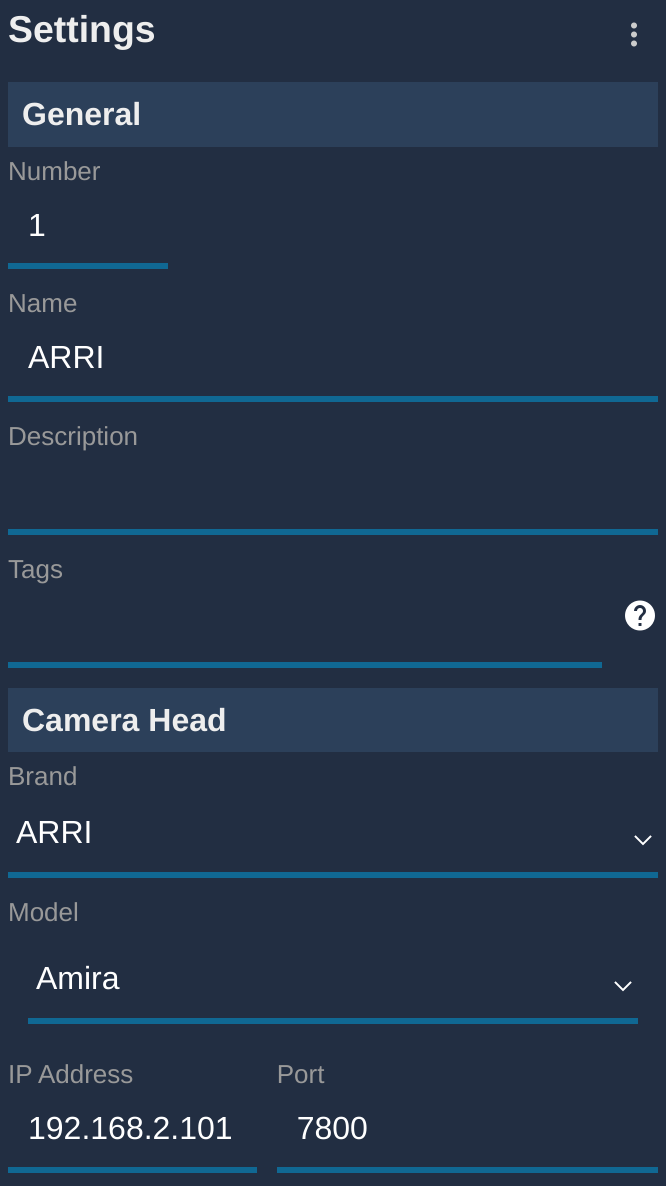
This is an IP camera — follow the IP Camera Setup Guide to add it to the RCP. Use brand ARRI and model Amira.
Camera-specific parameters:
- IP: Camera IP address — optional; with SSCP the camera initiates the connection, so the source IP is not checked by the RCP.
- Port: Must match the SSCP device port configured on the camera exactly.
Troubleshooting
Camera icon stays RED / camera not detected
Check in this order:
- Verify the port — confirm the port entered in the RCP matches the SSCP device port set on the camera exactly.
- Verify camera settings — confirm SSCP is enabled on the camera, the SSCP device IP matches the RCP IP, and the camera has a static IP (see Camera Configuration above). A firmware update often resets these settings.
- Ping the RCP from the camera's network — set a computer to the same IP range and ping both the camera IP and the RCP IP to confirm basic network connectivity.
- Check the RCP IP — the RCP must have an IP address in the same subnet as the camera. Follow this guide.
- Power cycle — restart the camera and retry. The camera must re-initiate the SSCP connection after a restart.
Shading controls have no visible effect
- Confirm you have created and activated a Look on the camera (see Activate Shading above).
- Ensure EVF/Mon proc and SDI 1 processing are both set to the custom Look — shading is not applied if the output is set to a factory look.
Camera firmware update broke control
- Firmware updates on the ARRI Amira frequently reset network settings and SSCP parameters. Re-apply all settings from Camera Configuration after any update.
- As a general rule: do not update camera firmware during a live production. Test first in a controlled environment.