Proton Mini Cameras
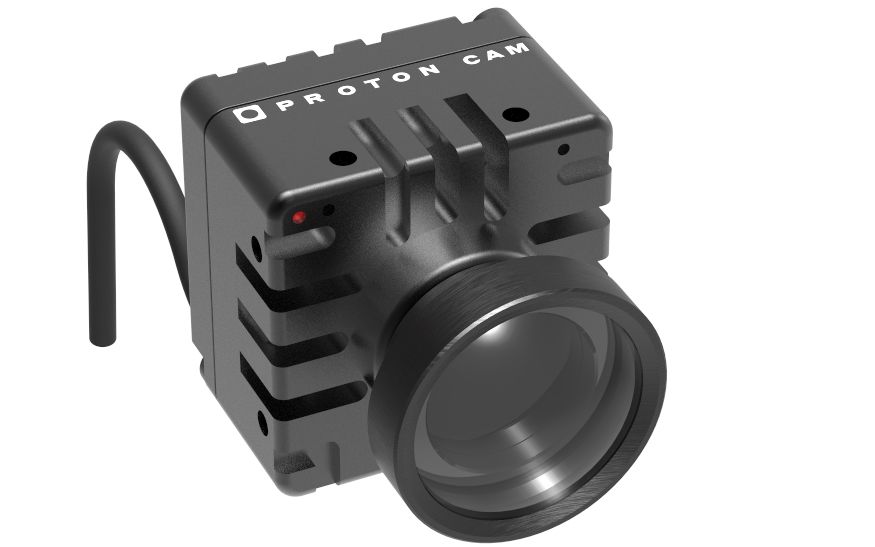
Proton cameras are compact PoV and mini cameras controlled over a serial RS-485 link. They connect directly to the CI0 serial port — no dedicated cable is needed, and the CI0 provides both data and power. Typical use cases include goal cameras, drone cameras, and broadcast PoV positions.
Supported Models
All Proton cameras are currently supported:
- PROTON CAM, RAIN, FLEX
- PROTON ZOOM
- PROTON 4K, 4K FLEX
- PROTON HFR
The PROTON PIO-E is a small PoE camera interface that allows controlling Proton cameras over Ethernet (IP) in a similar way to the Cyanview CI0. The PIO-E can replace the CI0 in the wiring diagrams below. Note that the PIO-E is only compatible with Proton cameras.
Supported Controls
| Control | Notes | ✔ |
|---|---|---|
| Iris | Available on the ZOOM model only | ✔ |
| Gain / ISO | Gain can be set to ISO | ✔ |
| Shutter | Including CLS (Clearscan) | ✔ |
| Auto Exposure | Iris, Gain, Shutter | ✔ |
| White Balance | Color temperature and tint, RGB gains. RGB gains are applied on top of the color temperature settings — start by selecting the correct color temperature. | ✔ |
| Auto White Balance | AWB (single shot), ATW (continuous) | ✔ |
| Master Black / Black Balance | R, B, Master | ✔ |
| Flare | R, G, B, Master | ✔ |
| Detail | Level | ✔ |
| Saturation and Hue | ✔ | |
| User Matrix | ✔ | |
| Multi-Matrix | Selection of 12, 16, 24 or 32 vectors | ✔ |
| Knee | Point, Slope | ✔ |
| White Clip | ✔ | |
| Gamma | Master | ✔ |
| Denoise | Level and Color noise | ✔ |
| OETF | SDR, HLG, PQ, S-Log3; extra options for PQ and HLG supported | ✔ |
| Color Space | BT.709, BT.2020, S-Gamut3, S-Gamut3.Cine | ✔ |
| Video Formats | 1080i 50/59/60, 1080p and 2160p 23/24/25/29/30/50/59/60 — formats can be changed from the RCP | ✔ |
| Genlock | ✔ | |
| Zoom / Focus | On the ZOOM model only | ✔ |
| Flip | Upside-down or mirror | ✔ |
| Tally | Red | ✔ |
| Audio | Mic levels | ✔ |
| Fan | Mode — available in Custom pages | ✔ |
| Record using Timecode | In Custom pages; enabling timecode triggers external recorders | ✔ |
| Status | Temperature and firmware version reported | ✔ |
Connection

Proton cameras connect via RS-485 serial to the CI0 serial port. The CI0 provides both data and power — no separate power supply is needed for the camera.
Alternatively, the PROTON PIO-E can be used in place of the CI0 to connect the camera over Ethernet (IP).
Required Accessories
Required:
- 1 × CI0 — provides RS-485 serial connection and power to the camera
- 1 × RCP
No specific cable is needed. The camera plugs directly into the CI0 serial port, and the CI0 provides both data and power.
Optional:
- PROTON PIO-E — replaces the CI0 for IP-based connection (Proton cameras only)
Configuration
Camera Configuration
No on-camera configuration is required. The camera is powered and controlled directly through the CI0 serial port.
RCP Configuration
This is a serial camera — follow the Serial Camera Setup Guide to add it to the RCP. Select brand Proton and model Cam, then select the CI0 and the serial port the camera is connected to.
Proton cameras support unidirectional mode for setups where the RS-485 return path is unavailable (RF links, fiber converters).
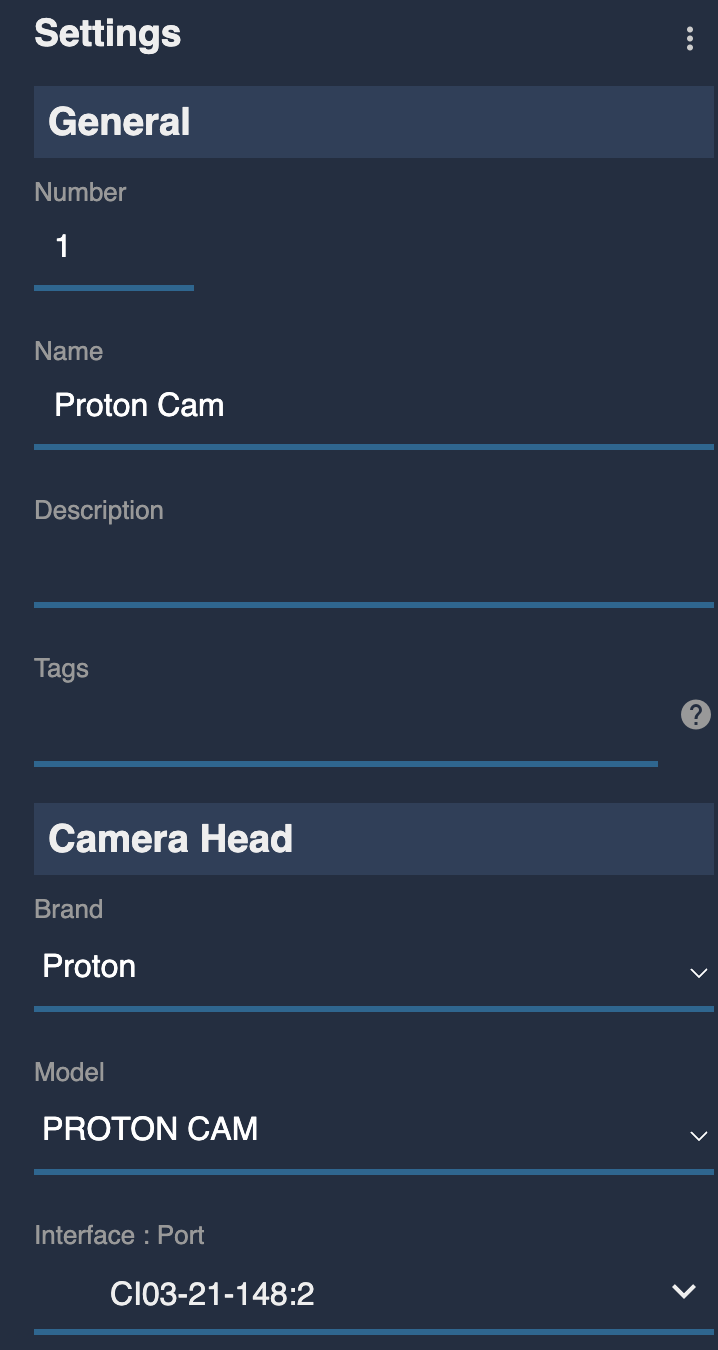
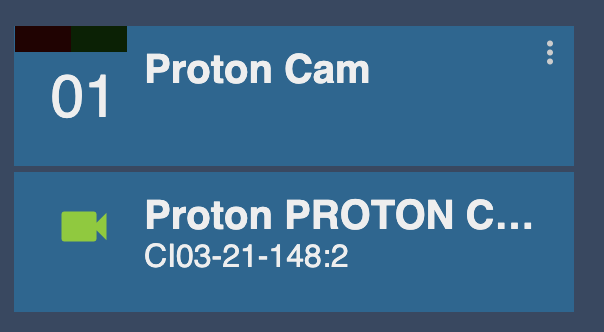
After a few seconds, if everything is properly connected, the camera icon turns green:
Troubleshooting
Camera icon stays RED / camera not detected
Check in this order:
- Verify the serial connection — confirm the camera is plugged into the correct CI0 serial port and the port is selected in the RCP configuration.
- Check power — the CI0 must be powered for it to supply power and data to the camera. Verify the CI0 power LED is on.
- Check the cable — try a different cable or port on the CI0.
- Power cycle — disconnect and reconnect the camera from the CI0 serial port.
- Unidirectional mode — if using an RF link or fiber converter, enable unidirectional mode in the RCP.
A specific parameter is not controllable
- Iris and Zoom/Focus are only available on the ZOOM model.
- Fan control is available in the Custom pages, not the main paint view.
- Record via Timecode is available in Custom pages — enabling timecode triggers external recorders, not an internal record function.
Tally not working
- Only Red tally is supported.
- Confirm the camera icon is green (camera must be detected before tally is sent).