Firmware Downloads
The following downloads are available for the full system update of CY-RCP, CY-RIO, CY-NIO and CY-VP4. The incremental application updates are currently only available through the web interface by connecting the unit to the internet.
Refer to the Products Update section below for device update guidance.
Latest Releases
Ensure to identify your device correctly based on serial number
| Device type | Stable release | Development release |
|---|---|---|
| cy-rcp | 26.6.2 | 26.7.1rc3 |
| cy-rio-rev2 | 26.6.2 | 26.7.1rc3 |
| cy-rio-air | 26.6.2 | 26.7.1rc3 |
| cy-nio-rev2 | 26.6.2 | 26.7.1rc3 |
| cy-vp4 | 26.6.2 | 26.7.1rc3 |
Legacy devices (with wifi antenna builtin):
These devices are no longer updated. The latest stable version for these devices is 25.9.5.
Understanding release numbers
Cyanview releases use a date-based version number in the form YY.M.N:
- YY — the year (for example
26= 2026) - M — the calendar month,
1–12(for example2= February) - N — the release number within that month, starting at
1
For example, 26.2.1 is the first release of February 2026. A rcNN suffix (such as 26.2.1rc1) marks a beta / release-candidate build; enable Show dev releases in the Admin tab to see these.
Because the version number encodes the release date, it also tells you how recent the firmware is. A release cannot control a camera model that was added after that release was built.
If a camera does not appear in the selection list, update to the latest release (see Products Update below). You can also check the Release Notes to see when support for a given camera was added.
RCP-J joystick after update or downgrade
On RCP-J units, in some cases after a system update, the joystick may remain on Waiting for connection. This is caused by internal network changes made by the system update compared to the previous version.
To recover the joystick connection, force the joystick bootloader. See Iris Joystick - Force bootloader.
Apply the same procedure after downgrading an RCP-J to a version older than 26.4.1.
Products Update
Cyanview provides 2 types of updates: Application updates and System Updates.
- The Application update is a quick way to upgrade the main software only:
- The device has to be connected on the internet
- Your configuration is loaded back after the update
- This is only possible when the application can be updated without requiring update of the file system libraries. This option is disabled otherwise and a system update is required.
- The System update is an update of the complete filesystem: OS, libraries and applications
- This can be applied offline
- It is slower and takes about 15 minutes
- The previous configuration is not loaded back but an automatic backup is made prior to the upgrade. The configuration can be restored manually from the "File" section of the web interface and is labeled "Snapshot @ SWUPDATE".
The CI0 and the first generation of RCP (serials CY-RCP-11-xx) are not updated "manually", they will automatically get their firmware from the RCP, RIO or GWY that they are connected to.
Backup your configuration
It is always a good idea to do a backup of your setup following this guide. It will allows you to get back your configuration later if needed.
Application update
- Make sure the device has internet access. Check the Connectivity check block, everything should be green
- Access your device web interface
- Click the Admin TAB wait until the list of available version are displayed.
- Click
Select and startbutton of the release you want to upgrade to, wait a couple of minutes
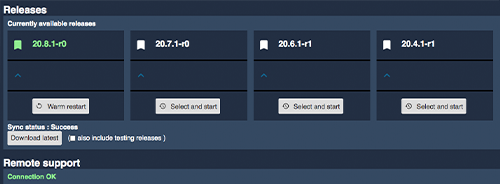
- After a few seconds, the release you selected will turn green.
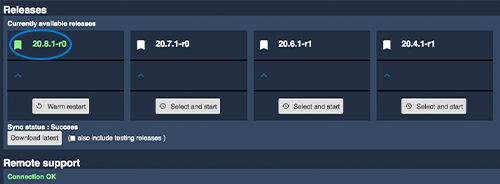
- Your RCP Application is now updated
By default, only stable releases are displayed. If you want to test beta version, you need to enable it by clicking on the top right button in the admin tab Show dev releases
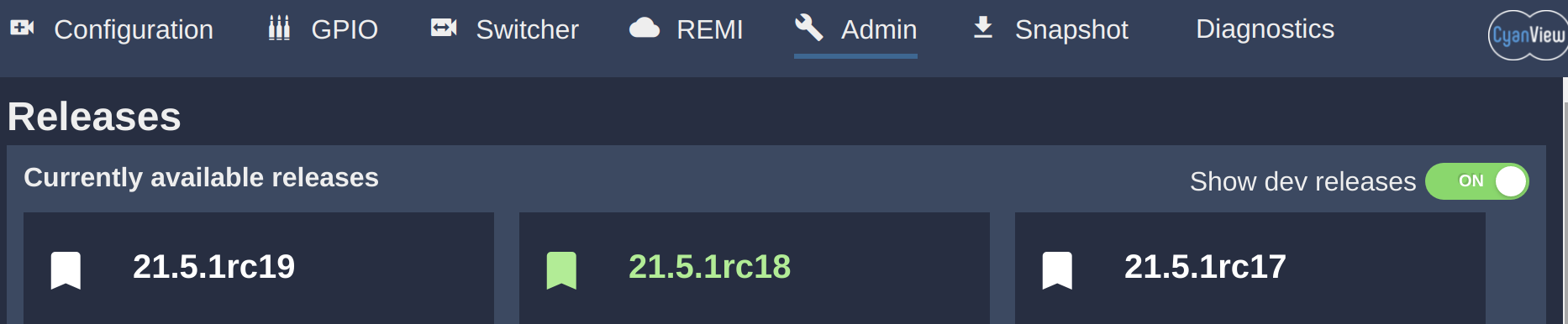
Once activated, you will see all releases (stable and beta).
System update
The System Update can be performed from a separate web interface
System Update from the web interface
Some browsers may unload inactive tabs. If this happens during the system update, the update may fail.
Keep the update tab open and active (visible in the foreground) until the update is completed.
- Download the latest system update from the Latest Releases section above.
- Open the update UI :
- Find your device IP
- Base on previous link, navigate to http://10.192.XX.YY:8080 (pay attention to port 8080)
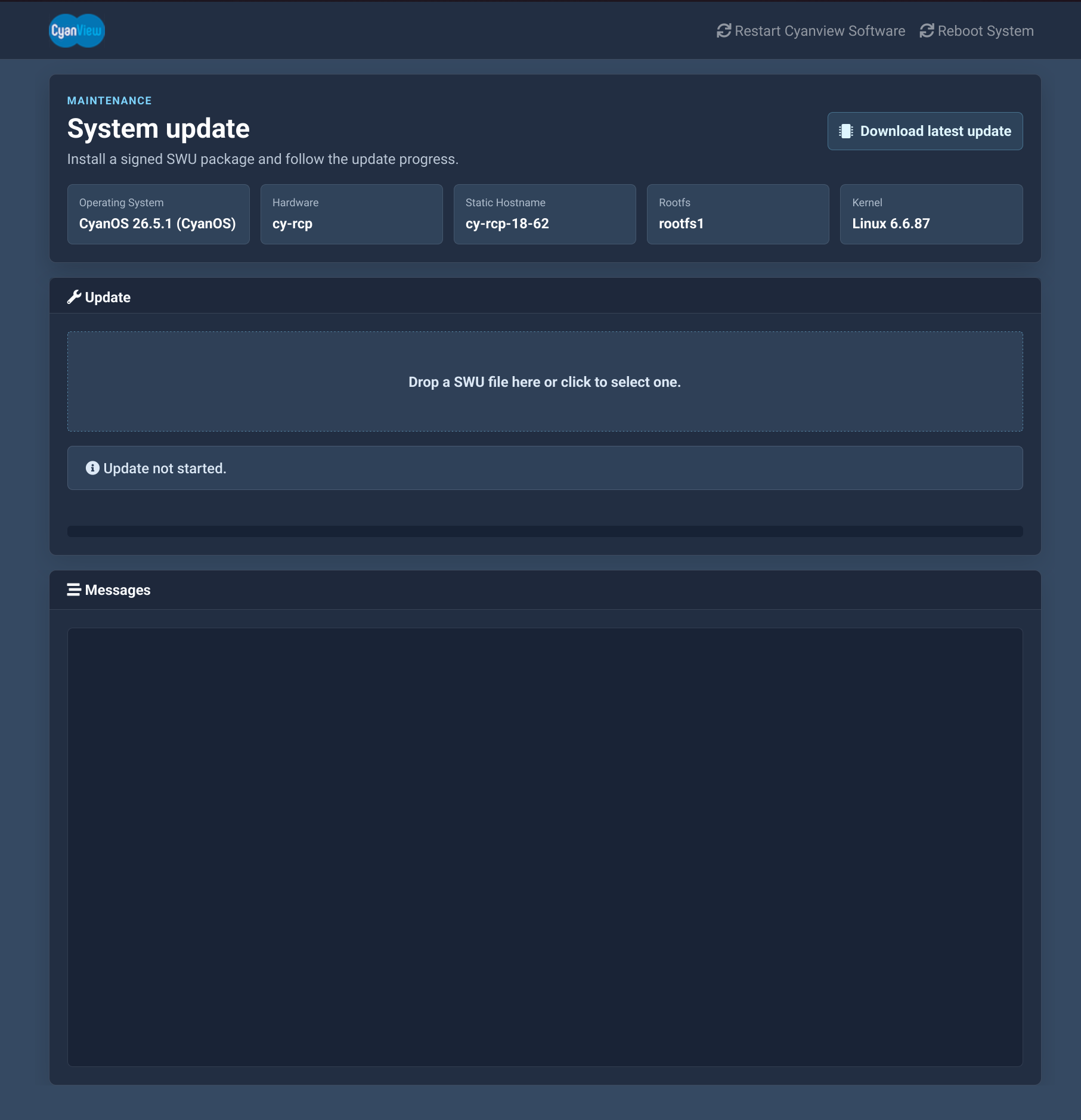
- You can see some useful information on this page:
- HW : this is the type of hardware and revision (here cy-rcp)
- Operating System : this is the current version of your device (here 21.5.1rc18)
- Drag and drop the downloaded .swu file into the Software Update section of the page.
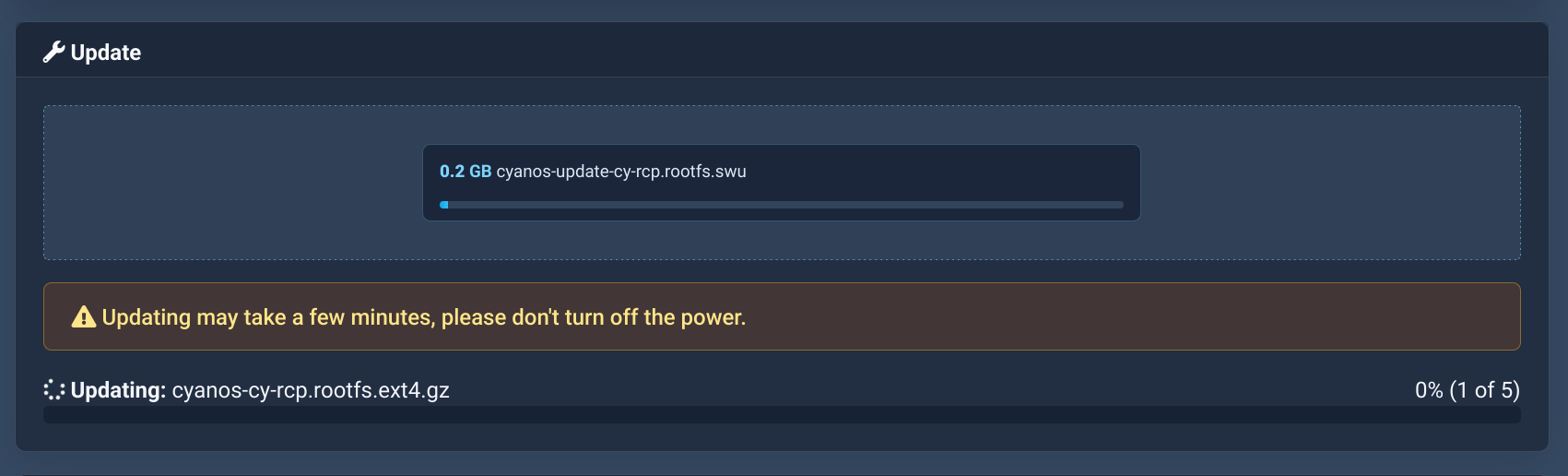
- Don't close this tab and wait (takes around 15 minutes).
- After the update is completed, the device will reboot
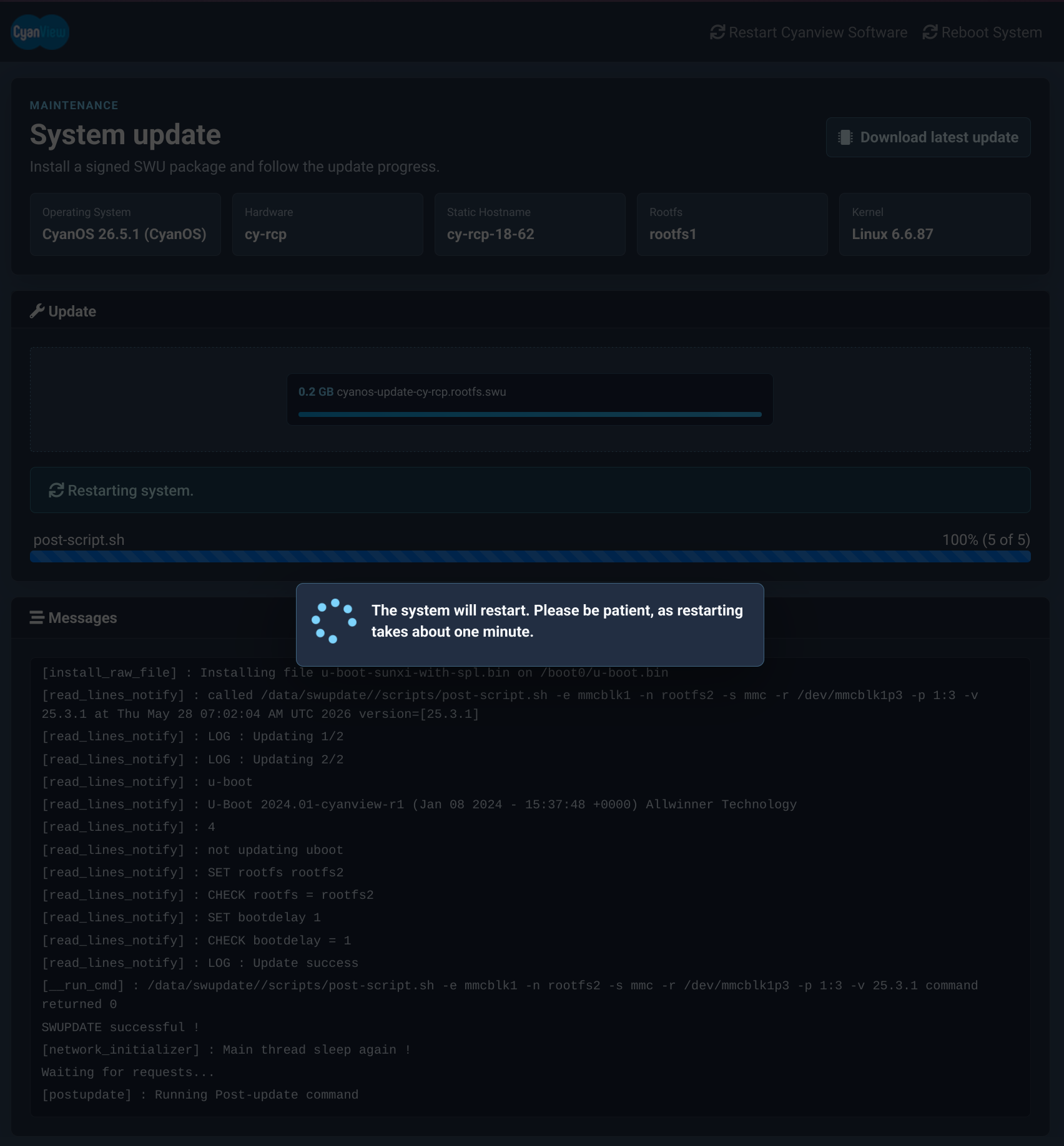
- You can refresh the page if required and check Operating System value, it should be the same as the one in your SWU file name.
- Based on this example:
- I upgraded from 21.5.1rc18 to 21.5.1rc19
- I should see 21.5.1rc18 in step 1 and 21.5.1rc19 in step 6