Sony CBM
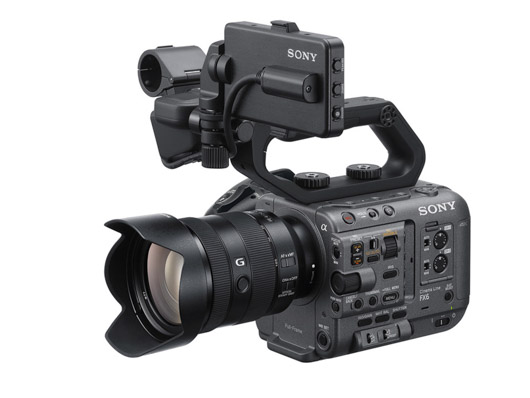
The Sony CBM (Camera Browser Management) protocol enables wireless IP control of compatible Sony cameras over Wi-Fi. This integration allows the Cyanview RCP to control exposure, white balance, lens, and other parameters without placing the camera in RCP Paint mode, preserving full access to variable ND and fine gain steps. Typical use cases include broadcast live production and wireless shading workflows.
Supported Models
- Sony FX9 — tested and confirmed
- Sony PXW-Z280 — tested and confirmed
Other Sony cameras that expose the CBM API may be compatible. The protocol is documented under the CBM (Camera Browser Management) specification. If your model is not listed, try the Sony CBM model in the RCP and report results.
Supported Controls
| Control | Notes | FX9 / Z280 |
|---|---|---|
| Iris | Manual and Auto | ✔ |
| Gain | Manual and Auto | ✔ |
| Shutter | Manual and Auto | ✔ |
| Variable ND | Manual and Auto | ✔ |
| White Balance | Color temperature and tint | ✔ |
| ATW / AWB | ✔ | |
| Lens — Zoom | Speed control | ✔ |
| Lens — Focus | Position display only; control is speed-based | ✔ |
| Auto Focus | ✔ | |
| OETF | HyperGamma, STD | ✔ |
| Pattern / Bars | ✔ | |
| Menu | Up/Down, Left/Right | ✔ |
| Record | — | |
| Tally | — |
Zoom and Focus are controlled in speed mode; focus position is displayed but not directly commanded.
Connection
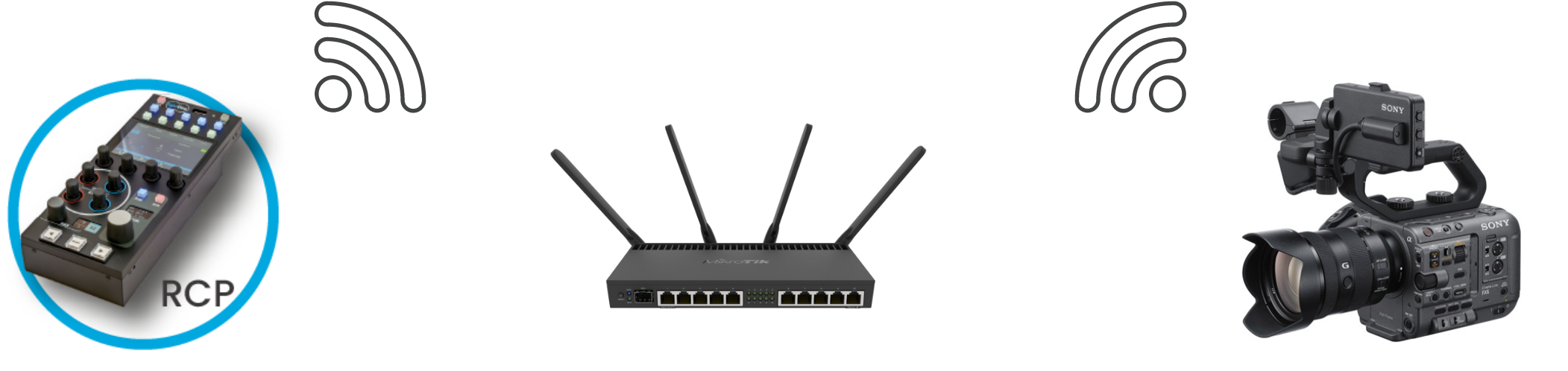
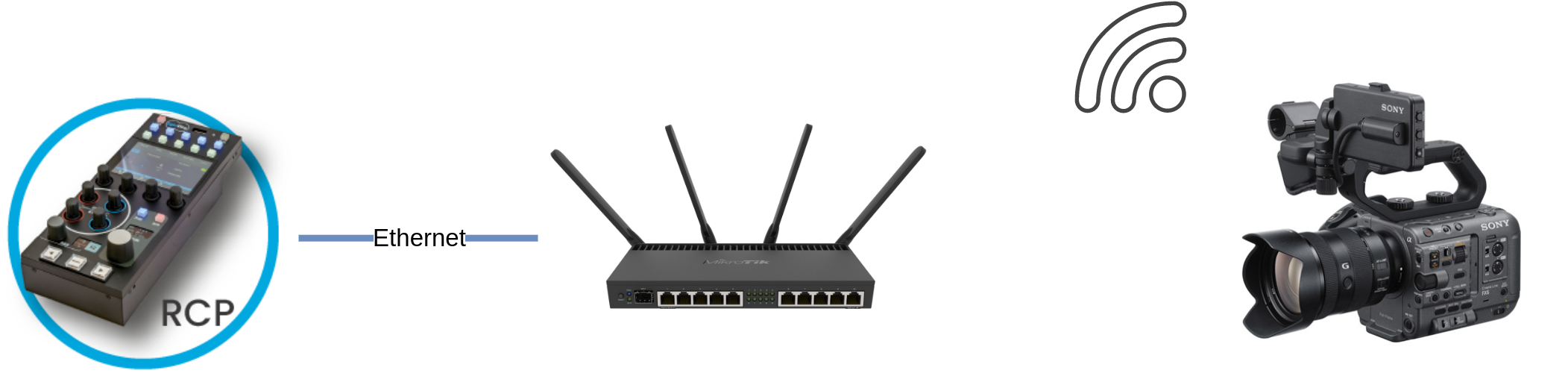
The Sony CBM integration uses Wi-Fi or wired Ethernet IP.
- Wi-Fi (Station Mode): The camera connects to an existing Wi-Fi access point; the RCP reaches it over the same network.
- Wi-Fi (Access Point Mode): The camera acts as an access point; the RCP connects to it directly.
- Wired Ethernet: Connect the camera's Ethernet port to the same network as the RCP.
OR
Configuration
Camera Configuration
Authentication
Set the camera login credentials before enabling remote control:
- Username:
admin - Password:
Abcdef123
Network / Wi-Fi Settings (Station Mode)
Navigate to Menu > Network > ST Mode Settings and set:
Camera Remote ControltoEnableConnected Network— enter your Wi-Fi SSID and password, and choose static IP or DHCP
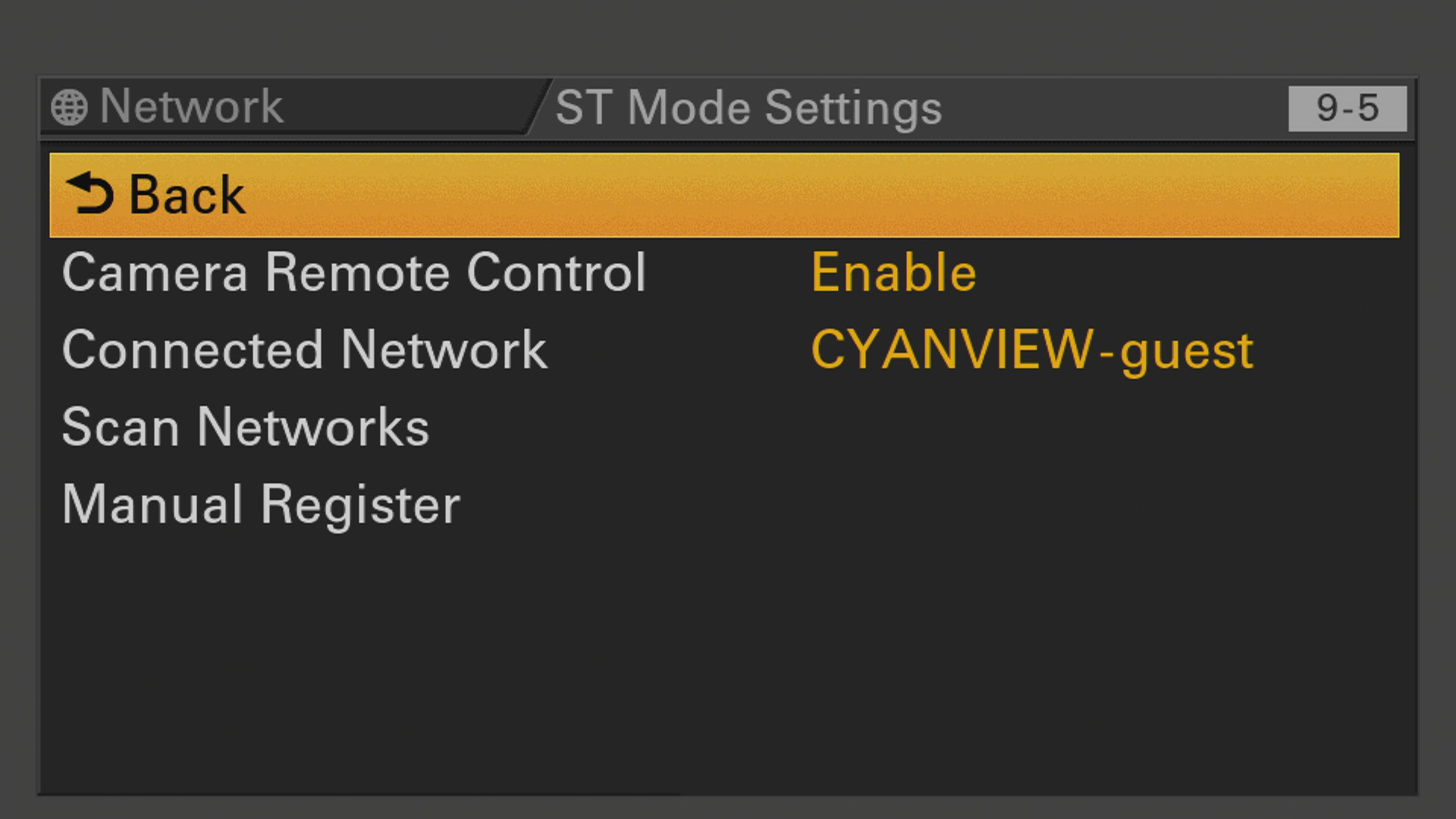
The same applies in Access Point mode. Do not forget to activate Camera Remote Control in that mode as well.
RCP Configuration
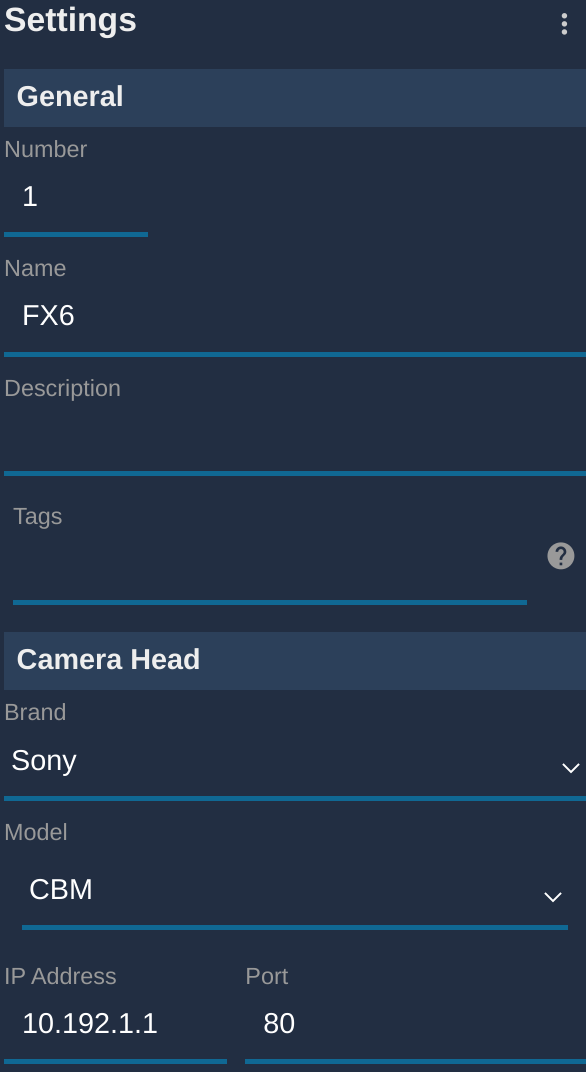
Add the camera as an IP camera.
- Brand: Sony
- Model: Sony CBM
- Enter the camera IP address
Troubleshooting
Camera icon stays RED / camera not detected
Check in this order:
- Verify camera credentials — confirm the username and password are set to
admin/Abcdef123(see Camera Configuration above). - Verify
Camera Remote Controlis enabled — this setting is required on the active network interface (ST Mode or Access Point). - Ping the camera from a computer — set the computer to the same IP range and ping the camera IP to confirm basic network connectivity.
- Ping the RCP from the same computer — confirms the RCP and camera are on the same subnet.
- Check the RCP IP — the RCP must have an IP address in the same range as the camera; follow the network configuration guide.
- Power cycle — restart the camera and retry.
- Re-apply network settings — a firmware update may reset the Wi-Fi or remote control settings.
A specific parameter is not controllable
- Confirm the camera is set to the correct OETF/mode — some controls are only available in specific modes.
- Check that the camera and RCP are both on the latest firmware version.
Tally not working
Tally is not available via the CBM protocol. If tally is required, consider an alternative connection method.