Sony FX6
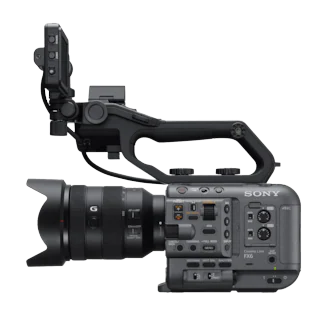
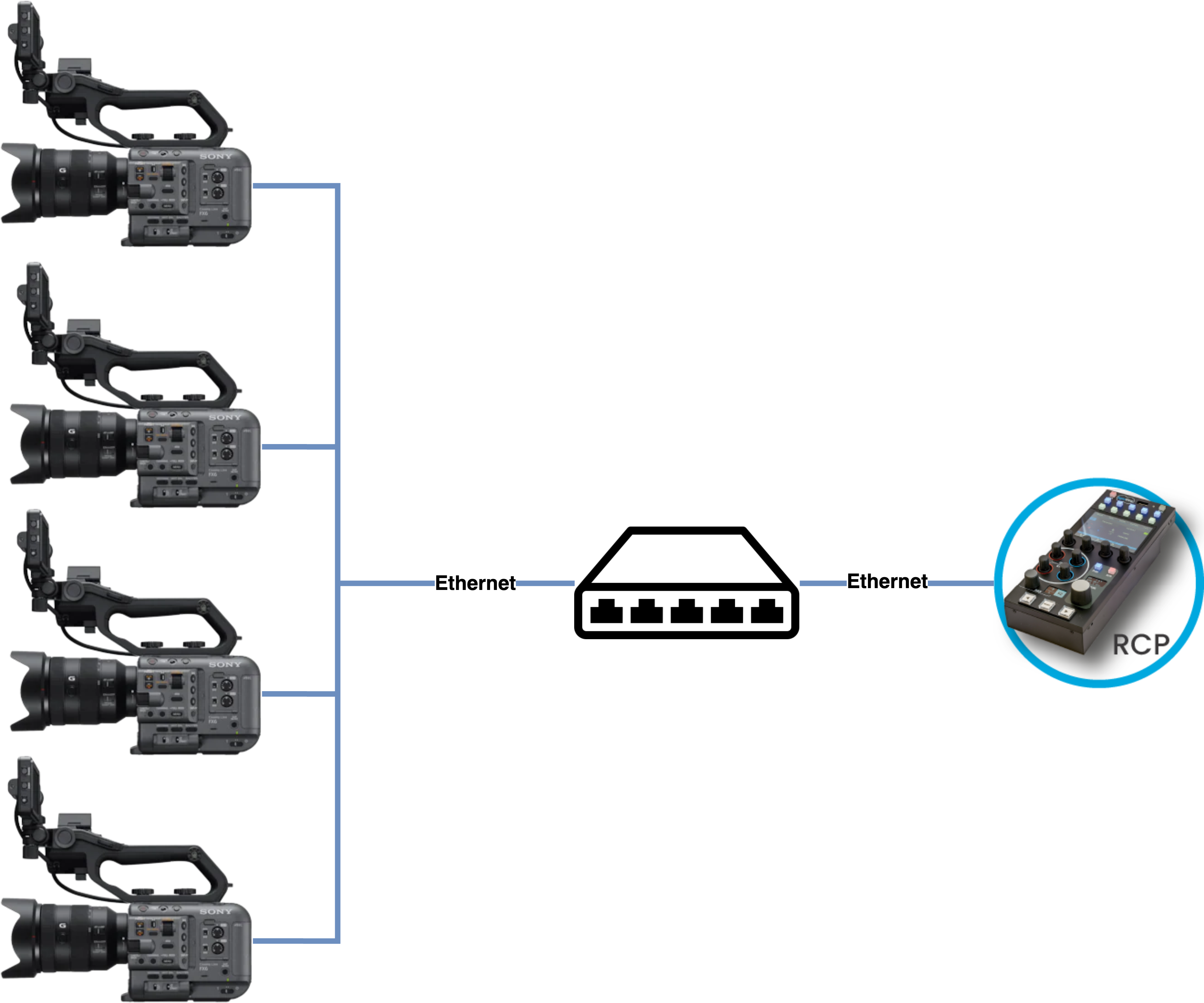
The Sony FX6 is a full-frame Cinema Line camera controlled over IP (wired LAN or Wi-Fi) or LANC. It connects to the Cyanview RCP via a USB-to-Ethernet adapter (for wired LAN) or wirelessly, with LANC available as a supplement for tally and menu navigation. Typical use cases include multi-camera live production, remote shading, and REMI workflows.
Supported Models
- Sony FX6 — requires firmware v4 or higher
Compatibility Requirements
- Camera firmware: v4 or higher required
- RCP / RIO firmware: release 24.1 or above
Supported Controls
| Control | Notes | IP | LANC |
|---|---|---|---|
| Iris | Manual and Auto | ✔ | ✔ |
| Gain / EI | Gain in dB or ISO, or exposure index (EI) in Cine EI mode | ✔ | — |
| Shutter | Manual, Auto, ECS, OFF | ✔ | — |
| Variable ND | Clear, variable and Auto | ✔ | — |
| White Balance | Color temperature and tint; no R/B gains | ✔ | — |
| Record | ON/OFF + status | ✔ | — |
| Tally | Red/Green tally — LANC only | — | ✔ |
| Menu / OSD | Camera menu navigation — LANC only | — | ✔ |
Variable ND can be assigned to the iris joystick and provides very smooth control, while iris can still be accessed from the exposure knob.
Sony has announced that there will be no further firmware releases for the FX6, except for a planned update in 2026. However, this update will not add any new paint controls. As a result, functions such as master black, black balance, gamma, or saturation will likely never be available for remote control on the FX6.
Known Limitations
- Master black, black balance, gamma, saturation are not available via IP control and are unlikely to be added in future firmware.
- Tally and menu navigation require a LANC connection — they are not available over IP.
- R/B gains are not available.
Connection
The FX6 can be connected over:
- IP (wired LAN): requires a compatible USB-to-Ethernet adapter plugged into the camera's USB-C port. Most USB-C dongles will not work — see USB-Ethernet Adapter Compatibility below.
- IP (Wi-Fi): the camera connects to an existing Wi-Fi network (Station Mode) or the RCP's Wi-Fi.
- LANC: adds tally and menu navigation alongside IP control. See Sony LANC for details.
USB-Ethernet Adapter Compatibility
The FX6 only supports USB-Ethernet dongles with older chipsets, and finding compatible ones is becoming increasingly difficult. Here's what is known:
- Dongles with the ASIX AX88179 chipset work. However, the newer AX88179A and AX88179B versions do not.
- Some dongles using the Realtek RTL8153 chipset are compatible, but not all — it's hit or miss.
The following are known not to work:
- Dongles with ASIX AX88179A or AX88179B chipsets
- Most USB-C Ethernet dongles (tend to use newer chipsets)
Dongle manufacturers change the chipset without changing the product reference number, and online retailers sell multiple versions under a single reference. If you plug in an incompatible dongle, the FX6 can crash and might not even power down when you turn it off — always remove the USB-Ethernet adapter and fully power cycle the camera before trying a new one. You'll have better luck testing older USB-A dongles (even with a USB-A to USB-C adapter). Cyanview has also manufactured a validated adapter to ensure compatibility — please contact us for a quote.
Required Accessories
Required (wired LAN):
- Compatible USB-to-Ethernet adapter — see USB-Ethernet Adapter Compatibility above
Optional:
- Sony LANC cable — for tally and menu navigation alongside IP control
Configuration
Camera Configuration
Authentication must be enabled for IP control. You will need the login and password when configuring the camera in the RCP.
LAN (Wired)
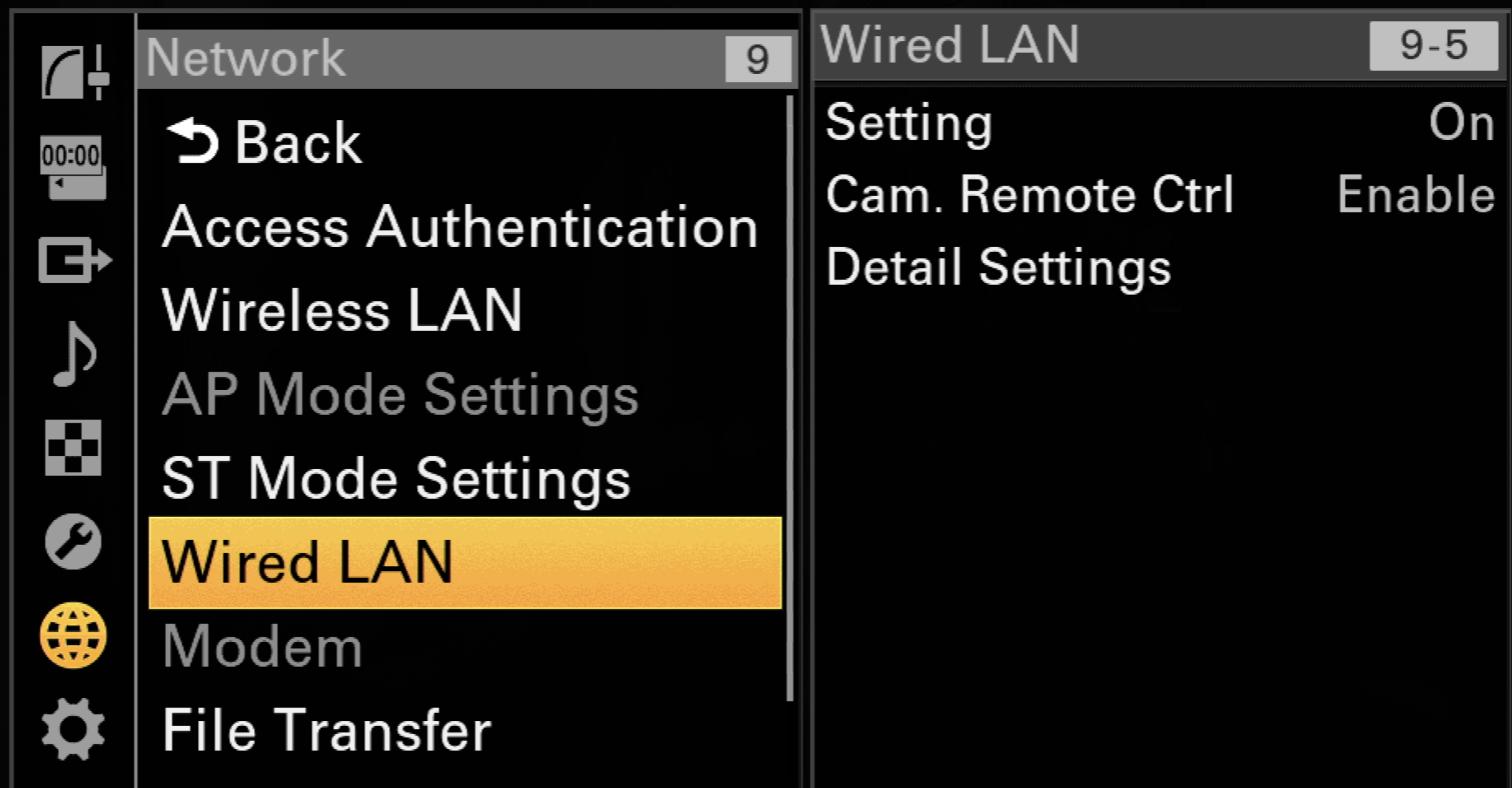
In Menu > Network > Wired LAN:
- Enable
Camera Remote Control - Check your IP address in
Detail Settings(static IP recommended)
Wi-Fi
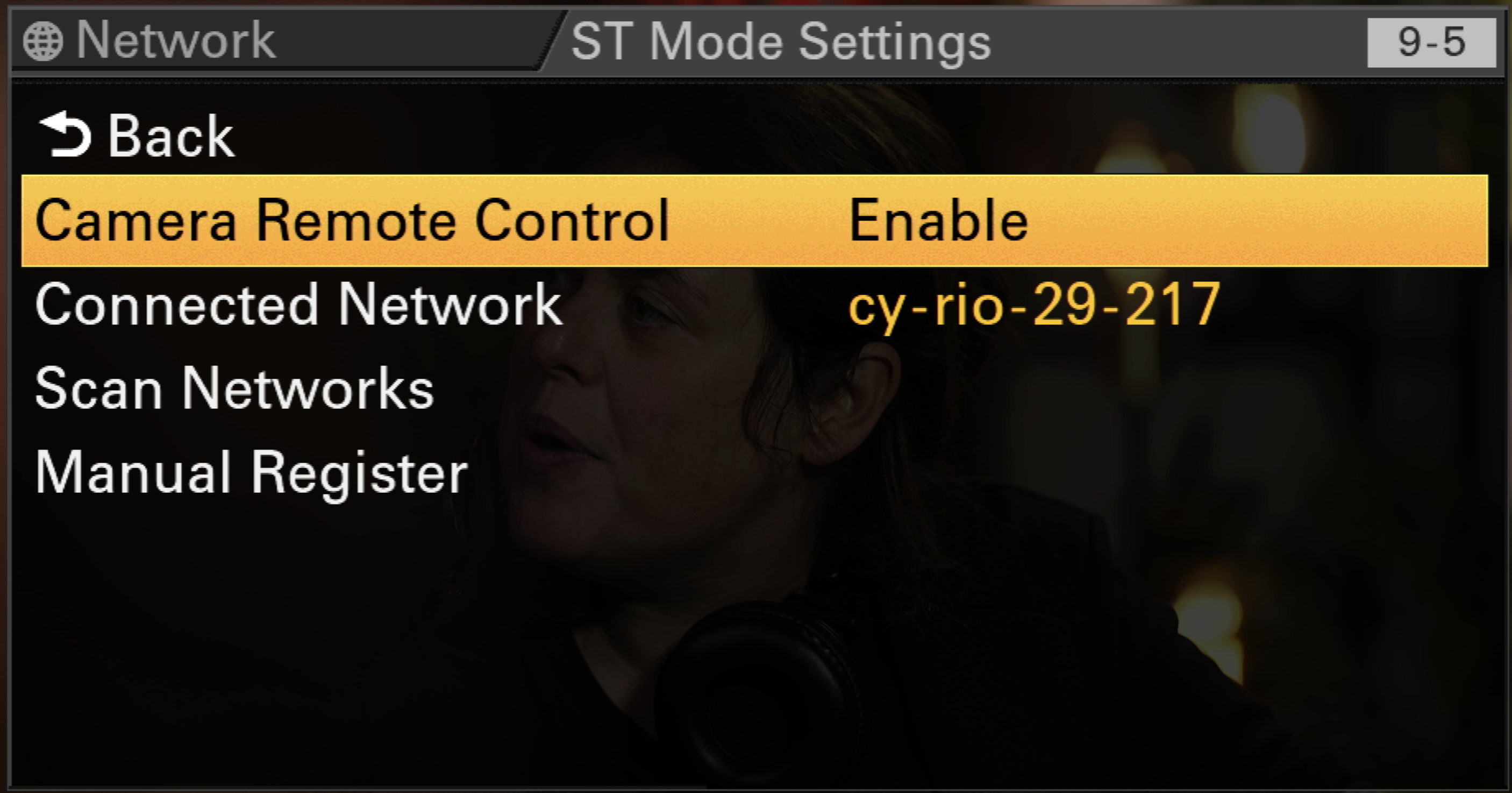
When Wi-Fi is set to Station Mode, in Menu > Network > ST Mode Settings:
- Enable
Camera Remote Control - Once connected, your IP address is displayed in
Connected Network
RCP Configuration
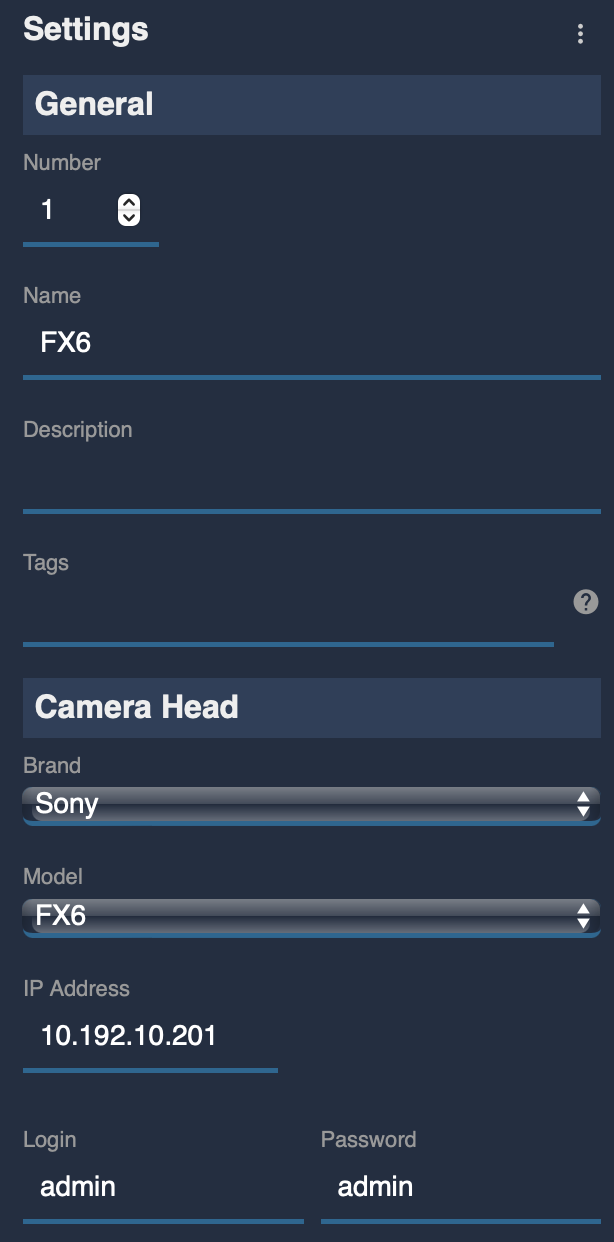
Add the camera as an IP camera. Use brand Sony and model Sony FX6, then enter the camera IP address and login/password.
Operations
FX6 Hands-On
Watch on YouTube to get chapters
Troubleshooting
Camera icon stays RED / camera not detected
Check in this order:
- Verify camera settings — confirm
Camera Remote Controlis enabled in the network menu (see Camera Configuration above). A camera firmware update often resets these settings. - Ping the camera from a computer — set the computer to the same IP range as the camera. If this fails, check the Ethernet dongle and camera IP configuration. If the camera is set to DHCP and you are unsure whether a DHCP server is present, switch to a static IP.
- Ping the RCP from the same computer — confirms the RCP and camera are on the same subnet. If this fails, assign an IP address on the RCP.
- Disable and re-enable remote control from the network settings — the camera can get stuck in an uncontrolled state; toggling this setting re-enables control.
- Power cycle — restart the camera, removing the battery or PSU if needed.
- Check the USB-Ethernet adapter — try a different adapter with a compatible chipset (see USB-Ethernet Adapter Compatibility).
Iris or other lens controls don't work
- Multiple issues can occur when using Metabones Canon EF to Sony E-Mount adapters or the Chrosziel Mount Adapter E-to-PL. If other parameters are working, the RCP or RIO is likely not the cause. Test iris, zoom, and focus with the CBM or Monitor Sony Mobile apps — the RCP uses the same API and should behave similarly.
- Using a RIO, it is possible to directly control servo lenses (B4 or PL) or lens motors such as Arri CForce or Tilta. This can also serve as a backup when lens control fails from the camera itself.
USB-Ethernet compatibility
See USB-Ethernet Adapter Compatibility above for the full list of compatible and incompatible chipsets.