Sony Alpha Integration
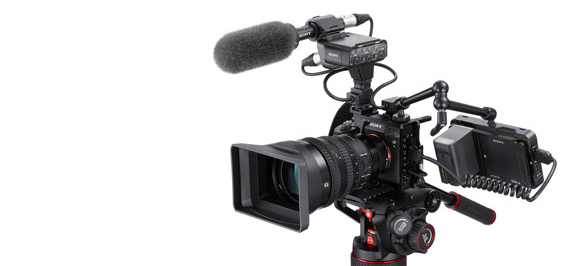
The Sony Alpha family includes a wide range of mirrorless cameras that can be controlled directly from a Cyanview RCP or via a RIO (local or remote) over a USB connection. The Sony USB protocol enables full remote control of exposure, picture profile settings, and recording. Typical use cases include broadcast live events, REMI productions, and crane or drone camera shading.
Supported Models
- ILX-LR1
- ILCE-1 — Alpha 1
- ILCE-1M2 — Alpha 1 II
- ILCE-9M2 — Alpha 9 II
- ILCE-9M3 — Alpha 9 III
- ILCE-7RM5 — Alpha 7R V
- ILCE-7RM4 — Alpha 7R IV
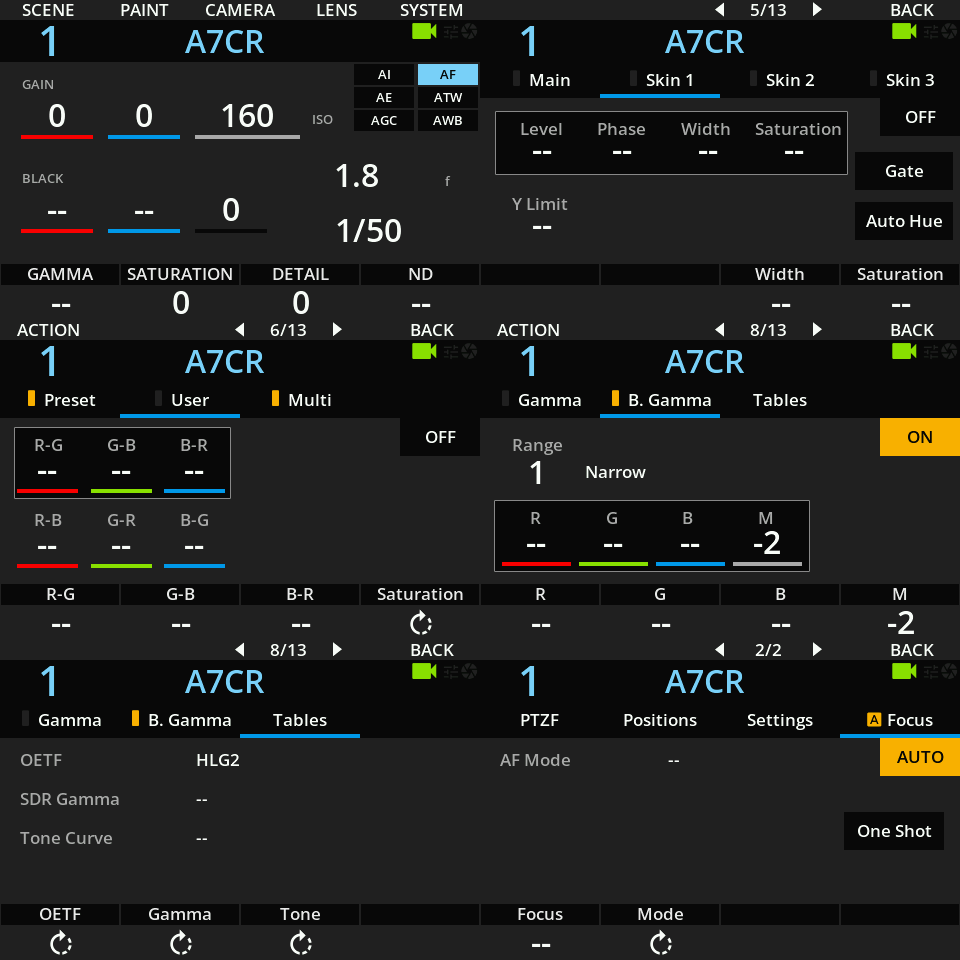
- ILCE-7CR — Alpha 7CR
- ILCE-7SM3 — Alpha 7S III
- ILCE-7M4 — Alpha 7 IV
- ILCE-7C — Alpha 7C
- ILCE-7CM2 — Alpha 7C II
- ILCE-6700 — Alpha 6700
- ILME-FX2 — FX2 — requires RIO version 25.10.1beta2 or above
- ILME-FX3 — FX3 (FX3A requires RIO version 25.10.1beta2 or above)
- ILME-FX30 — FX30
- ZV-E1 — ZV-E1
- ZV-E10M2 — ZV-E10 II
- DSC-RX0M2 — RX0 Mark II
Integrating the latest Sony SDK required deeper changes at the RIO OS level, so it is only available in RIO version 25.10.1beta2 and above. This is required for newer models such as the FX2, FX3A, and newer camcorders like Sony PXW-Z200, PXW-Z300, and HXR-NX800.
Compatibility Requirements
- Camera firmware: ensure the camera is on the latest available firmware — most paint controls and remote capabilities were introduced in later firmware releases. Sony refreshes their SDK approximately four times per year; keeping the RCP/RIO firmware current is required for continued compatibility.
- RCP / RIO firmware: use the latest release (including beta/RC versions delivered as SWU files) — the Sony Alpha protocol is implemented at OS level, not just application level.
Supported Controls
| Control | Notes | ILCE-9M2, ILCE-7RM4A, ILCE-7RM4, ILCE-7C | Others |
|---|---|---|---|
| Iris | Manual and Auto | ✔ | ✔ |
| ISO | Manual and Auto (+ offset). Native ISO only, extended ISO not supported | ✔ | ✔ |
| Shutter | Manual, Auto | ✔ | ✔ |
| White Balance | R/B mapped to AB-GM and Color Temp | ✔ | ✔ |
| Black Balance | Master Black only | — | ✔ |
| Black Gamma | Range (1–3, Narrow–Wide) and Master Gamma | — | ✔ |
| Detail | Level, Crisp, Level Dep, H/Ratio, and Mix | — | ✔ |
| Knee | Point and Slope, ON/OFF | — | ✔ |
| Saturation / Hue | — | ✔ | |
| Color Space | Movie, Still, SCinetone, Cinema, Pro, ITU709, BlackWhite, SGamut3Cine, SGamut3 | — | ✔ |
| OETF | Movie, Still, SCinetone, Cine1, Cine2, Cine3, Cine4, ITU709, SLog3, HLG, HLG1, HLG2, HLG3 | — | ✔ |
| Multi Matrix | Hue and Saturation on 6 vectors: Magenta, Blue, Cyan, Green, Yellow, Red | — | ✔ |
| Record | ON/OFF + status | ✔ | ✔ |
| Tally | Not built into the camera — add via RIO port with CY-CBL-6P-PWR | — | — |
Tally is not present on the camera, but it can be added via a RIO port as a Tally output using a CY-CBL-6P-PWR. See the Tally configuration page.
Connection
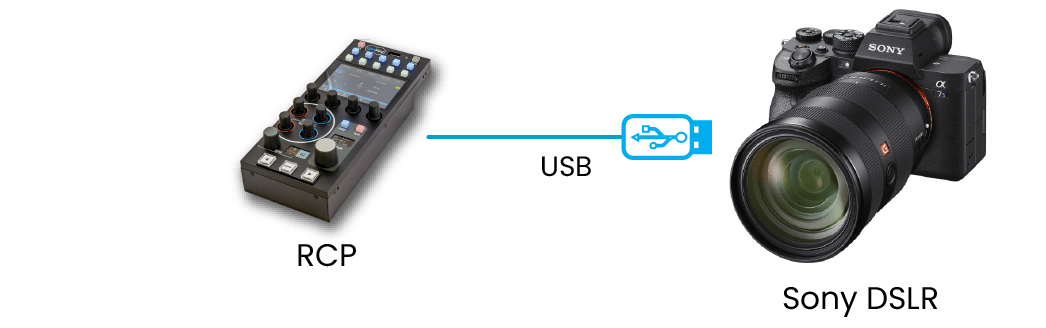
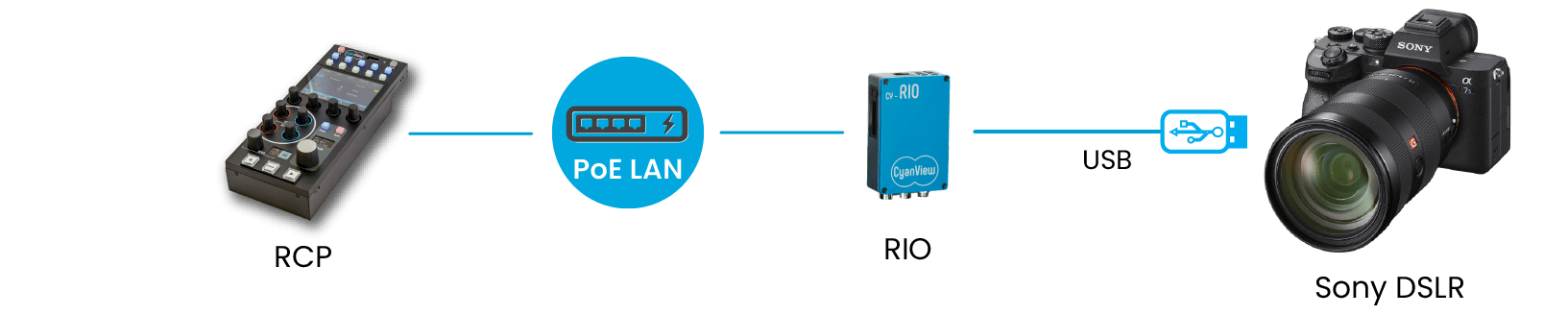
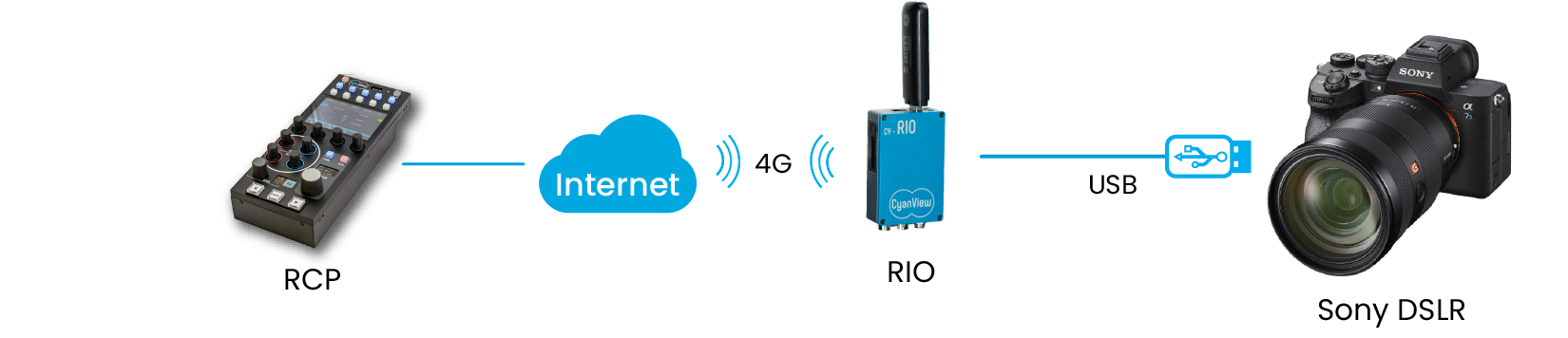
The Sony Alpha cameras connect via USB directly to a RCP or to a RIO (local or remote). The USB connection carries both control data and power negotiation.
- USB (direct to RCP): connect the camera USB port to a USB port on the RCP.
- USB via RIO: connect the camera USB port to a USB port on a RIO; the RIO relays control over the network to the RCP.
Required Accessories
Optional:
- CY-CBL-6P-PWR — required to add Tally output via a RIO port (Tally is not built into the camera).
Configuration
Camera Configuration
Most paint settings are managed through the camera's Picture Profile. Ensure your camera firmware is up to date, as both these settings and the remote control capabilities were introduced in later firmware releases for most cameras.
Remote Control Enable
Some models (e.g. A7S III) display a confirmation dialog or require a menu setting to allow USB control. Look for PC Remote Function or a similar option in the camera menus and confirm/enable it.
Picture Profile
Most image settings (e.g. black level) are part of the camera's Picture Profile, so they must be configured manually on the camera. A typical menu path is:
MENU → (Exposure/Color) → [Color/Tone] → [Picture Profile] → select the profile you want to edit
Menu structure varies by model.
RCP Configuration
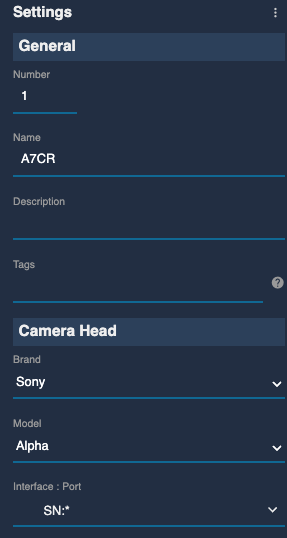
Add the camera as a USB/IP camera. Use brand Sony and model Alpha.
The setup should look like this:
Troubleshooting
Camera icon stays RED / camera not detected
Check in this order:
- Use a USB data cable — verify the cable is data-capable, not power-only. This is the most common cause of a red camera icon.
- Enable PC Remote Function on the camera — some models require explicit confirmation or a menu toggle to allow USB control (see Camera Configuration above).
- Update RIO / RCP firmware — use the latest version (including beta/RC) delivered as a SWU file. The Sony Alpha protocol is implemented at OS level; an app-only upgrade is not sufficient.
- Power cycle — restart the camera (remove battery/PSU if needed) and retry.
- Check for conflicting control — only one device can control a Sony Alpha at a time; ensure no DJI gimbal or other device is connected to the USB port simultaneously.
The Sony mirrorless protocol changes with Sony firmware updates and requires a matching RIO/RCP firmware to remain compatible.
FX3 is not controllable
Ensure the FX3 is on firmware version 3.00 or above and the RCP/RIO is on version 23.8.1 or above. The protocol evolves with the camera firmware and the RCP/RIO must be updated to remain compatible (and vice versa).
White Balance not controllable
Ensure ATW is set to Off in the RCP under Camera > WB > ATW. The camera white balance mode must be set to manual/color temperature.
Some parameters are displayed but do not change
Depending on the shooting mode, some parameters will be fixed or set to Auto and therefore read-only. Switch to a manual mode (M, S&Q, etc.) or check the next point.
Unstable link
- Check your wiring — some USB cables provide power only and no data.
- Check the camera settings and disable power-over-USB if available.
- Only one device can control a Sony Alpha at a time:
- Ensure no DJI gimbal or similar device is connected via micro-USB.
- Disable Wi-Fi control on the camera.
- Upgrade the RIO/RCP to the latest version using a SWU file (not only an app upgrade from the admin page) — the Sony Alpha protocol is implemented at OS level.
Camera firmware update broke control
A camera firmware update often resets network and remote control settings. Re-apply the settings described in Camera Configuration. As a general rule: do not update camera firmware during a live production — test first in a controlled environment.