Sony FCB
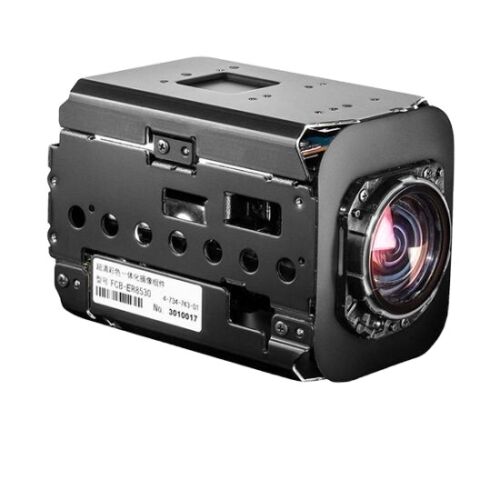
Sony FCB cameras are compact block cameras controlled via the VISCA protocol over RS-232 serial. They connect to a CI0 or RIO, which provides both power and control over the same cable. Typical use cases include robotics, remote cameras, and embedded broadcast applications.
Supported Models
- Sony FCB-7520
- Sony FCB-8230
- Sony FCB-8530
- Sony FCB-8550
- Sony FCB-H11
Most FCB models are compatible; only the models listed above have been formally tested. If your model is not listed, select the closest model in the RCP — FCB cameras within the same family share the same VISCA command set with minor capability differences.
Supported Controls
| Control | Notes | FCB |
|---|---|---|
| Iris | Manual and Auto | ✔ |
| Gain | Manual and Auto | ✔ |
| Shutter | Manual and Auto | ✔ |
| White Balance | R/B gains | ✔ |
| ATW / AWB | ✔ | |
| Master Gamma | ✔ | |
| Detail | Value and on/off | ✔ |
| Lens — Zoom | Speed and position | ✔ |
| Lens — Focus | Speed and position | ✔ |
| Auto Focus | ✔ | |
| Menu | I_lens, I_cam, ICRon, ICRoff, FlipOn, FlipOff | ✔ |
| Record | — | |
| Tally | — |
Connection
The Sony FCB connects to a CI0 or RIO via RS-232 serial using the VISCA protocol. The CI0 or RIO is then connected to the RCP over Ethernet.

- The CI0 (or RIO) powers the camera and controls it over serial on the same cable.
- The RCP communicates with the CI0 or RIO over Ethernet.
Required Accessories
Required:
- CY-CBL-6P-FAN — CI0 / RIO to FCB camera cable (GND/PWR for power + GND/Tx/Rx for VISCA RS-232)
Optional:
- A RIO instead of a CI0 — for remote, wireless, or RF applications where the CI0 is not practical
Configuration
Camera Configuration
Sony FCB cameras are configured entirely from the RCP side via the VISCA protocol. No on-camera menu configuration is required — the camera responds to VISCA commands as soon as it is powered and wired correctly.
RCP Configuration
This is a serial camera — follow the Serial Camera Setup Guide to add it to the RCP.
VISCA Bus Setup
Before adding the camera, you must add the VISCA bus to the RCP configuration via the RCP Configuration.
In Features:
- Click
+ - Select
Sony: VISCA Bus - Click the new
Sony VISCAblock that appears
Configure the bus as follows:
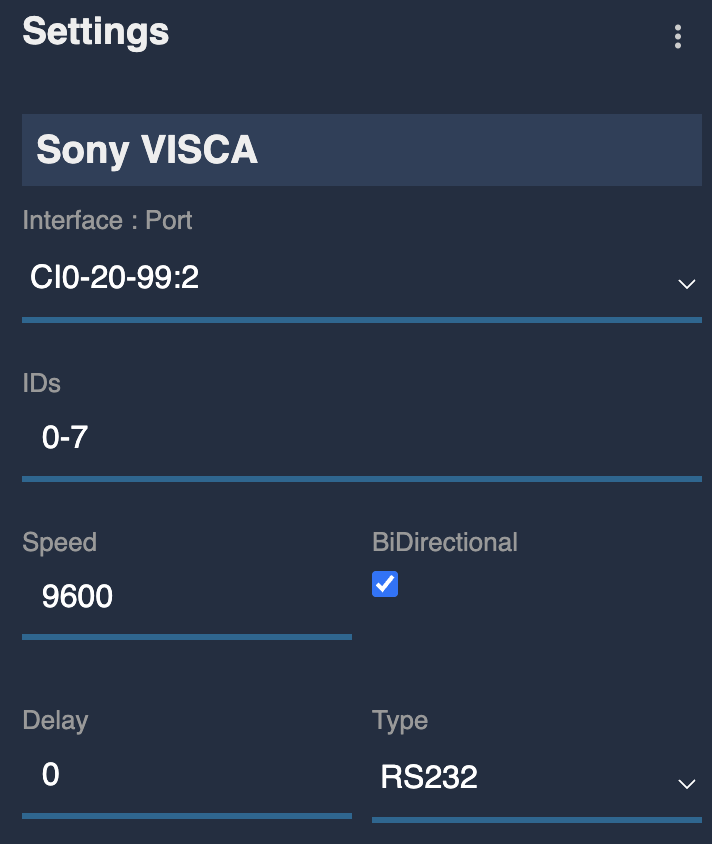
Adapt IDs, baud rate, and other settings based on your camera setup.
The configured bus should look like this:

The VISCA bus block has no red/green status indicator — this is expected. The status only becomes meaningful when a camera is linked to the bus.
Camera Setup
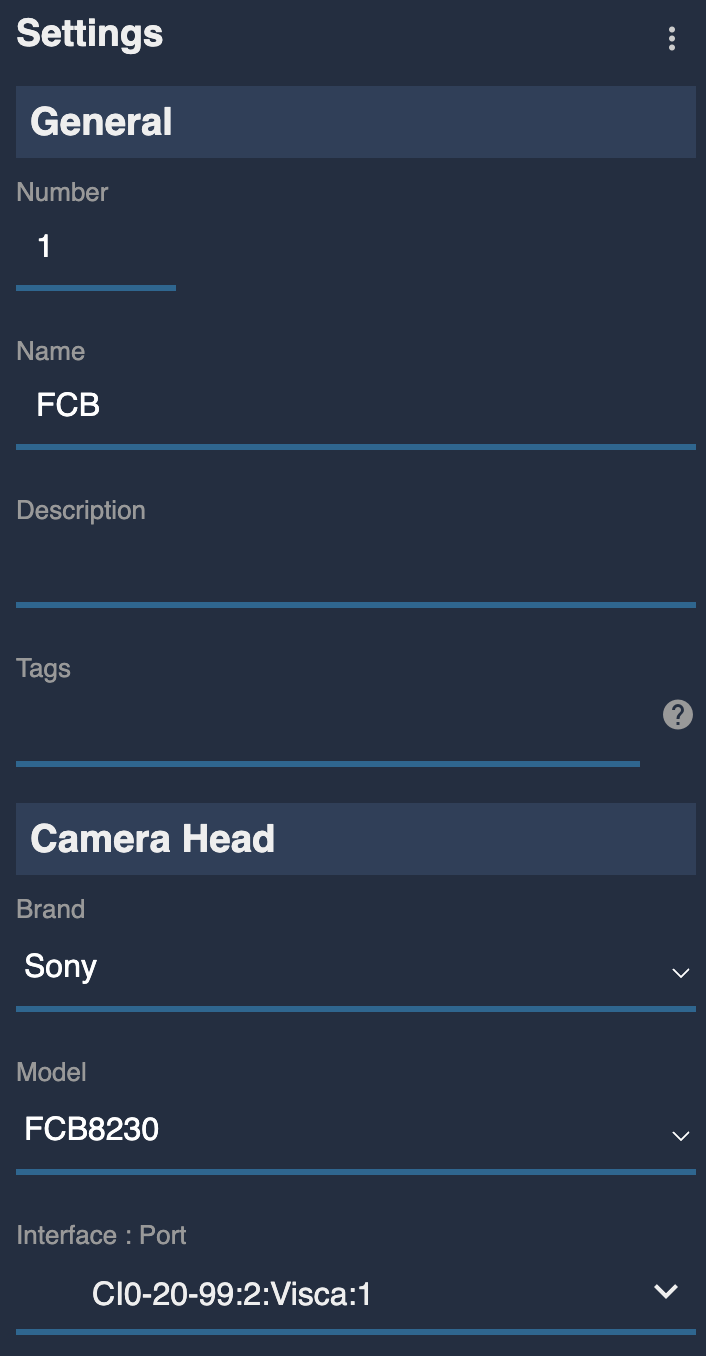
In Camera:
- Click
+ - Click the new camera block that appears
- Enter a number and a name
- Select
Sonyas brand - Select the matching FCB model (e.g.
FCB8230for an FCB-ER8530 — choose the closest model if your exact model is not listed) - Select the CI0 port and VISCA bus ID (e.g.
CI0-20-99:2:Visca:1— VISCA bus on CI020-99, port2, camera ID1on the bus)
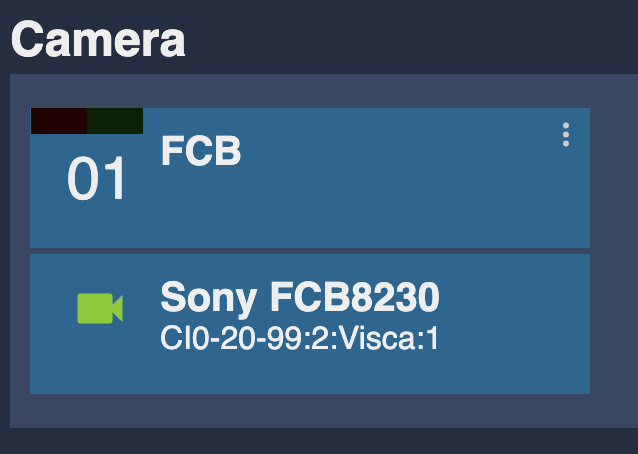
Once correctly connected, the camera block should look like this:
Troubleshooting
Camera icon stays RED / camera not detected
Check in this order:
- Verify wiring — confirm the CY-CBL-6P-FAN is correctly connected: GND/PWR to the camera power input, and GND/Tx/Rx to the VISCA/RS-232 port.
- Check CI0 / RIO power — the CI0 must be powered via PoE or 12V to supply power to the camera.
- Verify VISCA bus configuration — confirm the baud rate and camera ID in the VISCA bus block match the camera's hardware settings.
- Check the camera model selection — if your exact model is not in the list, try the closest model in the same family.
- Power cycle — restart the camera and the CI0/RIO, then retry.
- Check the cable — try a different cable or verify continuity on the Tx/Rx lines.
A specific parameter is not controllable
- Confirm the correct FCB model is selected in the RCP — different FCB models support different capabilities.
- Check that the RCP/RIO firmware is up to date.
Lens control not working
- Confirm the zoom and focus are set to speed or position mode as appropriate in the RCP.
- Verify the lens unit on the FCB is functional.