Sony PXW Camcorders
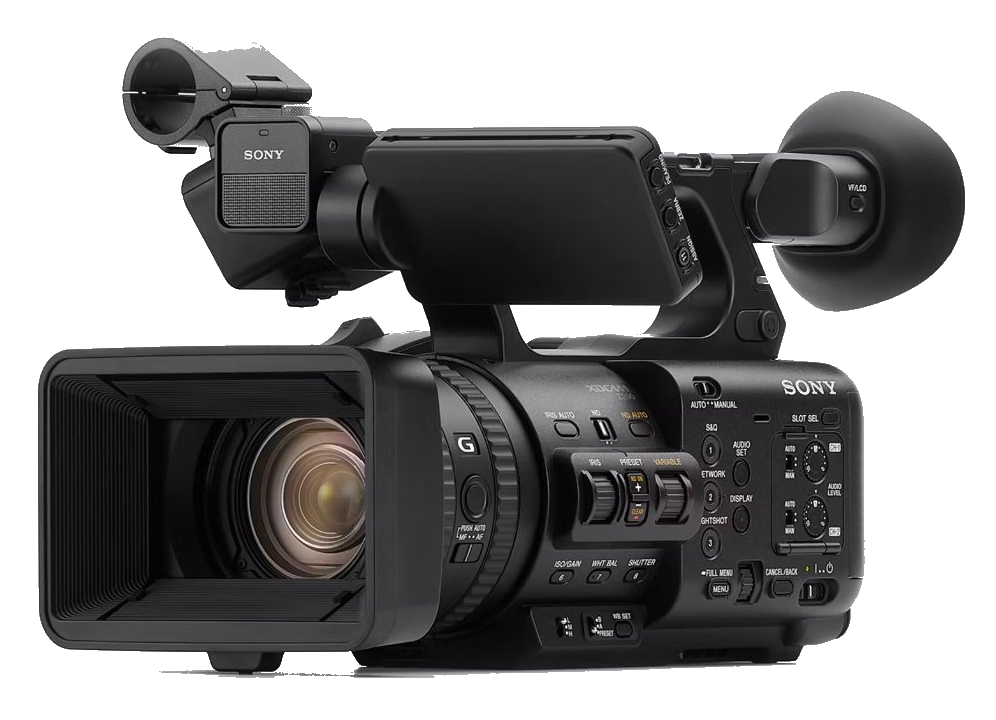
The Sony PXW series are professional camcorders controlled over IP using the Sony SDK released in 2025. They connect directly to the Cyanview RCP via the camera's LAN port. Typical use cases include multicam live production and event coverage.
Supported Models
- PXW-Z200
- PXW-Z300
- HXR-NX800
Support for these models requires the Sony SDK released in 2025, available from RCP/RIO firmware 25.10.1Beta2 or later. Ensure your RCP and RIO are updated before proceeding. See Software Update.
Supported Controls
In the current beta release, supported controls are limited. Later releases will expand control coverage.
| Control | Notes | PXW-Z200 / Z300 / HXR-NX800 |
|---|---|---|
| Iris | ✔ | |
| Gain | ✔ | |
| Shutter | ✔ | |
| ND | ✔ | |
| White Balance | Colour temperature and tint | ✔ |
| Record | — | |
| Tally | — |
Connection
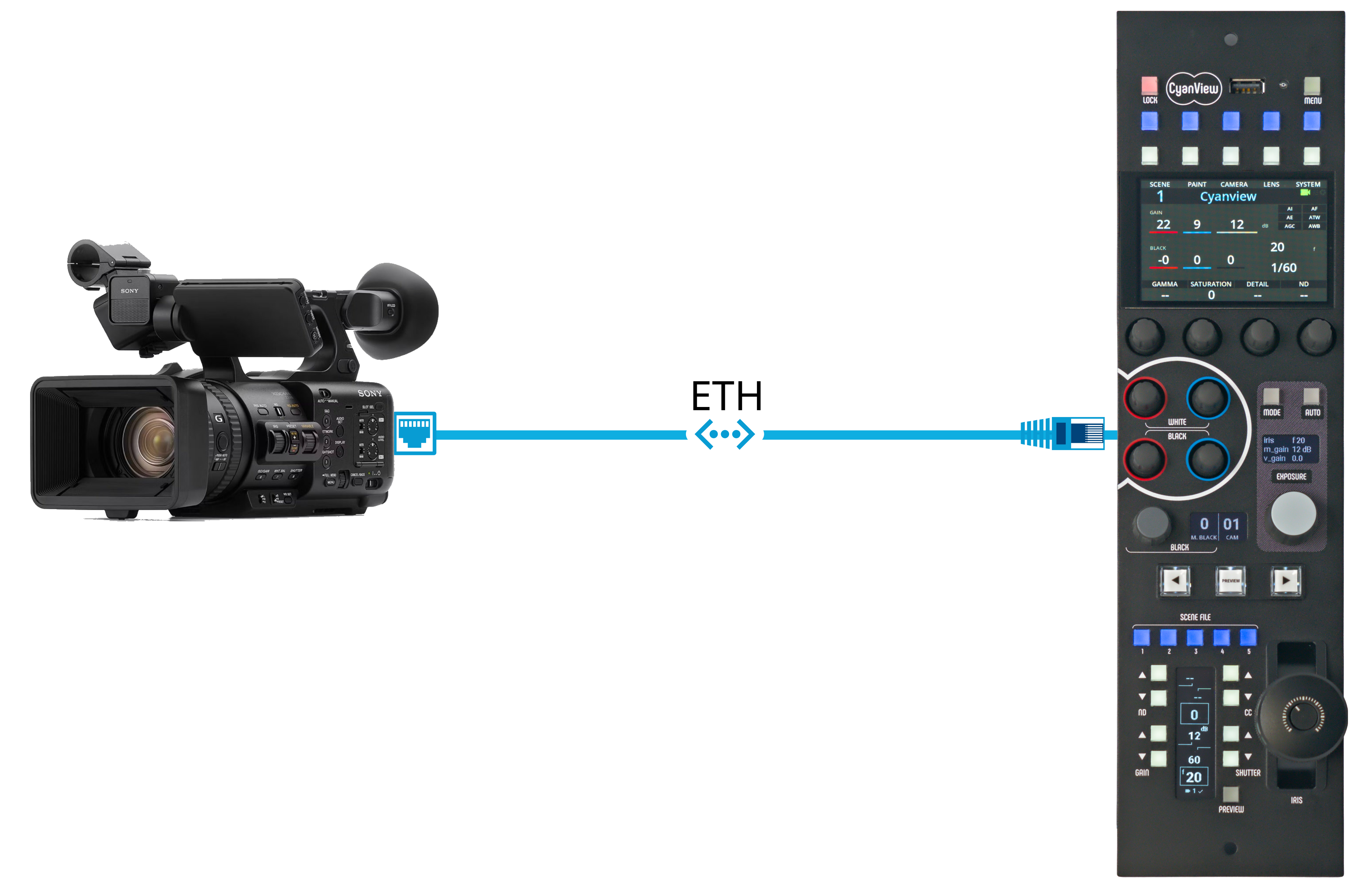
The RCP connects directly to the camera's LAN port over IP. No CI0 or RIO is required for IP-only control.
Configuration
Camera Configuration
Credentials
Set a Username and Password on the camcorder. Make note of these — you will need to enter them in the RCP.
Network Settings
In Network > Wired LAN:
- Enable
Camera Remote Control - Set the camera
IP Addressand remaining network settings (static IP recommended)
Body Switch
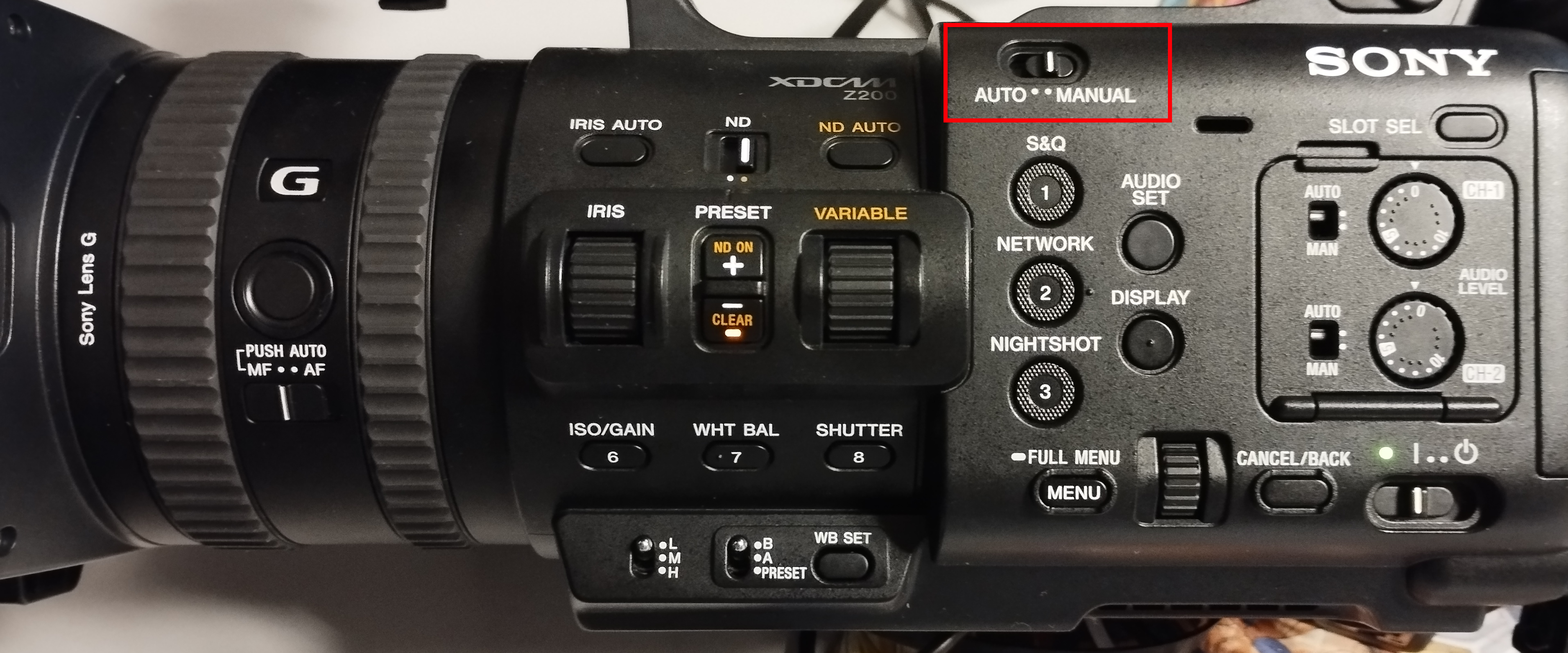
Ensure the mode switch on the camera body is set to Manual.
RCP Configuration
Add the camera as an IP camera.
Camera-specific settings:
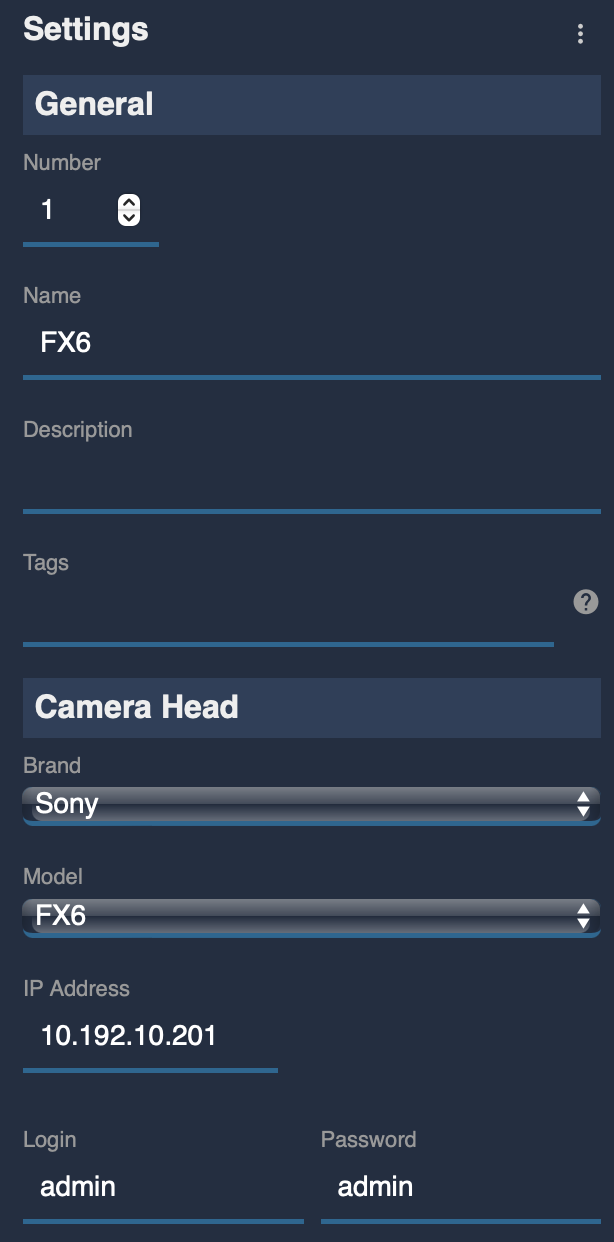
- Select brand Sony and model FX6
- Enter the camera IP address and the username/password set on the camera
Currently, PXW-Z200, PXW-Z300, and HXR-NX800 must be added using the FX6 model selection. A dedicated model entry will be added in a future update.
Troubleshooting
Camera icon stays RED / camera not detected
Check in this order:
- Verify camera settings — confirm
Camera Remote Controlis enabled, the IP address is correctly set, and the username/password match what is entered in the RCP (see Camera Configuration above). A firmware update may reset these settings. - Verify body switch — confirm the mode switch on the camera body is set to Manual.
- Ping the camera from a computer — set the computer to the same IP range and ping the camera IP to confirm basic network connectivity.
- Ping the RCP from the same computer — confirms the RCP and camera are on the same subnet.
- Check the RCP IP — the RCP must have an IP address in the same subnet as the camera. See Configure IP Addresses.
- Power cycle — restart the camera and retry.
- Verify firmware — confirm RCP/RIO firmware is
25.10.1Beta2or later (see Software Update).
A specific parameter is not controllable
- Control coverage is limited in the current beta release. Check release notes for the latest supported controls.
- Confirm the camera body switch is set to Manual — some controls are unavailable in other modes.