Sony FX9
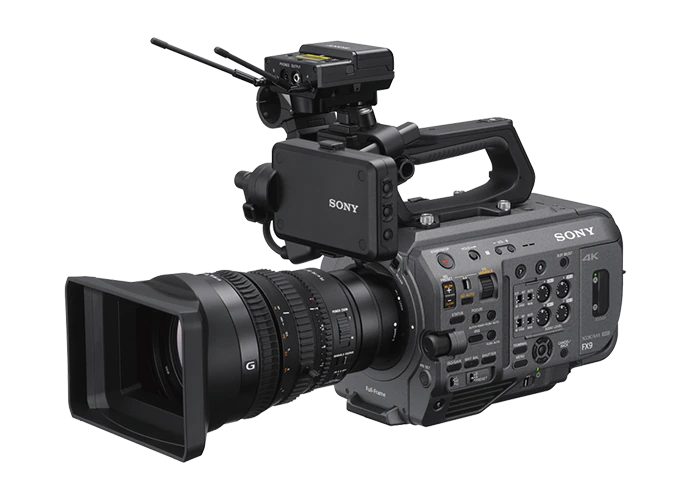
The Sony FX9 is a full-frame Cinema Line camera controlled over IP using either the combined FX9 protocol (S700 + CBM) or the standalone CBM protocol. It connects to the Cyanview RCP via a wired Ethernet connection (requiring the Sony XDCA extension for direct control without a RIO) or Wi-Fi. Typical use cases include multi-camera live production, remote shading, and REMI workflows.
Supported Models
- Sony FX9 — IP control requires the Sony XDCA-FX9 extension unit for wired Ethernet without a RIO
Protocol Selection
The FX9 can be configured in two modes in the RCP:
- FX9 — Combines the S700 and CBM protocols. Provides full paint controls (blacks, multi matrix, white balance, etc.) and tally. The camera enters RCP mode, which disables variable ND filter and limits gain to 3 dB steps.
- CBM — Uses the CBM protocol only. Provides exposure controls including variable ND and 1 dB gain steps, plus menu navigation. Loses S700 paint controls (blacks, multi matrix, etc.). The camera remains unrestricted.
Switching between FX9 and CBM modes may require a camera reboot to take effect. As a rule of thumb, when your camera is in SLog, prefer CBM mode as it gives you more control over the camera without entering RCP mode.
Supported Controls
| Control | Notes | FX9 | CBM |
|---|---|---|---|
| Iris | ✔ | ✔ | |
| Gain | 3 dB steps in FX9 mode; 1 dB steps in CBM mode | ✔ | ✔ |
| Shutter | ✔ | ✔ | |
| ND Filter | Preset steps in FX9 mode; variable in CBM mode | ✔ | ✔ |
| White Balance | Color temperature and R/B gains | ✔ | ✔ |
| Master Black / Black Balance | R/B and master black | ✔ | — |
| Multi Matrix | ✔ | — | |
| Detail | ✔ | — | |
| Base ISO | ✔ | — | |
| Tally | ✔ | — | |
| Menu / OSD | Camera menu navigation | ✔ | ✔ |
| Lens | Iris, zoom, focus — via camera if compatible | ✔ | ✔ |
Connection
The FX9 can be connected over:
- IP (wired Ethernet): requires the Sony XDCA-FX9 extension unit for direct control without a RIO. Connect the camera's Ethernet port to a network switch shared with the RCP or directly to the RCP.
- IP (Wi-Fi): the camera connects to an existing Wi-Fi network (Station Mode) or to the RCP's own Wi-Fi access point.
Ethernet
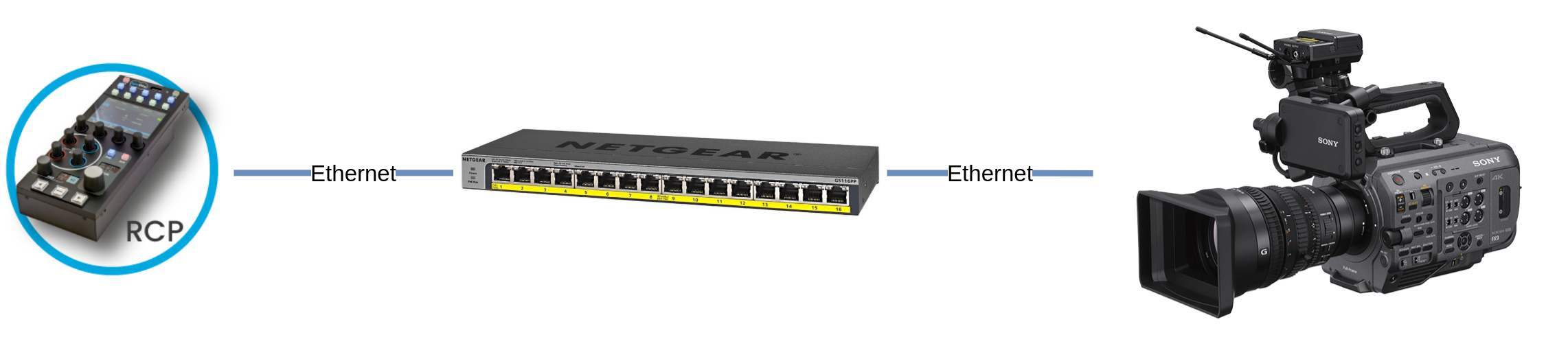
For direct Ethernet control without a RIO, the Sony XDCA extension unit is required.
Wi-Fi
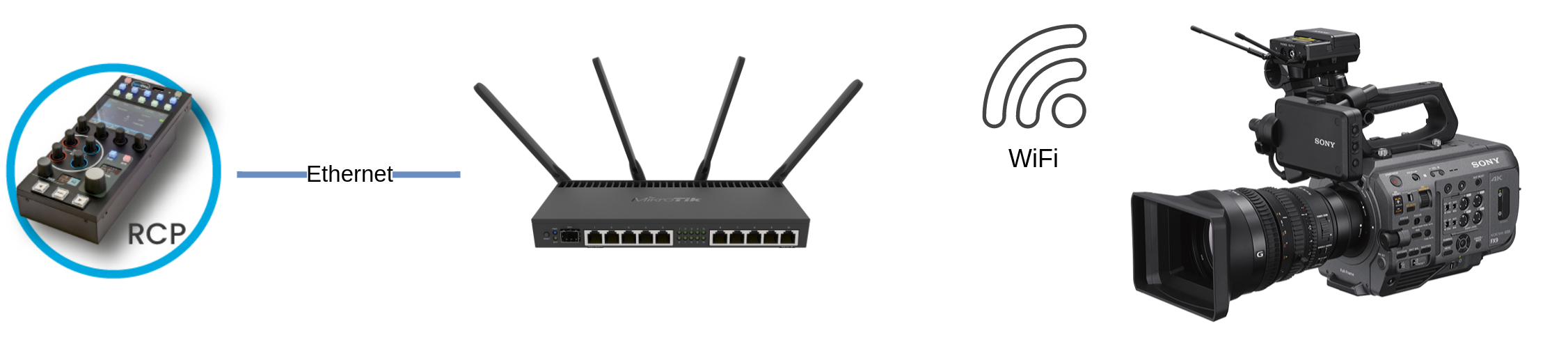
Or
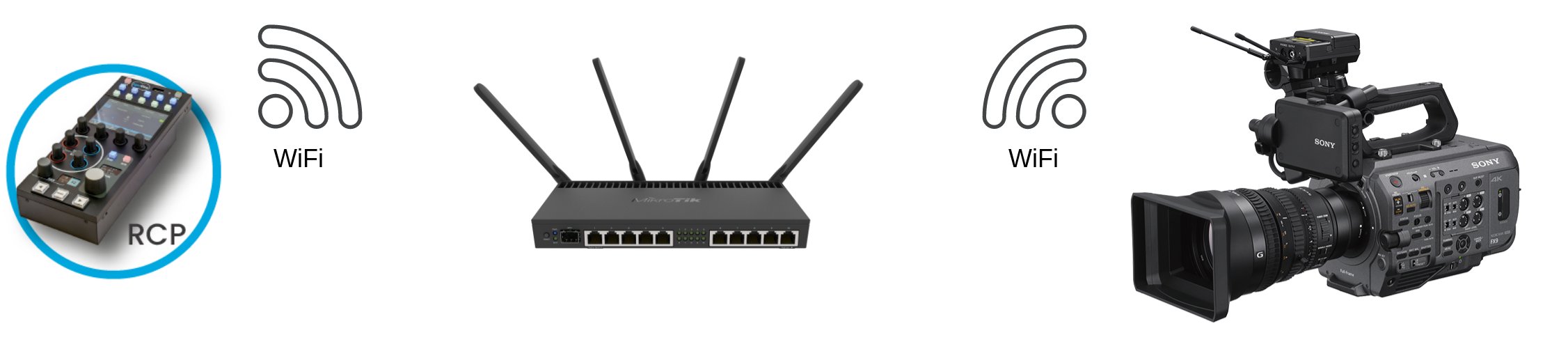
Refer to USB Wi-Fi dongles on a RIO or RCP to set up RCP or RIO Wi-Fi.
Required Accessories
Required (wired Ethernet without RIO):
- Sony XDCA-FX9 extension unit — provides the Ethernet port for direct IP control
Optional:
- B4 / cine lens adapter — for controlling broadcast or cine lenses via a RIO
Configuration
Camera Configuration
Color Temperature and Master Black
Ensure the WB button on the left side of the camera is set to Preset. Otherwise, color temperature and master black controls will not be available.
The WB button position affects master black availability — this is a known camera behavior.
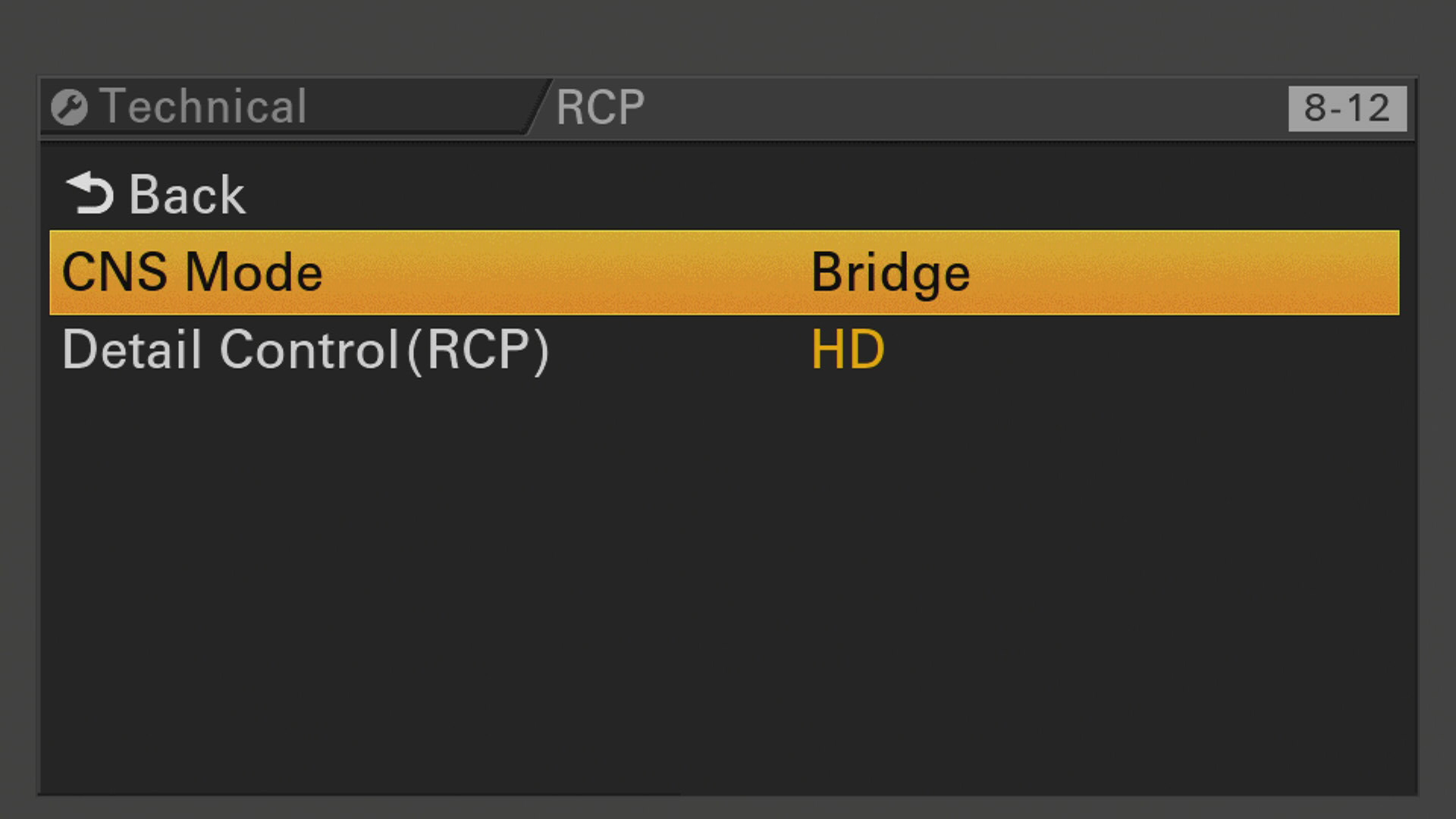
Remote Control (CNS Mode)
In Menu > Technical > RCP:
- Set
CNS modetoBridge
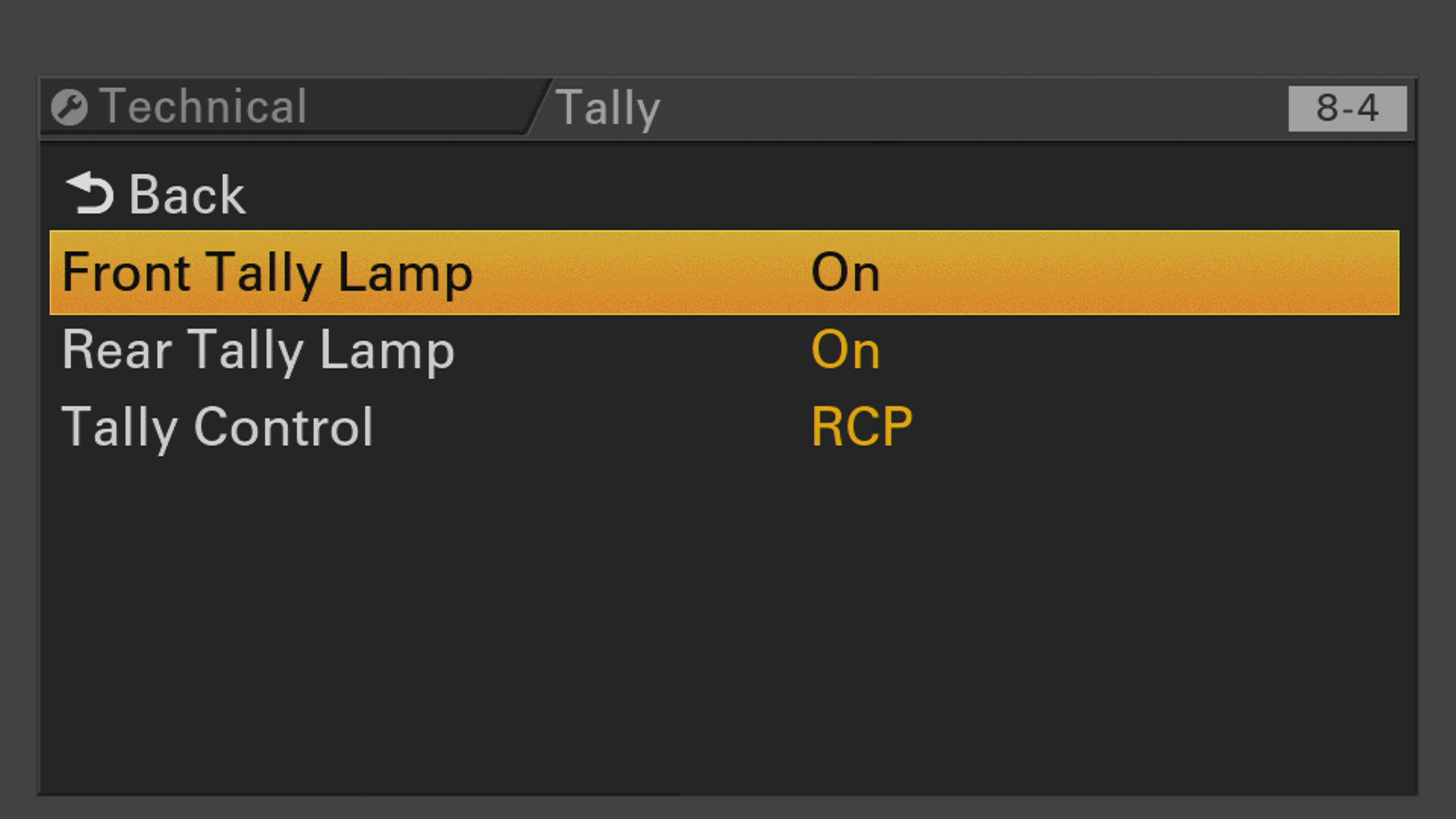
Tally
In Menu > Technical > Tally:
- Set
Tally ControltoRCP
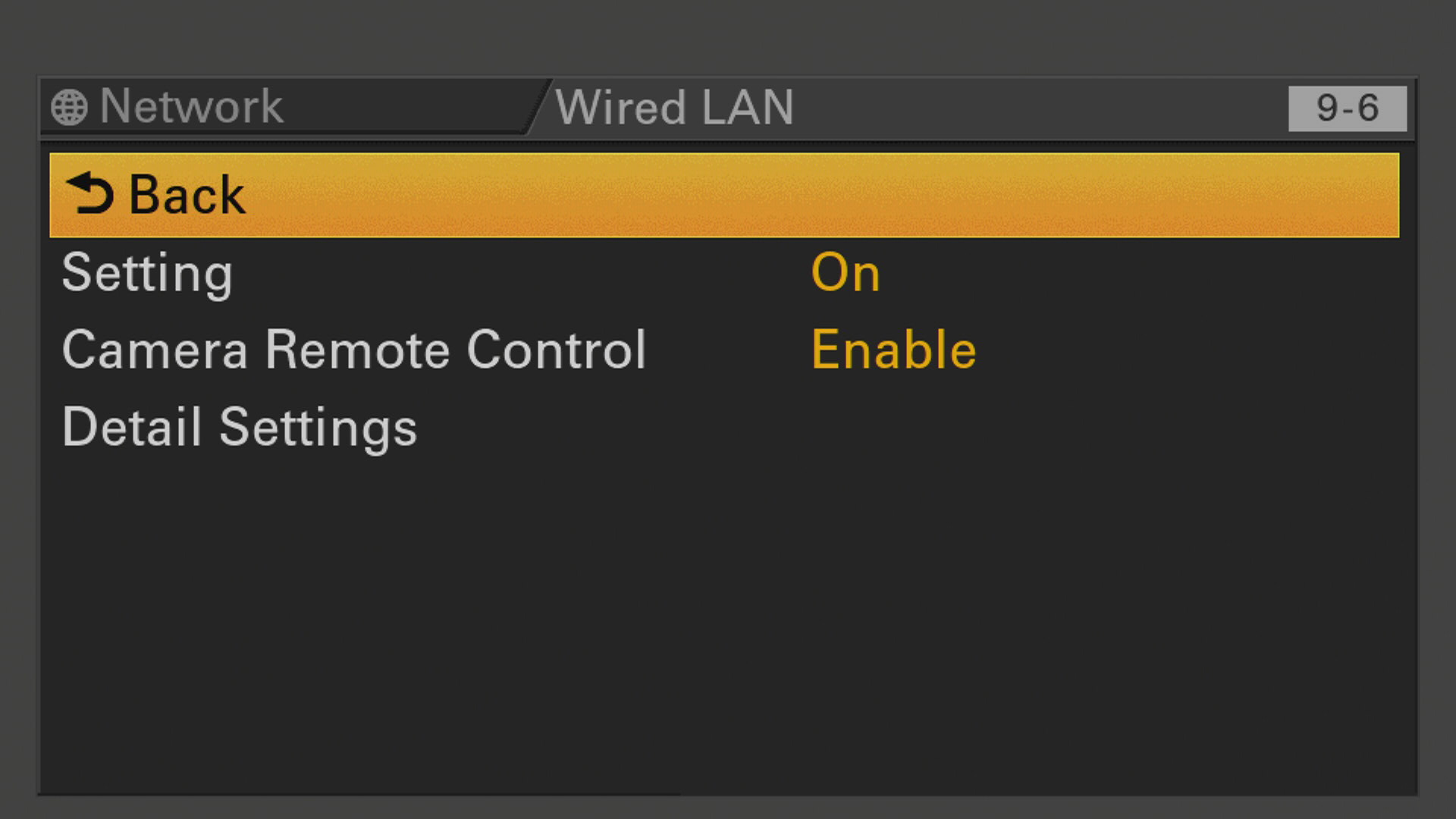
Network / IP Settings (Wired Ethernet)
In Menu > Network > Wired LAN:
- Set
SettingtoOn - Set
Camera Remote ControltoEnable - Configure
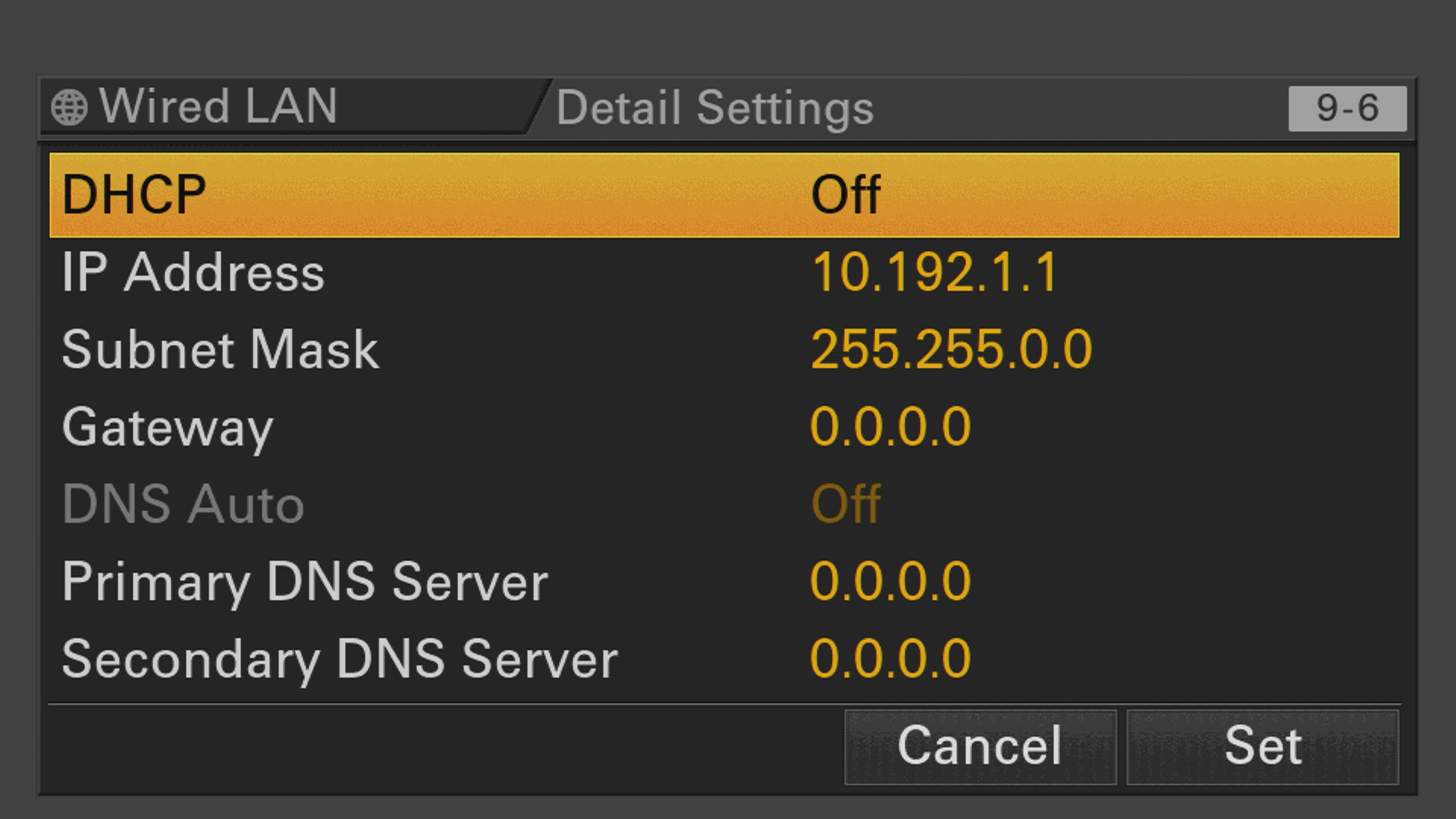
Detail Settingsaccording to your network setup (DHCP or static IP recommended)
Example of static IP setup (Menu > Network > Wired LAN > Detail Settings):
Network / IP Settings (Wi-Fi)
In Menu > Network > Wireless LAN:
- Set
SettingtoStation
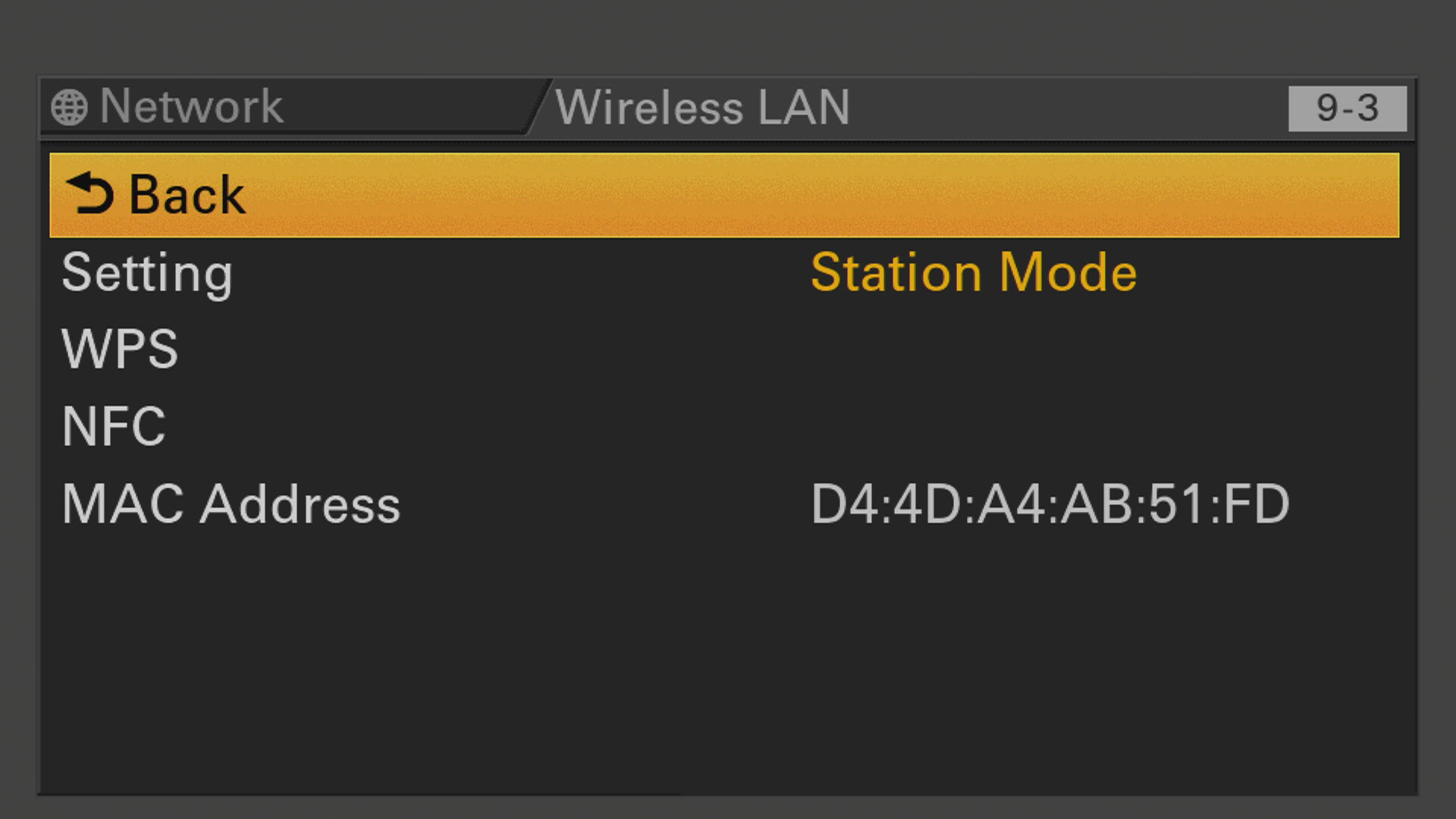
In Menu > Network > ST Mode Settings:
- Set
Camera Remote ControltoEnable - Configure
Connected Networkwith your Wi-Fi SSID, password, and static/DHCP settings
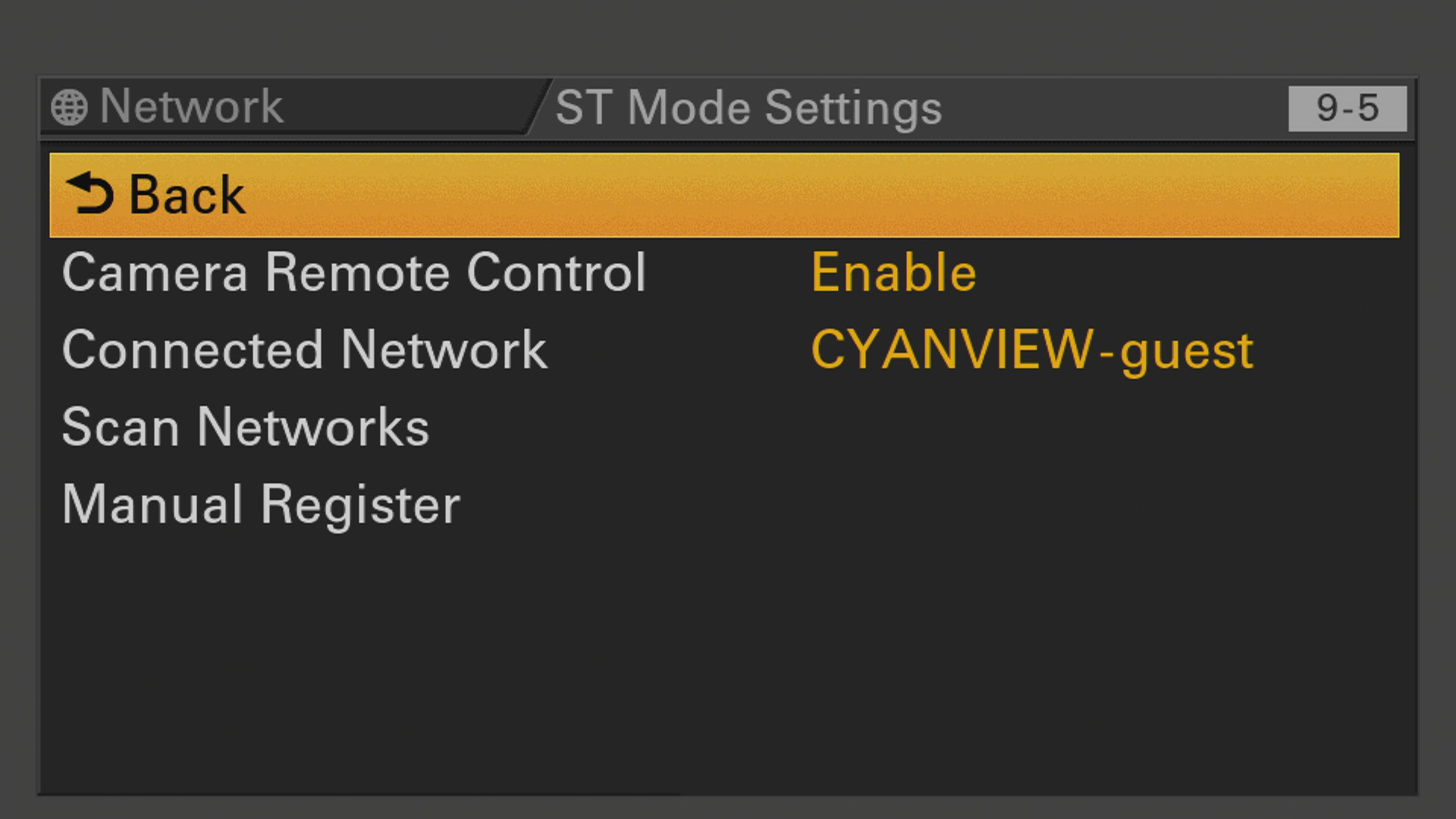
The same applies to Access Point mode — do not forget to activate Camera Remote Control.
RCP Configuration
Add the camera as an IP camera. Use brand Sony and model Sony FX9, then enter the camera IP address.
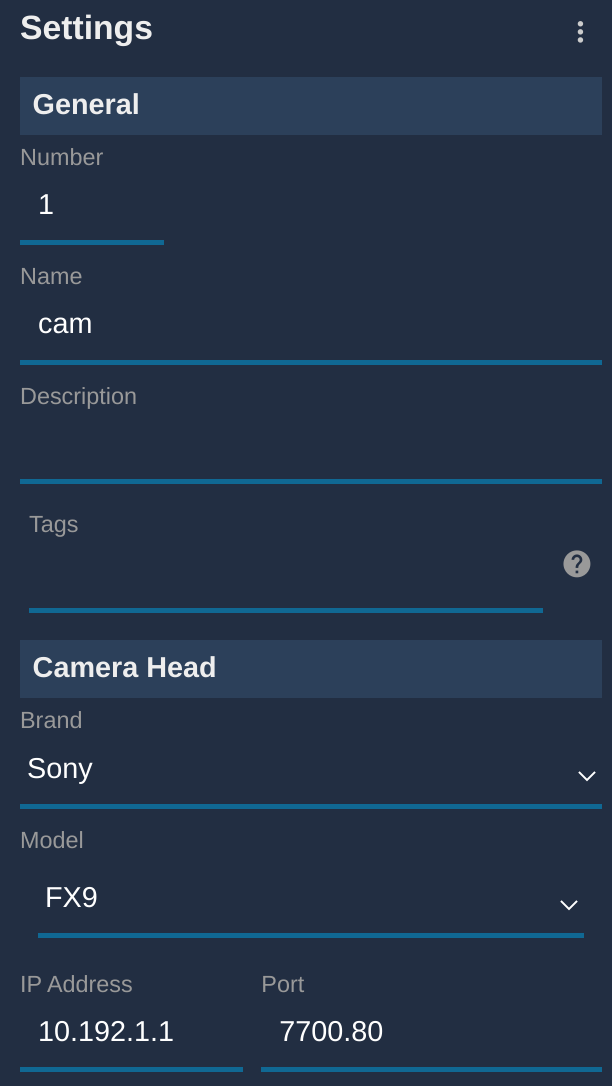
In FX9 mode, the RCP combines two protocols (S700 + CBM) for richer control, but the camera enters RCP mode and loses variable ND filter and fine gain control (1 dB steps). To retain variable ND and 1 dB gain steps, select CBM as the model instead of FX9 (a camera reboot may be required). See the dedicated CBM integration guide for more details.
Operations
B4 Lens Control
If you want to add a Canon CINE-SERVO, Fujinon Cabrio, or any B4 lens to your FX9, you can find more information here.
For PL lenses or other electronically incompatible lenses, follow this guide.
Troubleshooting
Camera icon stays RED / camera not detected
Check in this order:
- Verify camera settings — confirm
CNS Modeis set toBridge,Camera Remote Controlis enabled in the network menu, andTally Controlis set toRCP(see Camera Configuration above). A camera firmware update often resets these settings. - Ping the camera from a computer — set the computer to the same IP range and ping the camera IP to confirm basic network connectivity. If the camera is set to DHCP and you are unsure whether a DHCP server is present, switch to a static IP.
- Ping the RCP from the same computer — confirms the RCP and camera are on the same subnet.
- Check the RCP IP — the RCP must have an IP address in the same range as the camera.
- Power cycle — restart the camera (remove battery/PSU if needed) and retry.
- Disable and re-enable remote control on the camera — this often clears a stuck state.
- Check XDCA connection — if using wired Ethernet, ensure the Sony XDCA extension unit is properly seated and powered.
A specific parameter is not controllable
- Confirm you have selected the correct model in the RCP (FX9 vs CBM) — each mode provides a different set of controls (see Protocol Selection above).
- In FX9 mode, variable ND and fine gain steps (1 dB) are not available — switch to CBM mode if these are needed.
- Confirm the WB button on the left side of the camera is set to
Preset— this is required for color temperature and master black control. - Check that the camera and RCP are both on the latest firmware.
Lens control not working
- Lens control is routed through the camera when the lens is electronically compatible. If the lens is not compatible (PL lens, etc.), a RIO with a dedicated lens motor interface is required — follow this guide.
- For B4 lenses, see the B4 lens guide.
Camera firmware update broke control
- Firmware updates often reset network settings, CNS mode, and tally settings. Re-apply all settings from Camera Configuration after any firmware update.
- As a general rule, do not update camera firmware during a live production. Test first in a controlled environment.