Sony Burano Integration
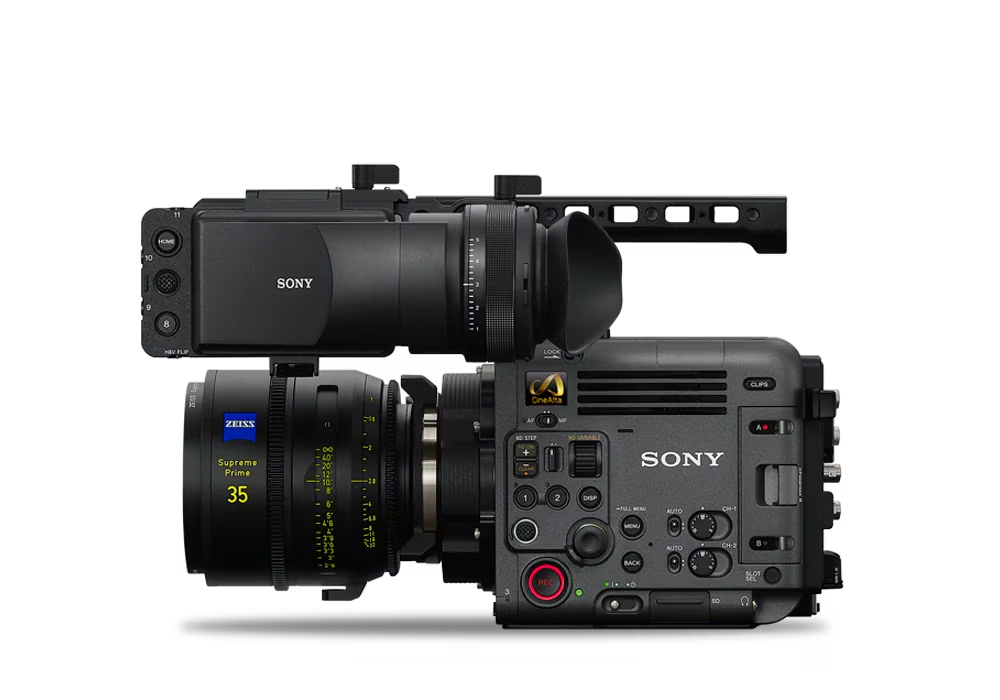
The Sony Burano is a full-frame cinema camera controlled over IP/Ethernet. It connects to the Cyanview RCP via a standard Ethernet network using either the Sony SDK (Burano) protocol or the CNS-Bridge protocol. Typical use cases include live broadcast, remote production (REMI), and high-end multi-camera shading.
Supported Models
- Sony Burano — supported via Sony SDK (
Buranomodel on RCP) or CNS-Bridge (CNS-Bridgemodel on RCP)
Protocol Selection
The Burano can be configured in two modes in the RCP:
- Burano (Sony SDK) — uses the same protocol as the Sony 'Monitor & Control' app. Provides exposure, white balance, shutter, variable ND, and recording controls. Best for productions requiring smooth ND control and full recording integration.
- CNS-Bridge — uses the same protocol as the Sony RCP. Provides a more limited exposure set but adds broadcast paint controls: R/B color gains, black, detail, and multi-matrix. Best for productions requiring traditional broadcast paint workflow.
The Burano is restricted to one control protocol at a time. If CNS-Bridge is enabled on the camera, the SDK functions are disabled by the camera, and the camera icon will remain red if you select the Burano protocol on the RCP. In that case you must select CNS-Bridge instead. The Sony FR7 allows both protocols simultaneously; the Burano does not.
Supported Controls
| Control | Notes | Burano (Sony SDK) | CNS-Bridge |
|---|---|---|---|
| White Balance | Color temperature and tint; no R/B gains | ✔ | ✔ |
| AWB / ATW | Single-shot and Auto Tracking White Balance | ✔ | ✔ |
| Iris | Manual and Auto | ✔ | ✔ |
| Variable ND | Clear, variable, and Auto | ✔ | ✔ (3 steps only) |
| Gain / EI | Gain in dB or ISO, or Exposure Index (EI) in Cine EI mode | ✔ (1 dB steps) | ✔ (3 dB steps) |
| Shutter | Manual, Auto, ECS, OFF | ✔ | — |
| Record | ON/OFF + status | ✔ | — |
| R/B Color Gains | — | ✔ | |
| Black | Master, R, B | — | ✔ |
| Detail | Master, H/V, Limit, Crispening | — | ✔ |
| Multi Matrix | Standard 16-vector multi-matrix | — | ✔ |
| Tally | — | ✔ |
Variable ND can be assigned to the iris joystick for very smooth control, while iris remains accessible from the exposure knob.
Connection
The Sony Burano connects over IP/Ethernet. Both wired and Wi-Fi connections are supported.
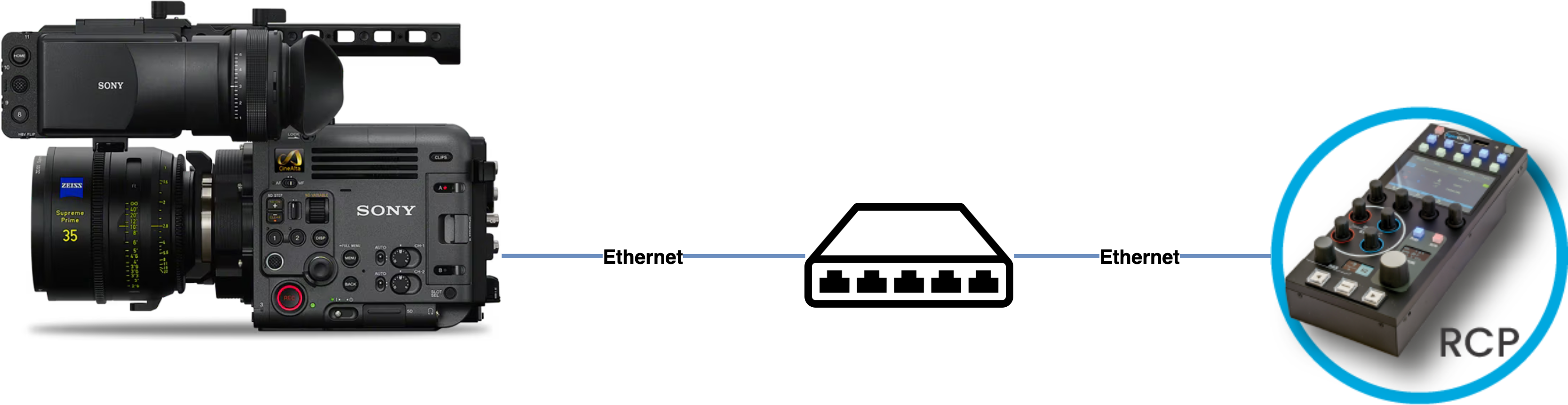
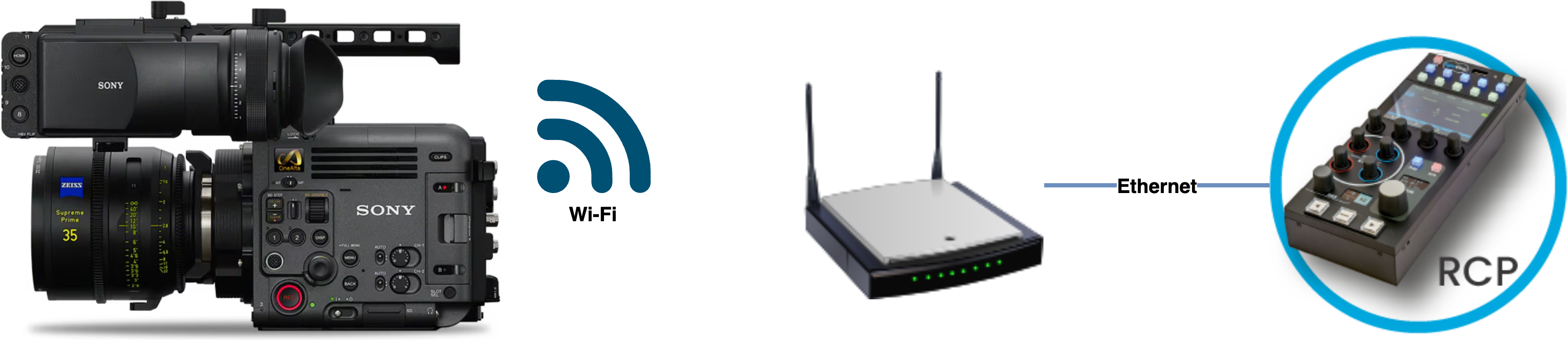
If you need to use non-Sony lenses, a RIO with the appropriate cable is required:
- Canon/Fuji motorised lenses
- Tilta motors
- ARRI C-Force
Configuration
Camera Configuration
To control the camera using either protocol, configure the network and remote control settings directly on the camera.
For CNS-Bridge mode (used by the Sony RCP), refer to the official BURANO Remote Control Guide for detailed instructions.
In summary, from the camera menus:
Network / IP Settings
- Set a username and password under
Network > Network Setup - Set
Network > Wired LAN > Camera Remote Controlto Enable
CNS-Bridge Mode (for CNS-Bridge protocol)
- Set
Technical > RCP > CNS modeto Bridge
RCP Configuration
Add the camera as an IP camera. Use brand Sony and model Burano (for Sony SDK) or CNS-Bridge (for CNS-Bridge protocol), then enter the camera IP address and login/password.
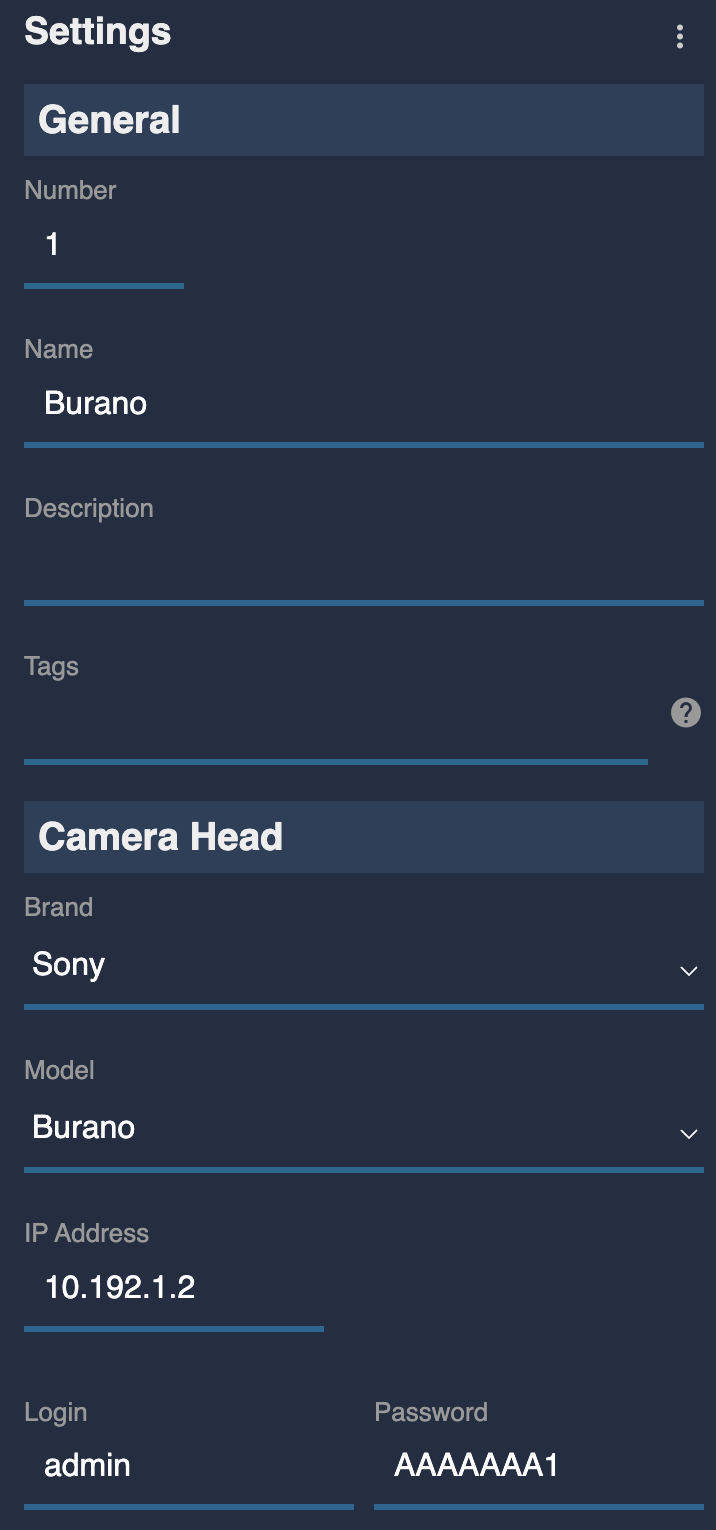
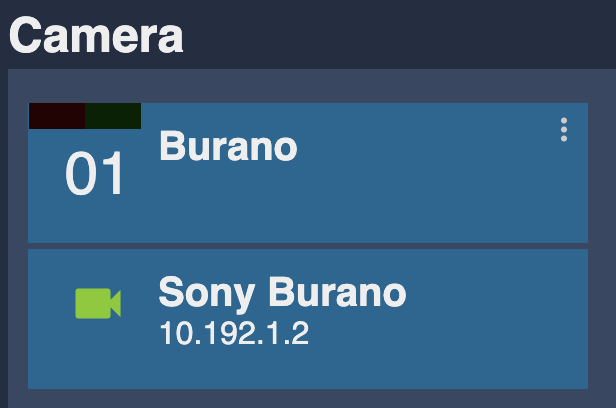
Once correctly configured, the camera icon turns green:
Troubleshooting
Camera icon stays RED / camera not detected
Check in this order:
- Verify camera network settings — confirm
Network > Wired LAN > Camera Remote Controlis set to Enable and that the IP address and credentials are correctly configured (see Camera Configuration above). A camera firmware update often resets these settings. - Verify the protocol selection — if CNS-Bridge is enabled on the camera, you must select the
CNS-Bridgemodel on the RCP, notBurano. Using the wrong model will keep the camera icon red. - Ping the camera from a computer — set the computer to the same IP range and ping the camera IP to confirm basic network connectivity.
- Ping the RCP from the same computer — confirms the RCP and camera are on the same subnet.
- Check the RCP IP — the RCP must have an IP address in the same range as the camera. See the network configuration guide.
- Power cycle — restart the camera (remove battery/PSU if needed) and retry.
A specific parameter is not controllable
- Confirm the correct protocol is selected in the RCP (
BuranovsCNS-Bridge) — each protocol exposes a different set of controls (see Protocol Selection). - Some controls (e.g. Shutter, Record) are only available in Burano (Sony SDK) mode; paint controls (Black, Detail, Multi Matrix) are only available in CNS-Bridge mode.
Camera firmware update broke control
A camera firmware update may reset network and remote control settings. Re-apply the settings described in Camera Configuration. As a general rule: do not update camera firmware during a live production — test first in a controlled environment.