Panasonic Lumix DC-GH5S and DC-GH7
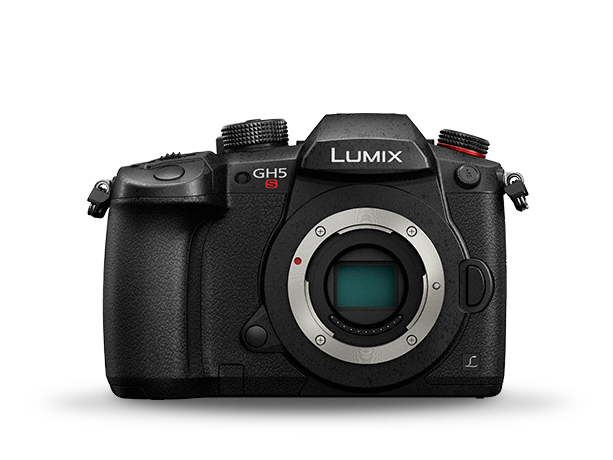
The Panasonic Lumix DC-GH5S and DC-GH7 are mirrorless cameras controlled by the Cyanview RCP or RIO over a USB cable. The camera connects directly to the USB port on the RCP or RIO. Typical use cases include multi-camera live production, event coverage, and any setup where consistent shading across GH-series bodies is required.
Supported Models
- DC-GH5S — full support
- DC-GH7 — full support, including additional paint controls (Saturation, Hue, Detail, Noise Reduction, Knee)
Supported Controls
| Control | Notes | DC-GH5S | DC-GH7 |
|---|---|---|---|
| Auto Exposure | Modes P, A, S or manual | ✔ | ✔ |
| Exposure Compensation | ✔ | ✔ | |
| Iris | ✔ | ✔ | |
| Shutter | ✔ | ✔ | |
| ISO / Gain | ✔ | ✔ | |
| White Balance | Color temperature | ✔ | ✔ |
| R/B Gains | A-B/G-M mapped to R/B encoders — not standard red/blue gains | ✔ | ✔ |
| Saturation | — | ✔ | |
| Hue | — | ✔ | |
| Detail | — | ✔ | |
| Noise Reduction | — | ✔ | |
| Knee | ON/OFF/manual only — point and slope not controllable | — | ✔ |
| Record | — | — | |
| Tally | — | — |
A-B/G-M settings are mapped to the R/B encoders on the RCP. This is not equivalent to standard red/blue gain control.
Connection
The DC-GH5S and DC-GH7 must be connected with a USB cable directly to a RCP or a RIO. No network connection is required.
Configuration
Camera Configuration
Connect the USB cable to the RCP or RIO, then connect the other end to the camera. When the USB cable is connected to the camera, a prompt appears asking you to choose between three USB modes:
- PC (storage)
- PC (Tether)
- PictBridge (PTP)
Select PC (Tether).
ISO Range
To use the full ISO range, set Dual Native ISO Setting in the Exposure menu to AUTO.
RCP Configuration
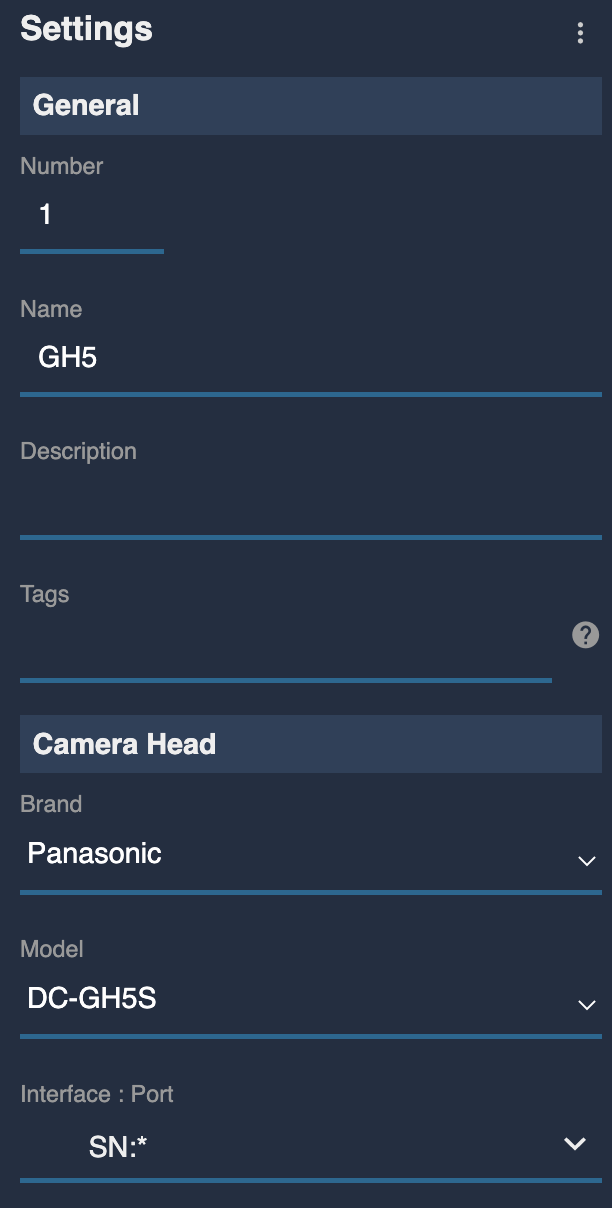
This is a serial camera connected via USB — follow the Serial Camera Setup Guide to add it to the RCP.
- Select brand Panasonic and model DC-GH5S or DC-GH7
- Select the USB port the camera is connected to
Your settings should look like:
Troubleshooting
Camera icon stays RED / camera not detected
Check in this order:
- Verify USB mode on the camera — when the USB cable is connected, confirm you selected PC (Tether) on the camera prompt. Selecting PC (storage) or PictBridge will prevent control.
- Check the USB connection — try a different USB cable and ensure it is fully seated in both the camera and the RCP/RIO.
- Check the port selection in the RCP — confirm the correct USB port is selected in the camera configuration.
- Power cycle — disconnect and reconnect the USB cable, then retry.
A specific parameter is not controllable
- Confirm the correct model is selected in the RCP — DC-GH5S and DC-GH7 have different control sets.
- Knee point and slope are not controllable on the DC-GH7 — only ON/OFF/manual mode switching is supported.
- R/B gain encoders control A-B/G-M parameters, not standard red/blue gains.
Full ISO range is not available
- In the camera's Exposure menu, set Dual Native ISO Setting to
AUTOto unlock the full ISO range.
Camera firmware update broke control
- Firmware updates may reset USB mode preferences. Reconnect the USB cable and re-select PC (Tether) when prompted.
- As a general rule: do not update camera firmware during a live production. Test first in a controlled environment.