Panasonic AG-CX350
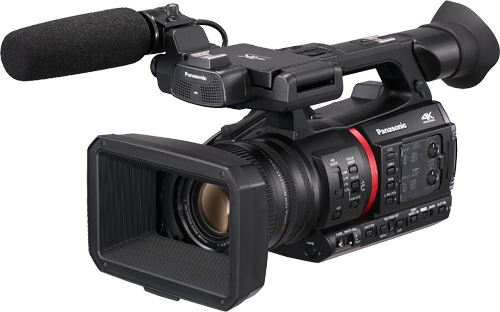
The Panasonic AG-CX350 is a camcorder controlled over IP, supporting both wired Ethernet and built-in Wi-Fi connections. It connects to the Cyanview RCP or RIO over a standard network, requiring a user account configured on the camera. Typical use cases include ENG, event production, and multi-camera setups where wireless connectivity is needed.
Supported Models
- AG-CX350 — all firmware versions; update to the latest firmware before use (see Compatibility Requirements)
Compatibility Requirements
- Camera firmware: update to the latest available version. At the time of writing, the latest firmware for the AG-CX350 is version 7.20-00.
The camera firmware must be up-to-date before configuring the integration.
Supported Controls
| Control | Notes | AG-CX350 |
|---|---|---|
| Iris | Manual and Auto iris (speed, sensitivity) | ✔ |
| Gain | In dB, manual and Auto (max gain and EV settable) | ✔ |
| Shutter | Speed or ECS | ✔ |
| Variable ND | ND can be changed but cannot be recalled from scene files — protocol allows control by multiple increments only | ✔ |
| White Balance | R/B gain, master gain, color temperature | ✔ |
| Black Balance | R/B gain, master black | ✔ |
| Saturation / Hue | ✔ | |
| Knee | Point and slope, auto | ✔ |
| Black Gamma | Master and range | ✔ |
| Detail | Detail level/freq/mix, coring level, skin detail (skin 1, skin 2, skin 3) | ✔ |
| OETF | HD / SD / FILMLIKE1 / FILMLIKE2 / FILMLIKE3 / FILM-REC / VIDEO-REC / HLG | ✔ |
| Color Space | NORMAL1 / NORMAL2 / FLUO / CINELIKE | ✔ |
| Matrix / Multi-Matrix | Multi-matrix with 16 vectors (hue and saturation) | ✔ |
| Zoom | Speed control; position read-only | ✔ |
| Focus | Speed control; position read-only | ✔ |
| ATW / AWB / ABB | ✔ | |
| Menu Navigation | ON/OFF, enter/back, up/down, toggle display | ✔ |
| Bars | Pattern | ✔ |
| Record | — | — |
| Tally | — | — |
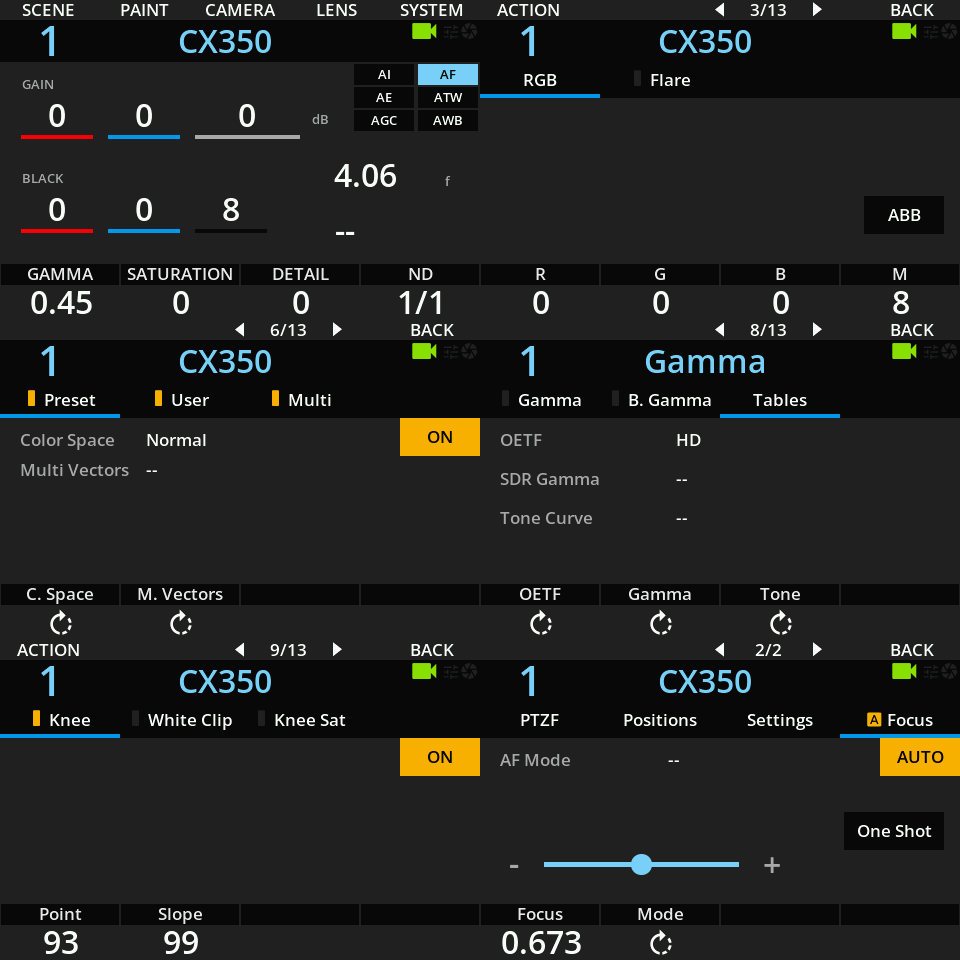
The Variable ND filter can be adjusted in increments but cannot be recalled from scene files, as the protocol only allows relative control steps.
Known Limitations
- ND recall from scene files is not supported — ND position can only be changed by multiple increments, not set to an absolute value from the protocol.
- Zoom and Focus position is read-only — the RCP can display position but control is speed-based only.
Connection
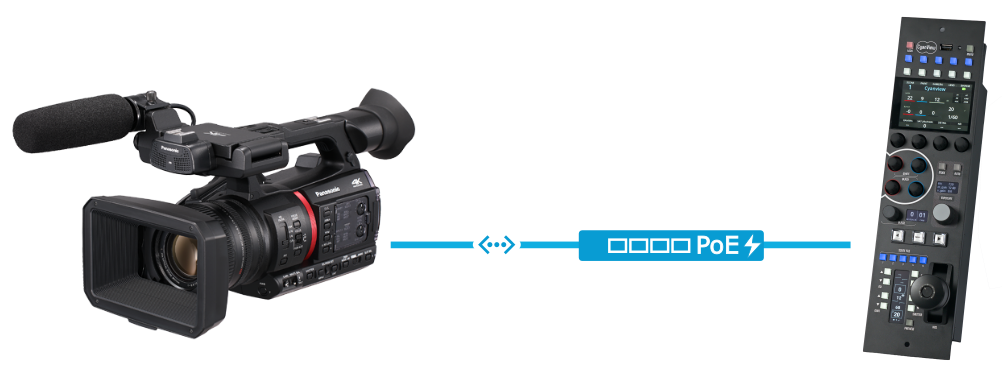
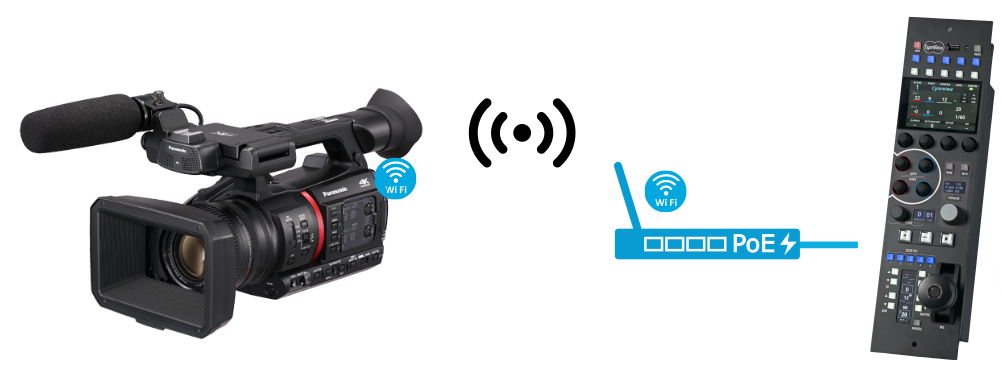
The AG-CX350 can be connected over:
- Wired Ethernet — standard RJ45 connection to a network switch.
- Built-in Wi-Fi — camera connects to a Wi-Fi access point; the RCP connects to the same network.
Configuration
Camera Configuration
Network / IP Settings
In NETWORK > LAN PROPERTY > IPV4 SETTING, configure the IP address:
- Set a static IP or enable DHCP client as needed.
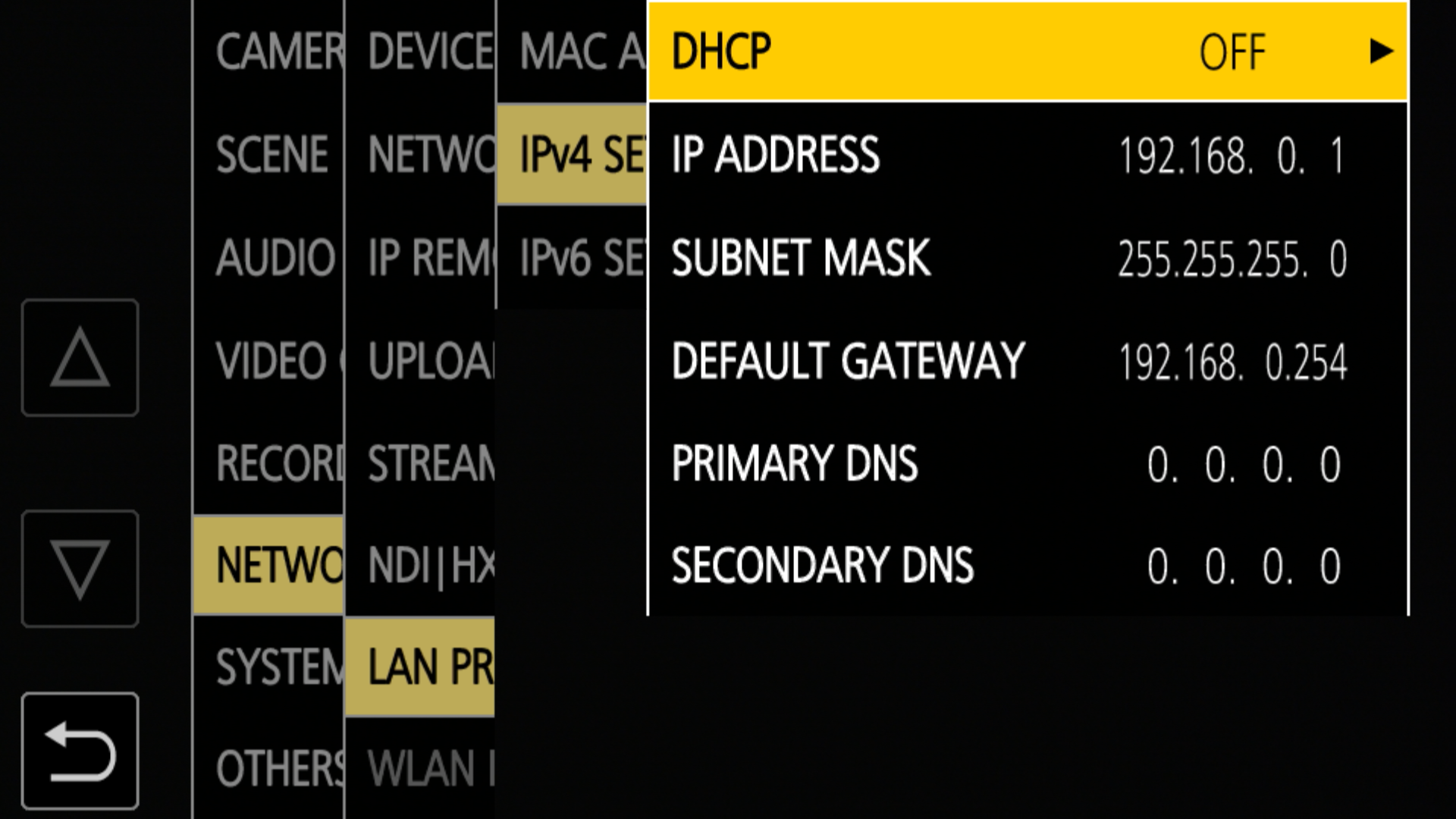
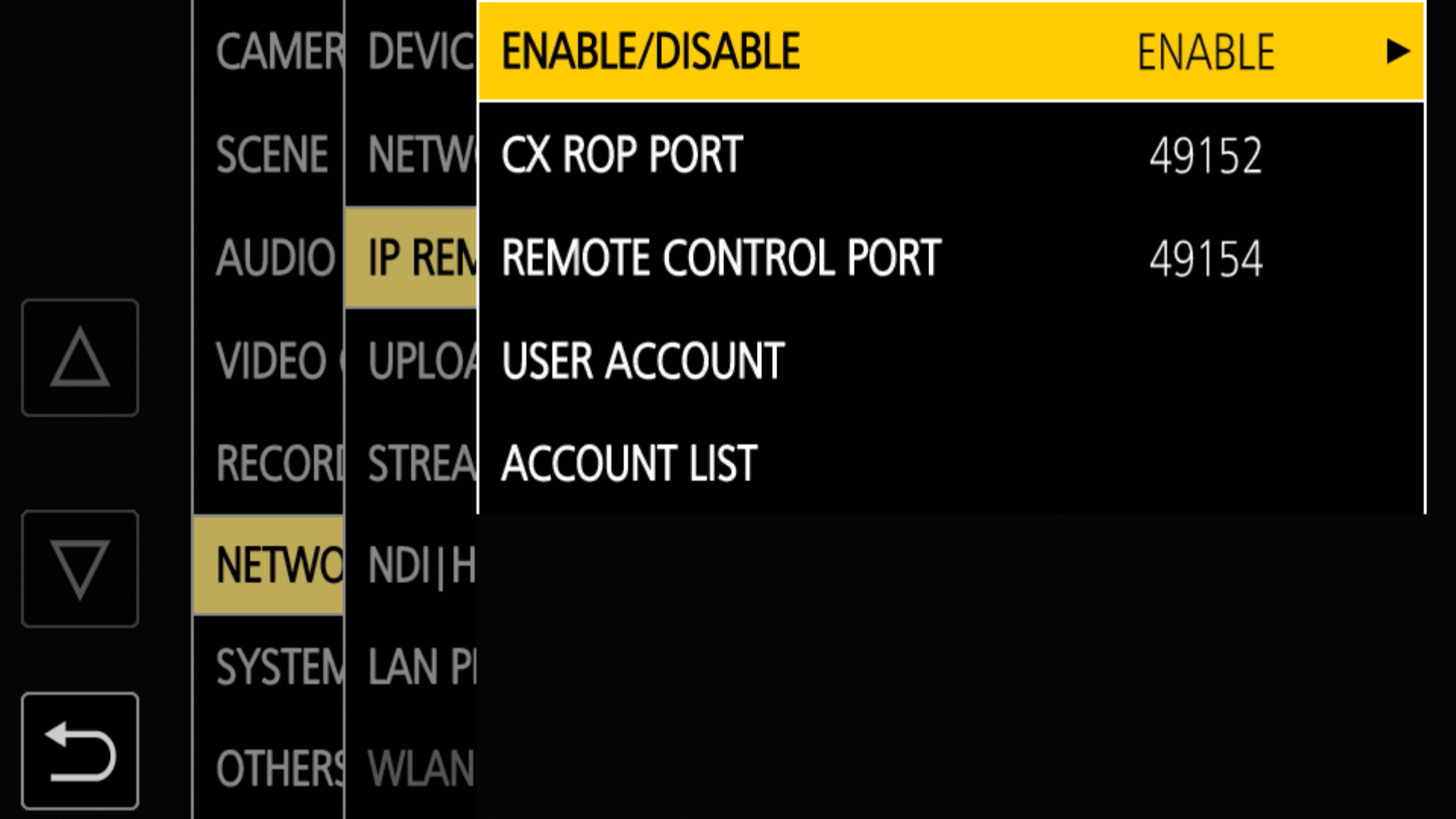
Remote Control Enable
In NETWORK > IP REMOTE, set IP Remote to ENABLE:
Authentication
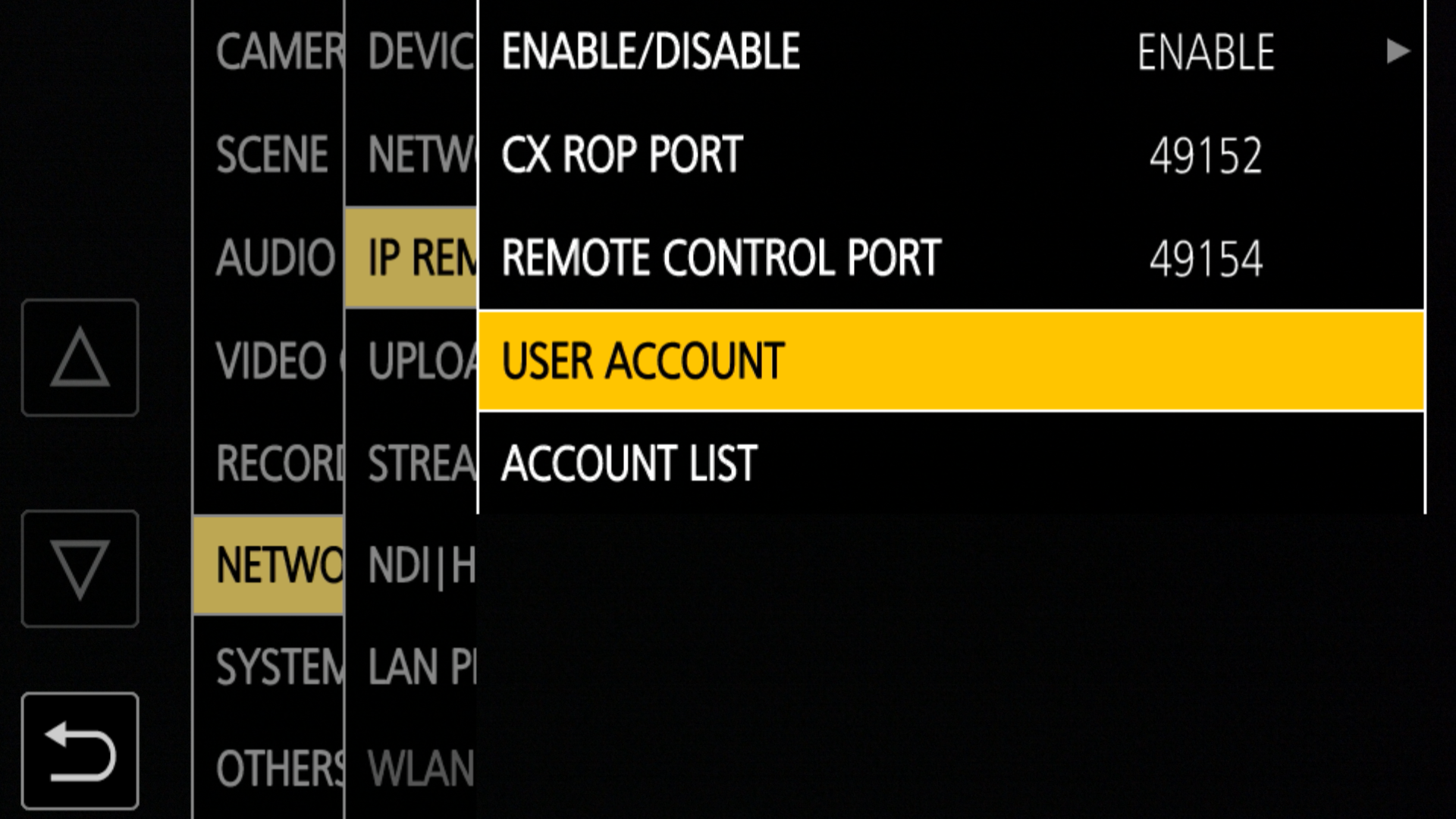
In NETWORK > IP REMOTE, set up a user account:
- If no account exists in
ACCOUNT LIST, create one inUSER ACCOUNT. - Note the login and password — these will be entered in the RCP.
RCP Configuration
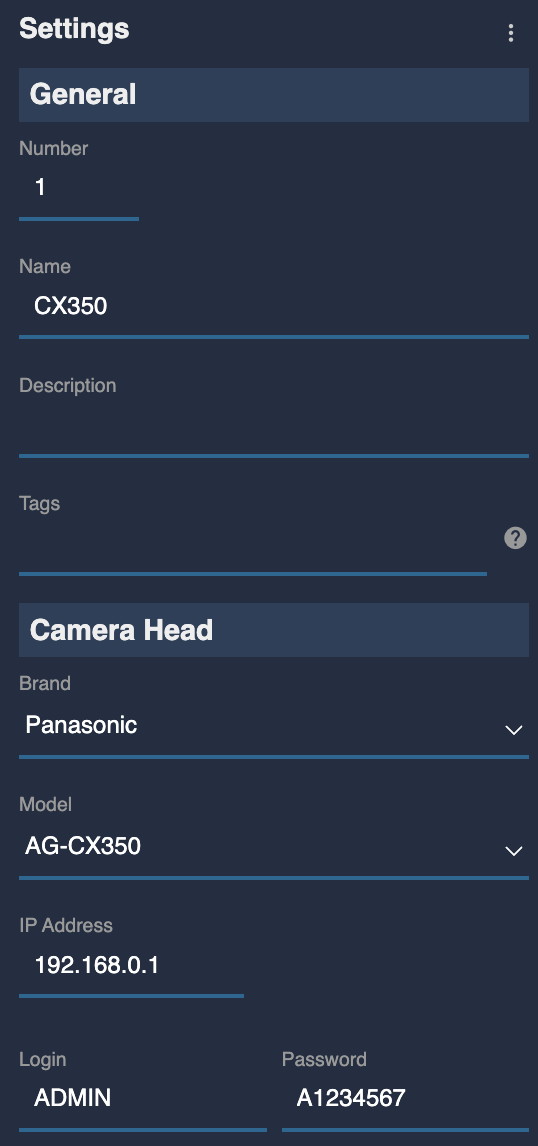
Add the camera as an IP camera.
Camera-specific settings:
- Select brand Panasonic and model AG-CX350.
- Enter the camera IP address.
- Enter the login and password from the account created in
USER ACCOUNTon the camera.
Troubleshooting
Camera icon stays RED / camera not detected
Check in this order:
- Verify camera settings — confirm
IP REMOTEis set toENABLE, the IP address is correctly configured, and the user account credentials match what was entered in the RCP (see Camera Configuration). A firmware update often resets these settings. - Ping the camera from a computer — set the computer to the same IP range and ping the camera IP to confirm basic network connectivity.
- Ping the RCP from the same computer — confirms the RCP and camera are on the same subnet.
- Check the RCP IP address — the RCP must have an IP in the same range as the camera; follow this guide.
- Power cycle — restart the camera and retry.
- Check the cable — try a different Ethernet cable or switch port.
- Re-check credentials — re-enter the login and password in the RCP, making sure they match the
USER ACCOUNTon the camera exactly.
A specific parameter is not controllable
- Confirm the camera is set to the correct OETF/color space — some controls (e.g. gamma, knee) may be disabled by the camera when specific OETFs are active (e.g. FILMLIKE modes).
- Verify the camera firmware is up-to-date (see Compatibility Requirements).
- The Variable ND cannot be recalled from scene files — this is a protocol limitation (see Known Limitations).
Camera firmware update broke control
Firmware updates on the AG-CX350 often reset network and remote control settings. After an update:
- Re-enable
IP REMOTEinNETWORK > IP REMOTE. - Verify the IP address configuration in
NETWORK > LAN PROPERTY. - Re-create the user account in
NETWORK > IP REMOTE > USER ACCOUNTif it was cleared.
As a general rule: do not update camera firmware during a live production. Test first in a controlled environment.