Panasonic Lumix BGH1 / BS1H
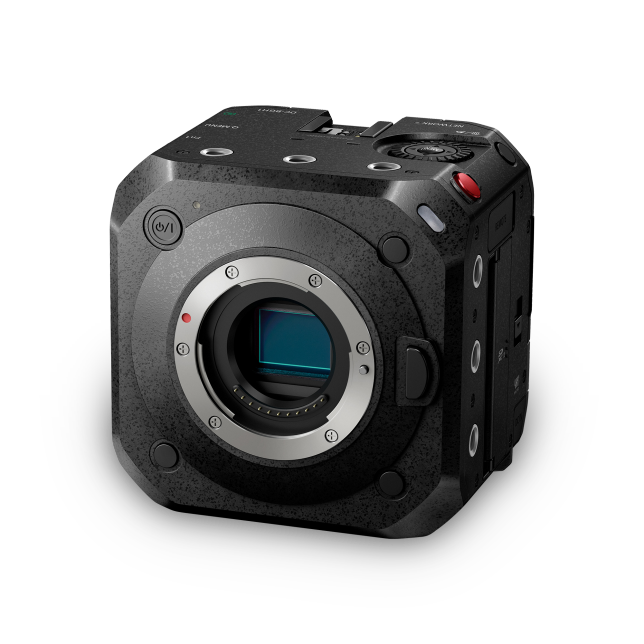
The Panasonic Lumix BGH1 and BS1H are box cameras controlled over IP via their built-in LAN port. They connect to the Cyanview RCP over a standard Ethernet network, and both models share the same control protocol and RCP configuration. Typical use cases include multi-camera productions and remote production workflows.
Supported Models
Both models use the same protocol and RCP model selection (DC-BGH1).
- DC-BGH1
- BS1H
Supported Controls
| Control | Notes | BS1H | BGH1 |
|---|---|---|---|
| Iris | Manual and Auto | ✔ | ✔ |
| Gain | ✔ | ✔ | |
| Shutter | ✔ | ✔ | |
| Auto Exposure / Manual | ✔ | ✔ | |
| White Balance | R/B and Color temperature | ✔ | ✔ |
| ATW / AWB / Manual | ✔ | ✔ | |
| Master Black | ✔ | — | |
| Menu Navigation | ✔ | — | |
| Record / Stop | ✔ | ✔ | |
| Autofocus / Manual Focus | See Known Limitations | ✔ | ✔ |
| Tally | — | — | — |
Known Limitations
- Manual focus shows no values but can be controlled by turning the focus encoder. Focus is controlled by sending steps in one direction or the other — no absolute value is available from the protocol, so the RCP cannot display a position. This means focus control is only suitable for static positions. It cannot be used for dynamic focus on drones or Polecams. An external motor such as Tilta can be used for dynamic focus and zoom control of photo lenses.
Connection
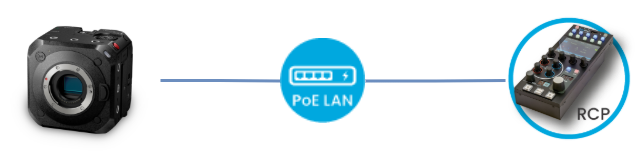
The camera is controlled over IP via its LAN port. Connect the LAN port to a PoE+ switch (for PoE+ power delivery) or a regular switch when the camera is powered through its AC adapter.
Configuration
Camera Configuration
Pairing and Password Reset
The camera can only be paired with one controller at a time — either the LUMIXTether software or a Cyanview RCP. It cannot be controlled by both without resetting the camera settings in between.
- Once paired with an RCP, any other RCP can be used as they share the same identity.
- LUMIXTether will not work after RCP pairing, even with the correct password — another camera reset is required to switch back.
To prepare the camera for RCP control:
-
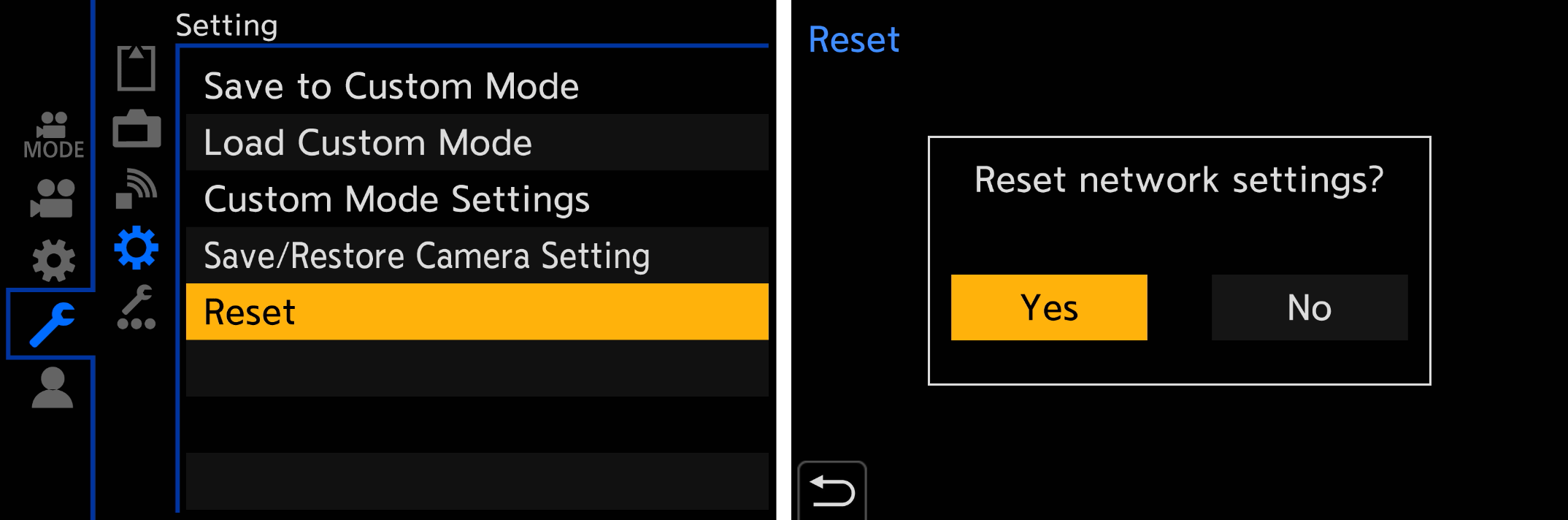
Reset the camera network settings to remove the current password:
-
Configure the camera IP address — set either DHCP client or a static IP. Refer to the Panasonic manual for details.
RCP Configuration
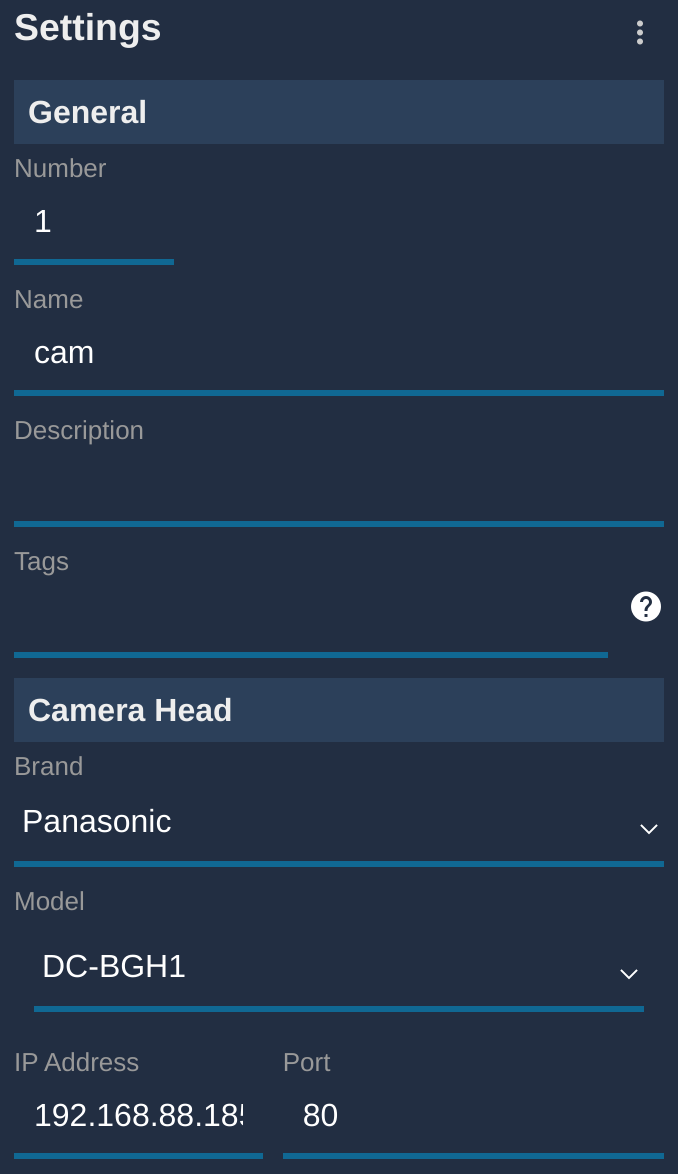
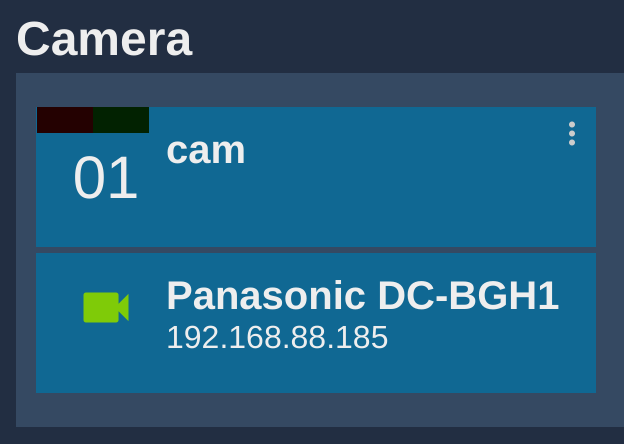
Add the camera as an IP camera.
Camera-specific settings:
- Select brand Panasonic and model DC-BGH1 (used for both BGH1 and BS1H).
- Leave the login and password fields empty — the RCP will automatically assign the password abcDE12345. This password cannot be used with any other application.
Troubleshooting
Camera icon stays RED / camera not detected
Check in this order:
- Verify camera network settings — confirm the camera has a valid IP address and the network settings were not reset (a camera network reset is required before pairing; see Camera Configuration).
- Leave credentials blank in the RCP — do not enter a password; the RCP assigns its own (see RCP Configuration).
- Ping the camera from a computer — set the computer to the same IP range and ping the camera IP to confirm basic network connectivity.
- Ping the RCP from the same computer — confirms the RCP and camera are on the same subnet.
- Check the RCP IP address — the RCP must have an IP in the same range as the camera; follow this guide.
- Power cycle — restart the camera and retry.
- Check the Ethernet cable — try a different cable or switch port.
Manual focus shows no value on the RCP
This is expected behavior — see Known Limitations. The protocol does not provide absolute focus position data. Use the focus encoder to send relative steps.
LUMIXTether stopped working after connecting to the RCP
Pairing with the RCP replaces the LUMIXTether pairing. To restore LUMIXTether access, reset the camera network settings and re-pair with the software. Note that this will break the RCP connection until the camera is reset and re-paired again.