Panasonic PTZ Integration
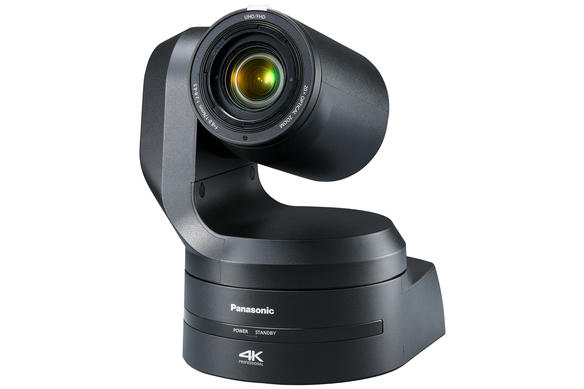
Panasonic AW-HE and AW-UE series are broadcast PTZ cameras controlled over IP. They connect to the Cyanview RCP or RIO via a standard Ethernet connection. Typical use cases include multi-camera studio productions, live events, and remote PTZ shading.
Supported Models
AW-HE series:
- AW-HE40
- AW-HE42
- AW-HE50
- AW-HE60
- AW-HE70
- AW-HE120
- AW-HE130
AW-UE series:
- AW-UE70
- AW-UE100
- AW-UE150
- AW-UE160
AW-HR/UR series:
- AW-UR100 — select AW-UE100 in the RCP instead
- AW-HR140 — select AW-HE130 in the RCP instead
If you are looking for a new model not yet listed, you can try selecting a similar model, as the most important commands are typically the same.
- AW-UE20
- AW-UE4
These models use ProAV-style controls such as brightness and contrast instead of traditional broadcast parameters like black level and gain, which are not currently supported.
Supported Controls
| Control | Notes | ✔ |
|---|---|---|
| Iris | ✔ | |
| Gain | ✔ | |
| Shutter | ✔ | |
| ND Filter | ✔ | |
| White Balance | R, G, B gains, Color Temperature | ✔ |
| Black Balance | R, G, B, Master | ✔ |
| Matrix | Only User mode allows manual matrix parameters or multi-matrix. Matrix is automatically changed from Normal/EBU/NTSC to User when Multi-Matrix or User Matrix is activated. | ✔ |
| Multi-Matrix | ✔ | |
| Knee | ✔ | |
| White Clip | ✔ | |
| Detail | ✔ | |
| Denoise | ✔ | |
| Tally | Red and Green | ✔ |
| Menu / OSD | Camera menu control | ✔ |
| PTZ | Pan, Tilt, Zoom, Focus | ✔ |
Connection
Panasonic PTZ cameras connect over IP/Ethernet. Connect your RCP or RIO to the same network as the camera using a standard Ethernet cable to the camera's RJ45 port.
Configuration
Camera Configuration
Network / IP Settings
Ensure the camera has a valid IP address on the same subnet as the RCP. Consult the camera's network settings menu to assign a static IP if needed.
Preset Scope
Panasonic PTZ cameras include a Preset Scope setting that defines which camera parameters are recalled when a preset position is loaded.
If the camera unexpectedly changes paint settings when recalling a position, such as white balance or gain, the issue is usually caused by the Preset Scope mode on the camera.
Set Preset Scope to Mode C to recall only the movement-related parameters:
- Pan
- Tilt
- Zoom, including digital zoom
- Focus
With Mode C, recalling a preset position will not recall paint settings such as iris, gain, or white balance.
| Mode | Parameters recalled by presets |
|---|---|
| Mode A | Pan, Tilt, Zoom including digital zoom, Focus, Iris, Gain, White balance adjustment value |
| Mode B | Pan, Tilt, Zoom including digital zoom, Focus, Iris |
| Mode C | Pan, Tilt, Zoom including digital zoom, Focus |
For Cyanview control, we recommend setting Preset Scope to Mode C.
This prevents camera movement presets from restoring paint settings that should remain under operator control.
RCP Configuration
Add the camera as an IP camera. Use brand Panasonic and the appropriate model from the list above, then enter the camera's IP address.
Avoid configuring multiple RCPs to control the same camera. If you need to control the same camera from multiple RCPs, configure the camera on one RCP and use REMI mode to control the camera from other devices. This minimises the number of connections to a camera, which can slow down camera operations, especially on older models like the AW-HE120.
Workflow
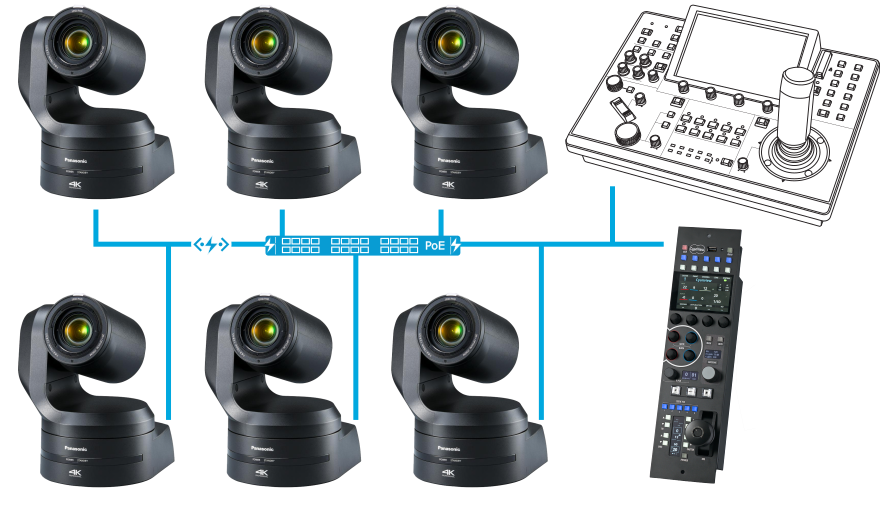
A typical setup involves multiple cameras controlled by a single RCP on an IP network. All Panasonic PTZ cameras accept multiple connections simultaneously, so the RCP can be used at the same time as the Panasonic PTZ controller panel.
Troubleshooting
Camera icon stays RED / camera not detected
Check in this order:
- Verify the camera IP address — confirm the camera has a valid static IP and that you entered the correct IP in the RCP.
- Verify network connectivity — ping the camera from a computer on the same subnet to confirm basic network reachability.
- Check the RCP IP — the RCP must have an IP address in the same range as the camera. Follow this guide if needed.
- Power cycle — restart the camera and retry.
- Check for unsupported model — confirm the model is not in the unsupported list (AW-UE20, AW-UE4) above.
A specific parameter is not controllable
- Check that the Matrix mode is set to User — manual matrix and multi-matrix parameters are only available in User mode.
- Confirm the camera and RCP/RIO are both on the latest firmware version.
RCP changes camera paint settings on its own
This is usually caused by the Preset Scope mode on the camera, which recalls paint settings such as white balance or gain together with movement positions. See Preset Scope for the recommended setting.
Tally not working
- Confirm the camera is reachable over IP (camera icon must be green).
- Red and Green tally are supported; verify the tally source is correctly configured on the RCP.