Canon R5 Mirrorless
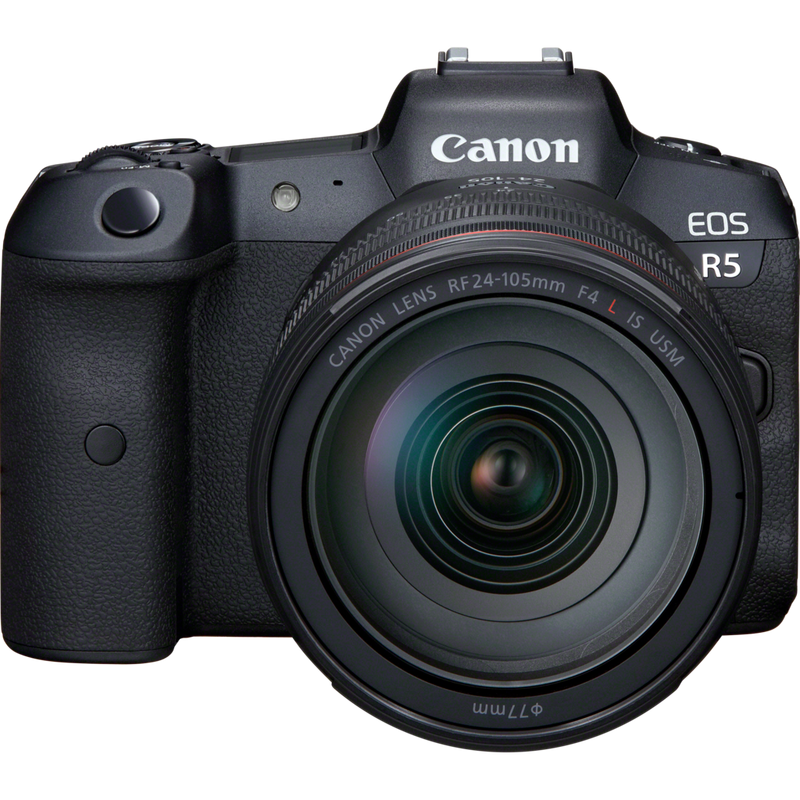
The Canon R5 is a full-frame mirrorless camera controlled over USB. It connects directly to a Cyanview RCP or RIO/NIO via a USB-A to USB-C cable. Typical use cases include studio shading, testing environments, and remote production setups where the camera is physically close to or networked with the control unit.
Supported Models
- Canon R5 — full support via USB
The R5-C is not suitable for video applications via USB. Unlike the R5, it features a new video processing pipeline that differs from picture mode and cannot be controlled via a USB connection. As a result, the R5-C can only be managed in picture mode, making it non-practical for video use.
Supported Controls
| Control | Notes | R5 |
|---|---|---|
| Iris | Manual | ✔ |
| ISO / Gain | ✔ | |
| Shutter | ✔ | |
| White Balance | R/B and color temperature | ✔ |
| Record | — | |
| Tally | — | |
| Menu / OSD | — | |
| Lens | Zoom, Focus | — |
Connection
The Canon R5 connects over USB:
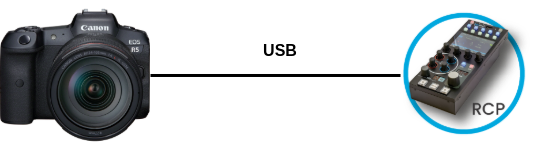
- USB (RCP): Plug into any USB-A port on the back of the RCP (not the top port — use the one next to the RJ45). Use for testing or when the camera and RCP are in close proximity.
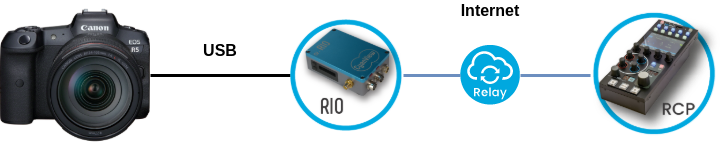
- USB (RIO/NIO): Plug into any USB-A port on the RIO/NIO. This is recommended for all other cases, as it allows remote control over IP from anywhere.
You will need a USB-A (RCP/RIO/NIO) to USB-C (camera) cable.
RCP
RIO/NIO
Configuration
Camera Configuration
No special on-camera settings are required. Connect the USB cable between the camera and the RCP or RIO/NIO.
RCP Configuration
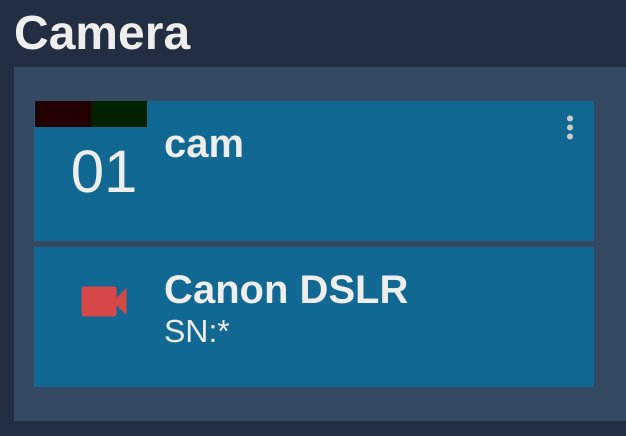
This is an IP/USB camera — follow the RCP Configuration guide to add it to the RCP. Select brand Canon and model DSLR.
Your settings should look like:
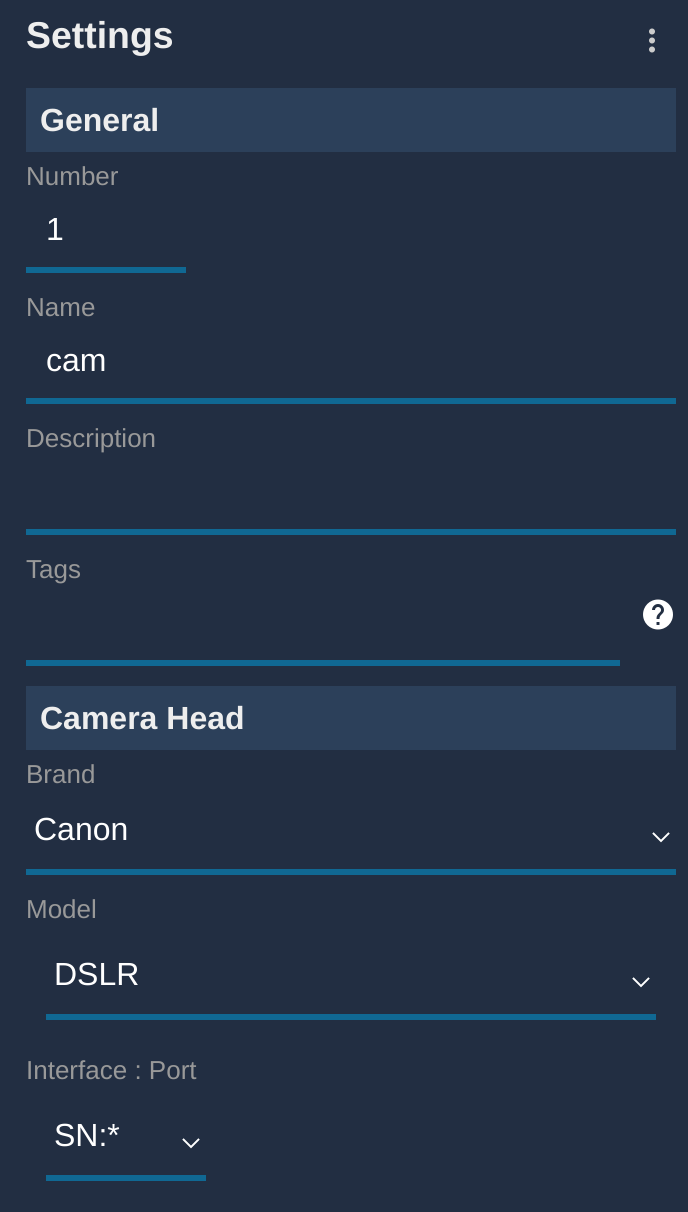
The Interface field should show SN:*, meaning the RCP will automatically connect to the first camera plugged in via USB.
Once correctly connected, the camera block turns green:
Troubleshooting
Camera icon stays RED / camera not detected
Check in this order:
- Verify the USB connection — ensure the cable is fully seated in both the camera USB-C port and the RCP/RIO USB-A port. Try a different port on the RCP/RIO if available.
- Use the correct USB port on the RCP — on the RCP, use the USB-A port on the back next to the RJ45, not the top port.
- Check the model selection — confirm brand is set to Canon and model is set to DSLR in the RCP configuration.
- Try a different USB cable — a data-capable USB-A to USB-C cable is required (not a charge-only cable).
- Power cycle — restart the camera and retry.
A specific parameter is not controllable
- Confirm the camera is in a compatible shooting mode.
- The R5 over USB provides exposure and white balance control only; other parameters are not accessible via this protocol.